
Lenovo IdeaPad Slim 3 Linux Laptop
4.3Editor score
Preinstalled Ubuntu Linux
Ryzen 7 eight-core processor
16GB memory and touchscreen
Laptops for Linux should combine dependable hardware support with enough processing power, memory, and storage for the software you actually use. The right configuration depends on whether you are browsing and coding, running virtual machines, editing media, or maintaining a portable development environment. Preinstalled Linux support can simplify setup, but display, wireless, and peripheral compatibility still matter.
This guide compares ten laptops using their stated processors, memory, storage, displays, operating systems, connectivity, and included accessories. Particular attention is paid to products already configured with Ubuntu, Linux Mint, or vanilla Linux, while selected Windows-based models are included as hardware options that may require a Linux installation and compatibility check.
Each review explains who the machine suits, what stands out, and where its compromises may affect you. The top selections cover mainstream Ubuntu use, a business-focused Linux Mint configuration, and a high-end development workstation. Product configurations and availability can change, so readers should verify current specifications, Linux compatibility, and pricing before purchasing.
4.3Editor score

4.6Editor score
5.0Editor score
As an Amazon Associate we earn from qualifying purchases.
The comparison highlights each system's stated Linux configuration, processor, memory, display, and major strengths, from practical Ubuntu and Linux Mint systems to compact models and powerful hardware for advanced workloads.




The Lenovo IdeaPad Slim 3 Linux Laptop stands out as a balanced, approachable Linux machine because Ubuntu is already installed around capable everyday hardware. Its 4.3 rating reflects a generally positive user reception, while the Ryzen 7 5825U, 16GB of memory, and 512GB SSD provide a useful foundation for browsing, office work, coding, and multitasking.
We may earn a commission when you buy through this link, at no additional cost to you.
The eight-core Ryzen processor can reach 4.5 GHz and offers 16 threads, making it well suited to running several applications at once. Integrated Radeon graphics should handle streaming and casual graphics tasks without competing with the much stronger dedicated options in this guide. The 15.6-inch Full HD touchscreen has an 88% screen-to-body ratio and TÜV Low Blue Light certification.
Its main limitations are the reliance on integrated graphics and a relatively modest 512GB drive. Heavy Linux users may want additional storage, while demanding 3D applications are better served by a machine with dedicated graphics. The included stylus pen, 256GB portable SSD, and 5-in-1 docking station nevertheless make the package unusually practical for a Linux newcomer.
This is an excellent choice for someone who wants Linux ready to use without navigating installation, partitioning, or driver setup. The combination of Ubuntu, abundant memory, a capable processor, and a large display makes it suitable for students, home-office users, and everyday developers. For buyers who want the same broad platform with more internal storage, the 1TB variant is an alternative.
Ubuntu is preinstalled, so the most important software compatibility work is already handled. The configuration also includes a webcam privacy shutter and a useful mix of USB-A, USB-C, HDMI, card-reader, and audio connections.
The combination of eight processor cores, 16 threads, and 16GB of RAM gives applications ample room to operate concurrently. It is a sensible platform for a browser with many tabs, an office suite, a terminal, and an IDE running together.
We may earn a commission when you buy through this link, at no additional cost to you.
The Lenovo Business Laptop with Linux Mint Cinnamon is an especially well-rounded selection, earning a 4.6 rating in the supplied data. It combines a current Intel Core i5-1335U processor, 16GB of DDR4 memory, and a 15.6-inch Full HD anti-glare display in a design oriented toward productive office work.
We may earn a commission when you buy through this link, at no additional cost to you.
Linux Mint 64-bit with the Cinnamon desktop is already installed, giving buyers a familiar interface and a ready-to-use Linux environment. The processor has 12 threads, 12MB of cache, and boost speeds up to 4.6 GHz, providing responsive performance for business applications, research, communication, and light development.
Connectivity is well organized for work: two USB 3.0 ports, a USB 3.1 Type-C port, HDMI, a 4-in-1 card reader, a combined audio connection, and a Kensington Mini-Lock slot. The 720p webcam has a privacy shutter, while the full keyboard includes a numeric keypad for spreadsheets, data entry, and shortcuts.
The primary compromise is the 256GB SSD, which may fill quickly after installing Linux, applications, and personal files. An upgrade or secondary drive is sensible for a long-term setup. Even so, this model is ideal for office-focused Linux users who value a mature desktop, strong rating, practical keyboard, and fast charging more than gaming graphics.
Linux Mint Cinnamon offers an approachable graphical desktop backed by a flexible Linux ecosystem. Preinstallation is particularly helpful for users who want a stable working environment without first creating installation media.
The mix of legacy USB-A, modern USB-C, HDMI, card-reader, and security features covers common office accessories. Fast charging also helps when moving between meetings, classrooms, or home and office locations.
We may earn a commission when you buy through this link, at no additional cost to you.
This IdeaPad Slim 3 configuration is the storage-oriented alternative to the 512GB version, carrying a 4.0 rating. Its distinguishing feature is a 1TB SSD, paired with the same Ryzen 7 5825U processor and 16GB of memory. It is a natural fit for Linux users who maintain large application libraries, development repositories, media collections, or virtual machine images.
We may earn a commission when you buy through this link, at no additional cost to you.
Ubuntu is preinstalled, removing the initial setup barrier, and the touchscreen provides flexibility for navigation, drawing, and presentation work. The processor's eight cores and 16 threads support multitasking, while integrated Radeon graphics cover streaming, browsing, photo editing, and casual gaming rather than demanding 3D workloads.
A 1TB drive is not unlimited, but it offers substantially more internal room than many business laptops. The package also includes a 256GB portable SSD and 5-in-1 docking station, which helps separate active projects, backups, and media from the system drive. Connectivity includes two USB-A ports, USB-C, HDMI, an SD card reader, and a headphone and microphone combination.
This model makes the most sense for a Linux user who values capacity and convenience over dedicated graphics. Its rating is not the highest in the group, but the stated specification is compelling for developers and content creators who regularly handle sizable files. Confirm the available partition layout and included accessories before ordering.
A 1TB SSD leaves more room for containers, package caches, projects, and media without immediately requiring an internal upgrade. The additional portable SSD creates a convenient way to keep system files and active data separate.
The preinstalled Ubuntu configuration brings a familiar, customizable desktop to a large Full HD touchscreen. This is useful for users who prefer direct on-screen interaction alongside conventional keyboard and pointer input.
We may earn a commission when you buy through this link, at no additional cost to you.
The HP 17 Business Laptop stands out for its combination of 32GB of memory and two 1TB storage devices. It carries a 4.4 rating and comes with 64-bit Linux Mint Cinnamon, making it an attractive choice for users who want substantial memory and storage without having to assemble a custom configuration.
We may earn a commission when you buy through this link, at no additional cost to you.
Its Intel Core i5-10210U is a familiar four-core processor capable of reaching 4.2GHz. Although it is an older platform than several newer systems in this guide, the generous RAM allows comfortable use of browsers, office applications, terminals, and multiple lightweight virtual environments as long as demanding workloads are not expected.
Storage is the major attraction. A 1TB PCIe NVMe SSD provides fast system and application response, while a separate 1TB hard drive offers abundant room for archives, media, backups, and virtual machine files. The 17.3-inch HD+ panel has a 1600-by-900 resolution, which feels less sharp than Full HD alternatives.
Choose this laptop if Linux Mint, abundant RAM, and large local storage matter more than the newest processor or highest display resolution. It may suit home labs, students, and casual developers. Linux users planning intensive compilation, sustained rendering, or modern high-end gaming should look toward one of the newer Ryzen or Core Ultra systems.
Separating the fast NVMe drive from the hard drive gives users a practical way to keep the operating system responsive while retaining inexpensive capacity for backups and large archives.
With 32GB of DDR4 memory, the system is well positioned for heavy multitasking and memory-intensive development tools. This headroom is particularly useful when several browsers, editors, and services remain open throughout the day.
We may earn a commission when you buy through this link, at no additional cost to you.
The short Lenovo IdeaPad Slim 3 Linux title points to a straightforward Ubuntu laptop centered on a Ryzen 7 5825U and a 15.6-inch Full HD touchscreen. No numeric customer rating was supplied, so there is not enough review information to assess broad user satisfaction in the same way as the rated models.
We may earn a commission when you buy through this link, at no additional cost to you.
The described processor has eight cores and 16 threads, with boost speeds up to 4.5GHz. That is ample for browser-heavy productivity, coding, office work, and media consumption. Integrated Radeon graphics make the system more appropriate for general graphics and casual gaming than demanding GPU-accelerated applications.
The display uses an 88% screen-to-body ratio and carries TÜV Low Blue Light certification, useful for extended work sessions. Connectivity includes two USB-A ports, one USB-C port, HDMI, an SD card reader, and a combined headphone and microphone connection. A webcam privacy shutter adds a small but welcome security feature.
This listing suits buyers who want a straightforward Ubuntu system and recognize the core IdeaPad platform. Its shortened specification makes comparison more difficult, so buyers should confirm the exact memory, storage, and included accessories. The lack of a published rating and incomplete memory information are the main reasons it does not lead the roundup.
A preinstalled Ubuntu system provides an immediate path to a customizable desktop and open-source application ecosystem. It is a practical choice for users who prioritize Linux readiness over premium construction.
The 15.6-inch Full HD touchscreen provides a generous workspace with direct touch interaction. It also supports the IdeaPad Slim 3 emphasis on portability and a slimmer profile than the preceding generation.
We may earn a commission when you buy through this link, at no additional cost to you.
The HP 14 N150 is the most compact and portable conventional laptop in the guide, weighing 3.24 pounds and measuring 0.71 inches thick. Its 4.5 rating is strong, but it ships with Windows 11 and Microsoft 365 rather than Linux, so it should be considered a hardware option for buyers willing to install a Linux distribution.
We may earn a commission when you buy through this link, at no additional cost to you.
The Intel N150 has four cores and four threads and can boost to 4.4GHz. It can handle web browsing, documentation, communication, and lightweight productivity tasks, but 4GB of DDR5 memory and 128GB of storage are restrictive for development, virtual machines, large application suites, and extensive local media libraries.
Its 14-inch non-touch display has 250 nits of brightness and an anti-glare coating, which helps in bright surroundings. USB 3.0 Type-C, USB 3.0 Type-A, HDMI, and a headphone and microphone jack cover the essential connection needs, while Wi-Fi and Bluetooth support wireless accessories.
This is a sensible Linux option for a student, traveler, or light office user who values mobility more than expandability. Before installation, check the N150 platform's wireless and graphics driver support. For serious Linux development, choose a system with more memory, storage, and processing capability.
The slim chassis and low stated weight make the HP 14 convenient to carry between classes, offices, and travel destinations. Its display also remains modest in physical size while offering a practical 16:9-style workspace.
The N150 and 4GB memory configuration is best matched to a lightweight Linux desktop focused on browsing, documents, email, and simple applications. Heavy package builds and multiple virtual machines would quickly strain the available resources.
We may earn a commission when you buy through this link, at no additional cost to you.
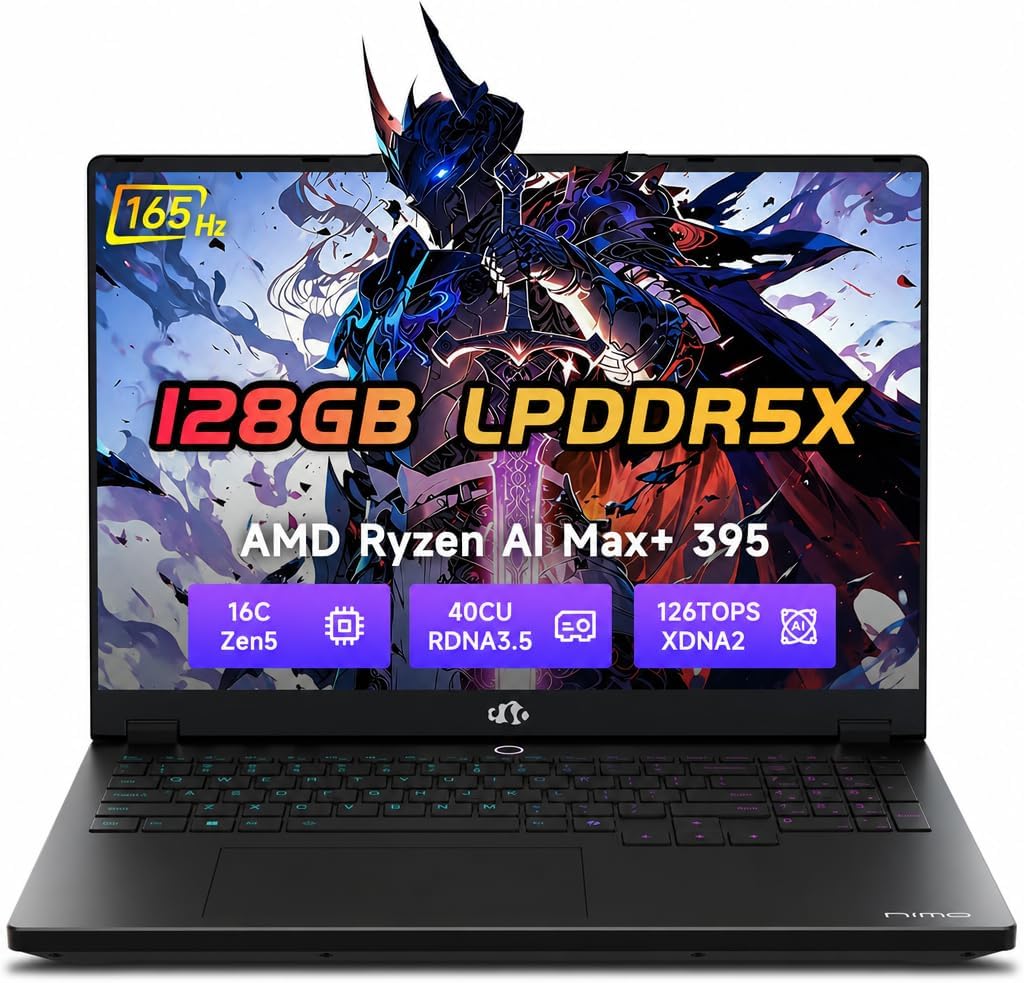
The NIMO 16 Linux AI Laptop is the specialist choice in this roundup, pairing preinstalled Linux with the AMD Ryzen Max+ 395, 128GB of LPDDR5X memory, and Radeon 8060S graphics. Its 5.0 rating is the highest listed, and the specification is aimed at developers, AI users, creators, and technical professionals.
We may earn a commission when you buy through this link, at no additional cost to you.
The processor contributes 16 cores with boost speeds up to 5.1GHz and 126 TOPS of stated compute. Its integrated Radeon 8060S has 40 RDNA 3.5 compute units, positioning the machine for 4K playback, Blender, Unreal Engine, and other graphics-intensive Linux workloads without relying on a separate desktop.
Memory bandwidth of 8000MT/s across a 256-bit bus supports demanding container, virtual machine, and compilation environments. The 16:10 QHD+ panel reaches 500 nits, covers 100% of sRGB, and refreshes at 165Hz. A 99Wh battery, dual USB4 ports, HDMI 2.1, and a triple-fan cooling system reinforce its workstation positioning.
This is the most advanced option for a buyer whose work justifies specialized hardware. The 128GB memory is particularly valuable for local AI models, large datasets, and isolated development environments. Those who only need browsing and office applications will find the same capabilities excessive, but professionals seeking a Linux-first portable workstation have an unusually capable option.
The 128GB memory configuration can accommodate numerous Docker containers, virtual machines, large IDE projects, and local AI workflows. Its high-bandwidth memory also reduces bottlenecks when working with unusually large datasets.
Radeon 8060S graphics and a 165Hz QHD+ display create a capable Linux environment for 3D work, high-resolution media, and detailed color-sensitive tasks. The 100% sRGB claim and 500-nit brightness further benefit visual production.
We may earn a commission when you buy through this link, at no additional cost to you.
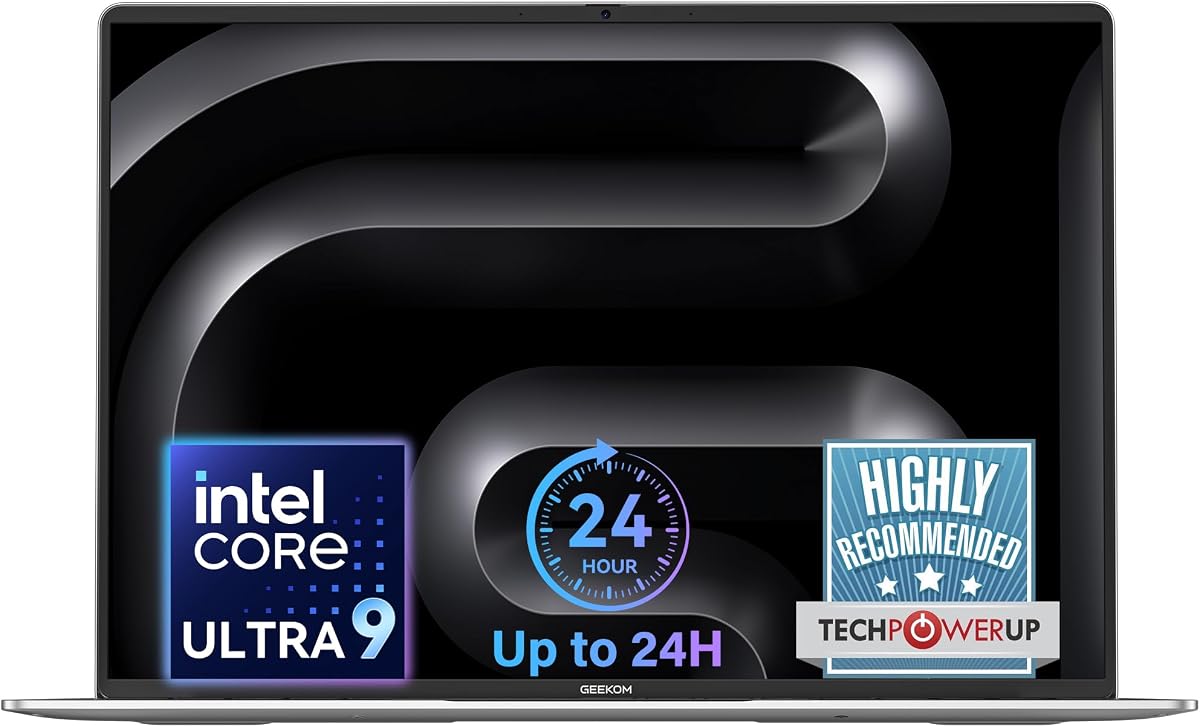
The GEEKOM GeekBook M16 is a sophisticated hardware option for users considering Linux, although its stated operating system is Windows 11. It earns a 4.3 rating and pairs an Intel Core Ultra 9 185H with 16GB of LPDDR5 memory, a 512GB PCIe Gen4 SSD, and a 16-inch 16:10 IPS display.
We may earn a commission when you buy through this link, at no additional cost to you.
Its standout feature is sustained performance on battery power. GEEKOM states that the system can maintain up to 55W, with selectable Silent, Balanced, and Performance modes. The large 99.9Wh battery is claimed to deliver up to 24 hours depending on use, and the included 100W PD charger supports rapid recharging.
The display offers a 90% screen-to-body ratio, while USB4 with DisplayPort 2.1, HDMI 2.0, and additional USB ports support up to three external displays. A bundled 5-in-1 dock adds two USB-A ports, one USB-C, HDMI, and LAN. Fingerprint recognition, a 180-degree hinge, and a numeric keypad add everyday convenience.
For Linux, this model may appeal to buyers seeking modern hardware, efficient power management, and strong connectivity, but installation and driver verification are necessary. The 16GB memory and 512GB drive are also modest beside premium alternatives. It is best for users who value a flexible desktop-class experience over a preinstalled Linux workflow.
Sustaining as much as 55W on battery power distinguishes the M16 from systems that reduce performance heavily when disconnected. That makes it appealing for mobile development, rendering, and processing tasks away from an outlet.
USB4, HDMI 2.0, multiple USB connections, and the included docking station create a flexible workstation. Support for multiple external displays can be especially useful for programmers working across code, documentation, and terminal windows.
We may earn a commission when you buy through this link, at no additional cost to you.
The HP 17 Ryzen 5 offers a larger Full HD display and familiar AMD hardware that may appeal to Linux buyers comfortable installing their own operating system. It carries a 4.2 rating and ships with Windows 11, so it belongs in the guide as a potential Linux conversion rather than a ready-to-use Linux machine.
We may earn a commission when you buy through this link, at no additional cost to you.
The Ryzen 5 7430U includes six cores and 12 threads and can boost to 4.3GHz. Paired with 16GB of memory, it is a solid fit for browsing, office productivity, programming, and ordinary Linux multitasking. The 512GB SSD should provide sufficient room for a base installation, though it may need expansion as projects accumulate.
Its 17.3-inch IPS Full HD display offers 300 nits and an anti-glare coating, giving it an advantage over lower-resolution HD+ models. USB Type-C, USB Type-A, HDMI, an AC connector, and a combined audio jack cover core needs, while Wi-Fi 6 and Bluetooth 5.4 provide modern wireless support.
This laptop makes sense when a large, sharp screen and Ryzen platform are priorities and the buyer wants to install Ubuntu, Linux Mint, or another distribution. Verify that the specific Wi-Fi adapter is supported by the chosen Linux release. The 17.3-inch footprint also means it is less portable than the HP 14, despite sharing the HP brand.
The Full HD IPS panel is more detailed than the HD+ display offered by the larger-storage HP 17 in this guide. Its anti-glare finish can also improve comfort when working under bright ambient light.
Six cores, 12 threads, and 16GB of memory support common development and productivity tasks well. It is a sensible starting point for users comfortable handling installation media and confirming hardware driver support.
We may earn a commission when you buy through this link, at no additional cost to you.
The Lenovo ThinkPad L14 Gen 5 is a business-oriented Linux notebook with a vanilla Linux system already installed. It uses an AMD Ryzen 5 PRO 7535U, 16GB of DDR5-5600 memory, 256GB of PCIe storage, and Radeon 660M graphics, making it an interesting option for organizations or experienced Linux users.
We may earn a commission when you buy through this link, at no additional cost to you.
The six-core, 12-thread processor can boost to 4.55GHz and includes 16MB of L3 cache. The 14-inch WUXGA IPS screen has a 1920-by-1200 resolution, a 16:10 aspect ratio, 300-nit brightness, and an anti-glare finish. A backlit keyboard, fingerprint reader, and business connectivity reinforce its productivity focus.
Ports are modern and varied: RJ45, a Kensington lock, USB4 Type-C, another USB-C connection, USB-A 2.0, two USB 3.2 Gen 1 ports, HDMI 2.1, and an audio jack. Qualcomm Wi-Fi 6E and Bluetooth 5.3 are listed, along with an EAT 7-in-1 expansion dock.
The unusual keyboard is the clearest caveat. The machine originally has a French keyboard, while the listing includes English stickers and application tools. Users who type extensively may find that less desirable than a natively localized layout. No customer rating is supplied, and the 256GB drive is small, but the preinstalled vanilla Linux environment and business hardware make this a noteworthy specialist choice.
A vanilla Linux system provides a relatively unopinionated starting point for technical users who want to shape the environment themselves. It may suit organizations standardizing on a particular package set and configuration process.
USB4, HDMI 2.1, wired Ethernet, and multiple USB connections create a practical office setup. The fingerprint reader and Kensington lock add security options that align well with managed business use.
We may earn a commission when you buy through this link, at no additional cost to you.
Choosing a Linux laptop involves balancing the operating system, processor, memory, storage, display, connectivity, and physical design. The most important starting point is deciding whether a ready-to-use distribution matters more than getting the latest hardware.
A laptop with Ubuntu, Linux Mint, or vanilla Linux avoids the main setup hurdles and provides evidence that the seller has configured the system for that environment. Linux Mint Cinnamon and Ubuntu are especially approachable for general users, while vanilla Linux offers more freedom for experienced administrators. Windows-based systems may provide newer processors or better displays, but buyers should investigate Wi-Fi, graphics, audio, sleep, and fingerprint support before replacing the original operating system.
Choose preinstalled Linux when convenience and reduced installation risk matter most. Choose a Windows system when it offers a clearly better hardware fit and you are comfortable testing drivers or maintaining installation media.
A modern processor with at least six cores is preferable for development, multitasking, and compiling. The Ryzen 7 5825U, Core i5-1335U, Ryzen Max+ 395, and Core Ultra 9 185H offer a meaningful performance range. Single-thread speed matters for interactive desktop tasks, while additional cores help with compilation, rendering, containers, and virtual machines. Integrated graphics can handle office work and media, but they are not substitutes for a dedicated GPU in demanding 3D or AI workloads.
Prioritize modern multi-core performance for development and sustained multitasking. Check graphics expectations separately if your work involves rendering, machine learning, or intensive gaming.
Memory determines how many applications can remain open without excessive swapping. For browsing, documentation, and office use, 8GB can work, but the available options make 16GB the sensible baseline for a laptop expected to last several years. Developers benefit from 16GB, while virtual machines, large builds, local models, and data-intensive applications may justify 32GB or more. LPDDR memory is efficient but may be soldered, so upgradeability should be checked before purchase.
Choose at least 16GB for general Linux productivity and prefer 32GB or more for development, containers, and virtualization. Treat non-upgradeable memory as a long-term commitment.
Linux installations, package caches, containers, repositories, and media can consume space quickly, making an NVMe SSD strongly preferable to a hard drive. A 512GB drive is a practical starting point, 1TB provides comfortable headroom, and smaller capacities are best supplemented with external storage. Systems with both NVMe and hard-drive storage offer useful separation between active applications and archives, although modern Linux systems benefit greatly from keeping frequently accessed data on solid-state storage.
Choose at least 512GB when possible, or budget for a larger drive or external storage. Keep operating systems, development projects, and active libraries on the fastest available drive.
A 14-inch display is easier to carry, while a 15.6-inch or 17.3-inch screen provides more room for terminal windows, documents, and media. Full HD at 1920-by-1080 is a useful baseline on smaller laptops, while WUXGA and QHD+ provide additional detail on larger or premium screens. Anti-glare finishes help in bright rooms, and touchscreens can benefit drawing, presentation, and navigation tasks. A 60Hz panel remains adequate for general work even when faster options appear elsewhere in the guide.
Match display size to mobility, and do not accept an HD+ resolution if fine text and multiple windows are central to your work. Consider brightness, anti-glare coating, and touch support as well.
Linux users often depend on external monitors, docking stations, wired networking, storage, and input devices. A useful configuration includes at least one USB-C port, multiple USB-A ports, HDMI, an audio jack, and a card reader. USB4 and DisplayPort support improve multi-monitor and high-bandwidth workflows, while RJ45 remains valuable in offices. Buyers should also verify whether a docking station is included, because it can materially improve desk ergonomics and reduce adapter clutter.
Check the exact port count and supported modes rather than relying on connector shape alone. Verify Wi-Fi, Bluetooth, fingerprint, audio, and card-reader support in the Linux distribution you intend to use.
Linux power management can be effective, but battery life depends heavily on the hardware, display brightness, workload, and power profile. A 99Wh or 99.9Wh battery is unusually substantial, while compact 14-inch laptops are easier to carry. Manufacturers may publish maximum battery estimates, but actual results vary. For frequent travel, weigh chassis weight, charger size, battery capacity, and whether you can work comfortably at a high-performance power level while disconnected.
Prioritize weight and battery capacity when traveling. For plugged-in work, sustained processor power and cooling may matter more than maximum unplugged runtime.
A business laptop should offer a comfortable keyboard, useful security controls, repairable or replaceable components where possible, and ports that suit the user's work environment. The ThinkPad L14 includes a backlit keyboard, fingerprint reader, security slot, and wired Ethernet, while the Lenovo business configuration adds a full numeric keypad. Some listings disclose that computers were resealed for memory or storage upgrades, which is useful information for warranty and condition assessment.
Look for security, serviceability, and input quality alongside raw specifications. Verify who provides the warranty and whether installation media or restoration support are included.
Begin by confirming that the operating system, processor, memory, and storage match the listing, then update the Linux installation and all bundled applications. Create a separate administrator or non-administrator account for daily work, enable the available system updates, and verify that Wi-Fi, Bluetooth, audio, graphics, webcam, sleep, and external displays work correctly. Create a recovery plan before changing partitions or installing additional software.
Use the Linux package manager and trusted repositories for routine application installation. Keep the home directory and important projects backed up, and maintain at least one recovery method that does not depend on the internal drive. If using an external drive or docking station, favor reliable USB or Thunderbolt-compatible connections and safely eject devices before moving the computer.
For cleaning, shut the system down and use a soft lint-free cloth on the screen and chassis. Avoid spraying liquid directly onto the display or keyboard, and keep liquids away from openings and connectors. Monitor storage health and battery charging behavior, update the firmware when offered, and use the documented power limits to reduce heat and preserve long-term battery condition.
Ubuntu is a strong starting point because of its broad hardware recognition, large community, and polished desktop. Linux Mint Cinnamon is also approachable and offers a familiar interface with useful control over updates and system behavior. Advanced users may prefer vanilla Linux for a clean, controlled installation. The best choice depends on driver support, desktop preference, and how much system management the buyer wants.
Usually, yes, but you may need to create bootable installation media and alter the boot configuration. Before installing, back up essential files and check support for Wi-Fi, graphics, audio, sleep, fingerprint recognition, and other functions used daily. Some vendor features may work less completely under Linux, and manufacturer recovery tools might be needed to return the system to Windows.
Sixteen gigabytes is a practical minimum for modern development because browsers, IDEs, containers, and language servers can consume considerable memory. Thirty-two gigabytes is preferable for multiple virtual machines, large projects, or data analysis. Light web and office use can work with less, while specialized workloads such as local AI models may require substantially more.
It is enough for the operating system and a moderate application library, but package caches, development repositories, containers, and media can fill it over time. A 1TB drive offers more comfortable headroom, while smaller systems benefit from external storage. If the internal drive is user-upgradeable, verify supported sizes and the correct installation procedure before ordering.
Both families can provide a good Linux experience, and the deciding factors usually include compatibility, power consumption, graphics performance, price, and available memory. AMD Ryzen systems in this guide range from a six-core business chip to the high-performance Ryzen Max+ 395. Intel systems offer a different balance through Core i5 and Core Ultra models. Check the specific wireless and graphics hardware regardless of processor brand.
Linux gaming has improved considerably, and many mainstream titles can run well through the compatibility layers available in modern distributions. Performance depends on the title, graphics driver, and hardware. The Ryzen 7 and Core Ultra systems here use integrated graphics suited more to casual gaming, while the NIMO's Radeon 8060S is positioned for substantially more demanding 3D workloads.
A touchscreen can be useful for drawing, presentations, tablet-like navigation, and certain kiosk applications. It is not essential for conventional development or office work, and compatibility should be checked if you rely on gestures. The IdeaPad configurations in this guide combine touchscreens with full keyboards, giving users the option without requiring touch as their primary input method.
Confirm the operating system, processor, installed memory, storage type, display resolution, port selection, and warranty coverage. If Linux is not preinstalled, check community or vendor guidance for wireless, graphics, audio, sleep, and biometric support. Also confirm whether keyboard localization, docking accessories, and storage expansion meet your needs.
The Lenovo IdeaPad Slim 3 Linux Laptop is the most approachable all-around choice because it combines Ubuntu, a Ryzen 7 processor, 16GB of memory, a Full HD touchscreen, and useful accessories. The Lenovo Business Laptop with Linux Mint earns the strongest established rating among the practical options, while the NIMO 16 delivers extraordinary memory, graphics, and display capability for professional workloads.
Prioritize the workload when choosing. General users should focus on a ready-installed distribution, 16GB of memory, SSD storage, and a comfortable display. Developers need adequate processor cores and memory, while creators or AI users may prioritize faster graphics, high-bandwidth memory, and major cooling capability. Business buyers should also consider warranty, security, networking, and keyboard layout.
Finally, verify the current configuration, compatibility, warranty, accessories, and price directly with the seller before purchasing. Hardware configurations and market availability can change, and the inclusions that make one listing especially useful may not be identical to another closely related model.