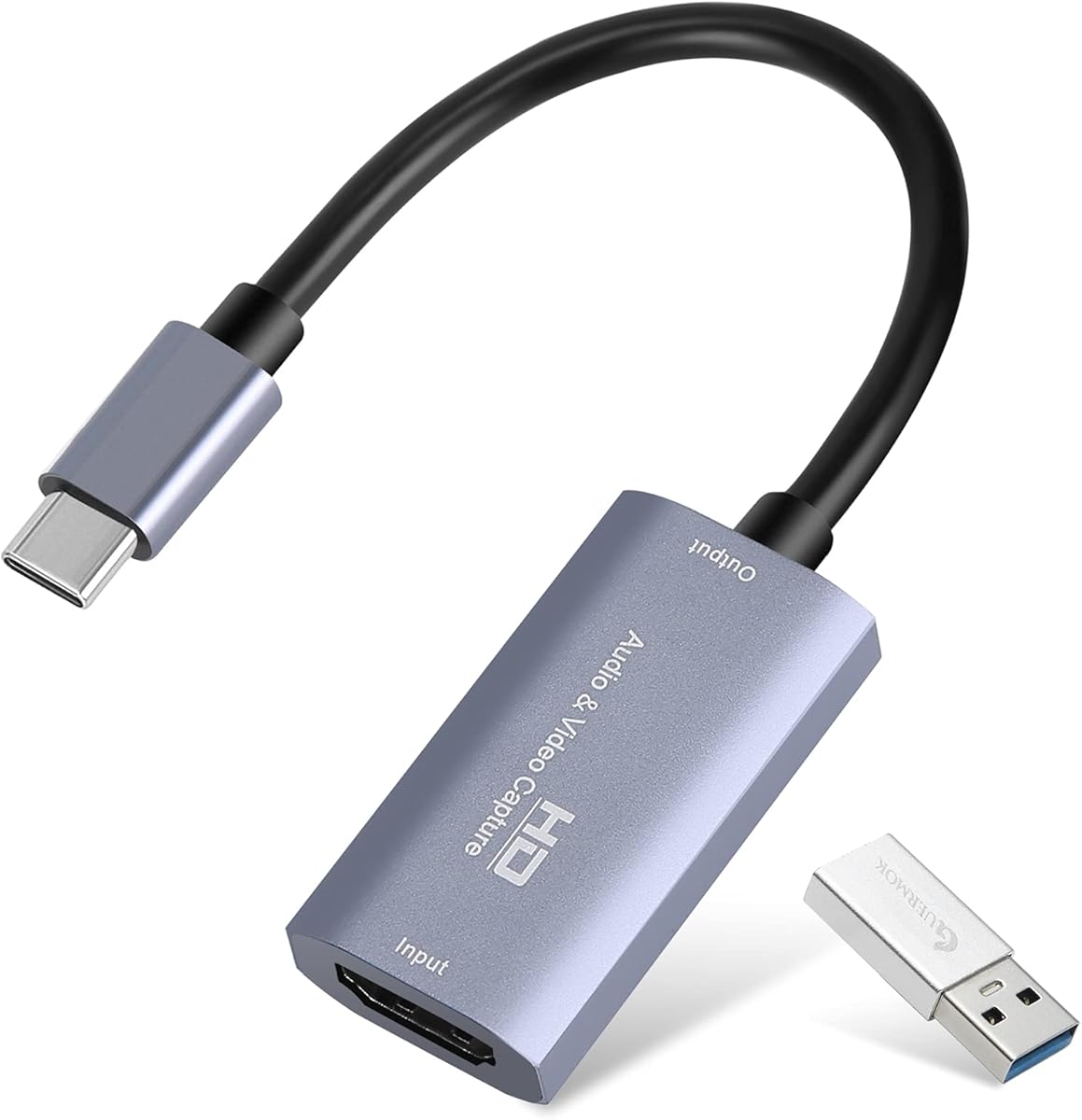
Guermok Video Capture Card
4.4Editor score
1080p at 60fps capture
FourK input support
USB-C and USB connectivity
HDMI recorders range from compact capture cards that rely on a computer to standalone boxes that save presentations, meetings, gameplay, and legacy footage directly to USB storage. A useful choice depends on whether portability, 4K support, analog inputs, passthrough, or computer-free operation matters most.
This guide compares ten products using their stated specifications, supported connections, recording formats, storage options, compatibility, and customer ratings. It covers USB capture devices, standalone digital video recorders, a portable recorder with a built-in display, and one professional SDI-focused model.
Each selection highlights a distinct use case, from budget streaming to 4K standalone capture and analog digitization. Ratings and availability can change over time, so check the latest listing details, source compatibility, and current product information before making a final purchase.
4.4Editor score

4.1Editor score

4.3Editor score
As an Amazon Associate we earn from qualifying purchases.
The comparison below places the ten products by recording method, maximum stated resolution, standalone capability, display or passthrough features, and intended source compatibility. It makes the divide between computer-dependent capture cards and self-contained recorders easy to understand.
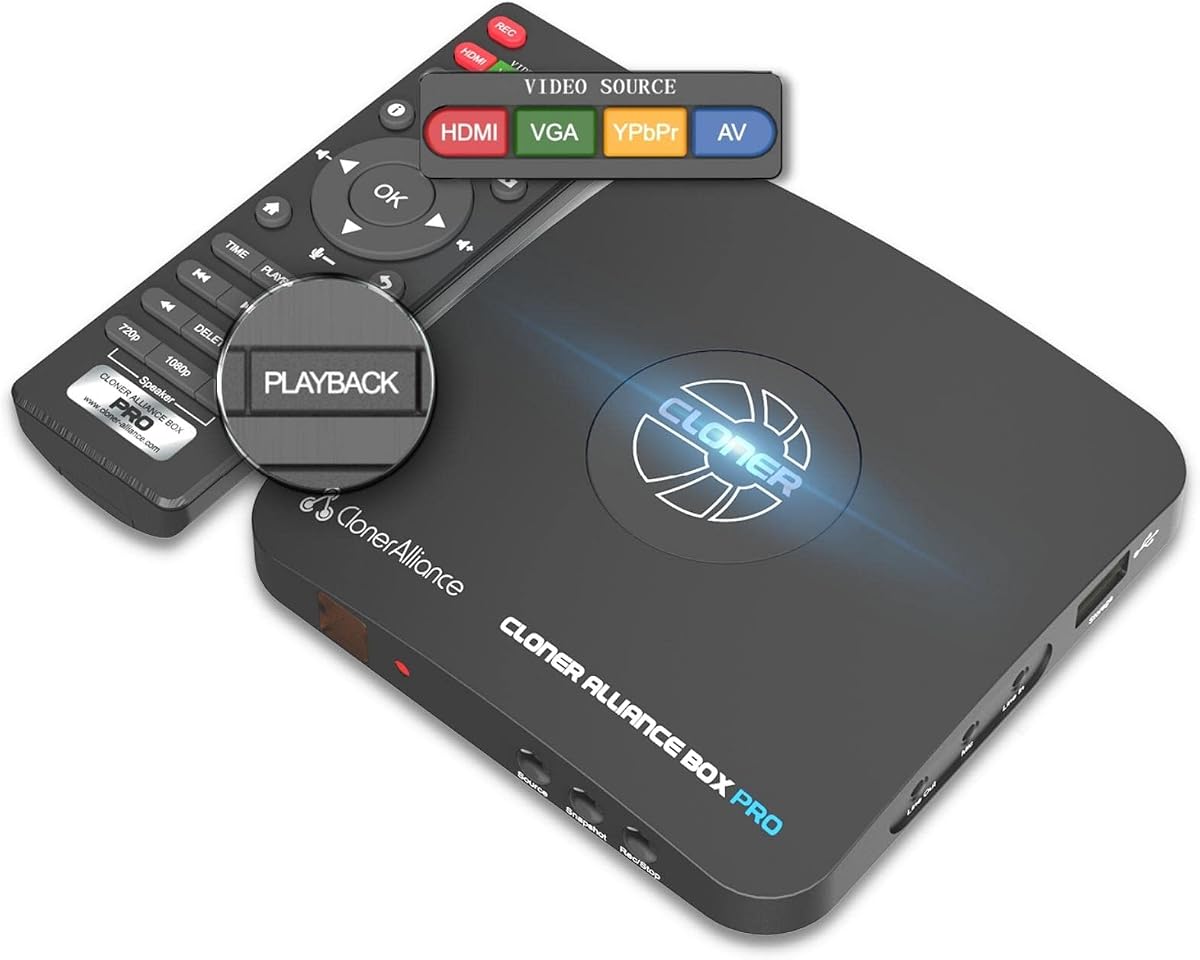



The ClonerAlliance Box Pro is a standalone 1080p at 60fps recorder with a 4.0 customer rating. Its defining strength is the ability to record directly to USB storage and replay the result on a television without relying on a computer, making it useful for archiving, meetings, presentations, and legacy media.
We may earn a commission when you buy through this link, at no additional cost to you.
The input selection is unusually broad for a recorder in this class. It accepts HDMI, RCA, composite, component, YPbPr, and VGA sources, allowing users to digitize VHS tapes, VCR output, camcorders, set-top boxes, disc players, and compatible game consoles. The included remote and MP4 output make the workflow approachable for users who do not want to manage a complex PC capture setup.
The main limitation is its 1080p ceiling, which is lower than the 4K recording offered by several standalone alternatives. HDCP-protected video is also unsupported, meaning some streaming services and disc playback may produce an error or no picture. Users should confirm that their source output is available without content protection before recording.
This is a strong choice for households or small operations that want one box to handle both contemporary HDMI and older analog footage. It is especially attractive when direct television playback and scheduled recording matter more than 4K capture. For those needs, the Box Pro is more versatile than a basic USB capture card.
Recording old tapes, discs, and camcorder footage directly to MP4 files reduces the need for a desktop capture workflow. The broad source compatibility makes it easier to digitize an entire collection with one device rather than switching between incompatible adapters.
USB storage and television playback remove the computer from the core recording process. That makes the Box Pro approachable for presentations, classes, surveillance-like documentation, and scheduled captures where a dedicated workstation would be inconvenient.
We may earn a commission when you buy through this link, at no additional cost to you.
The Guermok Video Capture Card is a compact USB capture solution with a 4.4 rating. It accepts HDMI input up to 4K at 30Hz and supports 1080p at 60fps or 2K at 30fps, giving creators an accessible route to recording gameplay, meetings, teaching sessions, and other computer-mediated video.
We may earn a commission when you buy through this link, at no additional cost to you.
Its USB 3.0 connection and included USB-C adapter make it relevant to modern laptops that lack standard USB-A ports. The aluminum housing helps with heat dissipation, while the plug-and-play design requires no external power supply. Compatibility extends across Windows, macOS, Linux, and Android systems, along with common sources including consoles, cameras, disc players, and streaming software.
This is not a direct screen-casting device and cannot independently save a recording. It needs capture software such as OBS Studio, and users may need to restart the application after changing audio settings. Connection behavior can also vary when using adapters, making it preferable to use a native USB 3.0 port whenever possible.
The Guermok card is best for a user who already has a capable computer and wants a portable capture device at a modest cost. It is particularly useful for streaming, recording online lessons, capturing camera feeds, and archiving game footage. Buyers wanting a self-contained recorder should choose a standalone box instead.
The card's small enclosure and adapter-based connection suit creators who move between desktop and laptop setups. It can support live recording or streaming for services and applications including OBS Studio, YouTube, Twitch, Zoom, VLC, and Potplayer.
FourK input does not mean fourK recording. The stated output ceiling is 1080p at 60fps or 2K at 30fps, and the available video format depends on the capture software and USB connection. Check these limits before planning a high-resolution workflow.
We may earn a commission when you buy through this link, at no additional cost to you.
The ClonerAlliance UHD Pro is a standalone 4K recorder with a 4.1 rating. It combines HDMI capture, direct recording to USB storage or a TF card, television playback, and 4K at 60fps passthrough, giving it the broadest balance of modern recording features in this guide.
We may earn a commission when you buy through this link, at no additional cost to you.
The recorder captures UHD footage at a cinematic 24fps and can record up to 30fps, which is useful for presentations, screen demonstrations, archived streams, and gameplay. H.264 and H.265 compatibility gives users a choice between widely compatible files and potentially more efficient storage, while the stated bitrate ceiling of 50Mbps provides room for detailed source material.
Its passthrough allows a 4K at 60fps signal to continue to a television while the recorder handles the capture task. Pause-and-resume recording helps preserve important moments in one file, and audio-only recording offers flexibility when visuals are unnecessary. Dolby audio and HDR should be disabled on the source when making recordings, and protected content is not supported.
This recorder is the strongest all-around choice for someone who wants 4K capability without maintaining a permanent computer capture setup. It suits gamers, educators, remote workers, and archivists. The 30fps recording ceiling prevents it from replacing a dedicated 4K60 recorder, but its codec, storage, passthrough, and playback options make it unusually versatile.
H.264 and H.265 support lets users balance compatibility and file size, while USB and TF card options provide convenient ways to organize or transport recordings. Supported file systems include exFAT, NTFS, and FAT32 arrangements.
The 4K at 60fps passthrough is separate from the recording ceiling, but it is valuable for monitoring a high-frame-rate source on a television. It is particularly relevant to compatible modern consoles and computers.
We may earn a commission when you buy through this link, at no additional cost to you.
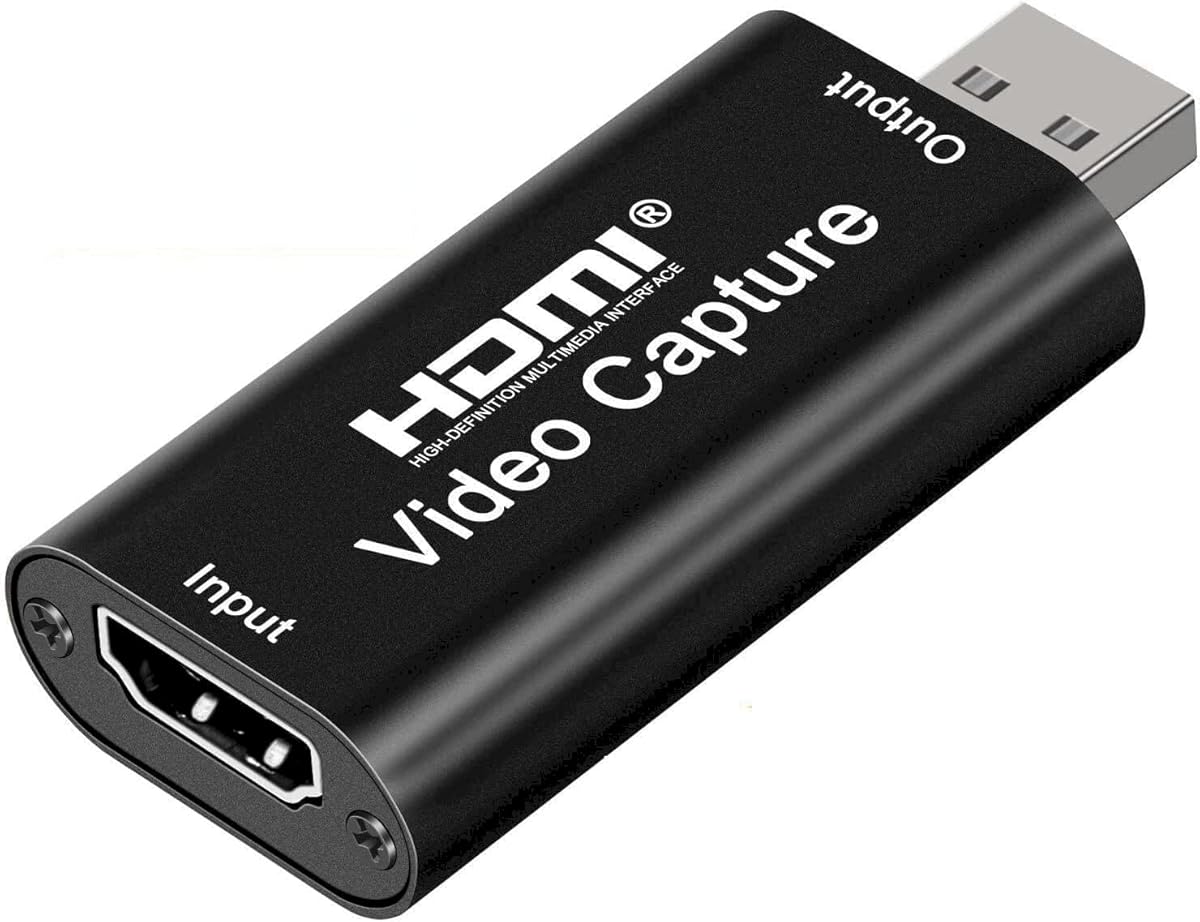
The Rybozen Capture Card is a USB 3.0 capture device with a 4.3 rating. It supports capture up to 1080p, accepts a range of HDMI sources, and includes an HDMI loop-out for continuing a game feed to a display while the computer records it.
We may earn a commission when you buy through this link, at no additional cost to you.
It is designed for familiar streaming platforms and applications such as Twitch, YouTube, Facebook, Twitter, OBS, Potplayer, and VLC. Plug-and-play operation means no driver installation or external power is required. The device can be recognized automatically as a webcam, which simplifies configuration for users whose software selects a standard camera input.
A major practical benefit is the 3.5mm TRS microphone input. It allows a creator to add live commentary without routing audio through the HDMI source. However, the input is limited to a standard 3.5mm headset-style microphone, and users must follow the supported connection instructions. FourK60 and 1080p high-refresh input support also does not extend to fourK120 or fourK144.
This capture card is well suited to console gaming, live commentary, and creators who want a simple loop-out arrangement. It is less appropriate for standalone archival because it depends on a computer and capture software. For a gaming setup that values low-latency monitoring and external narration, it offers a focused feature set.
The loop output sends the HDMI feed onward to a television or monitor while the computer handles capture. This arrangement allows gameplay to remain visible during recording and avoids relying on a software-only preview for a delay-sensitive experience.
The dedicated 3.5mm microphone connection is a useful alternative to commentary captured through the source. It suits players and presenters who want more control over their spoken audio without complicated audio routing.
We may earn a commission when you buy through this link, at no additional cost to you.
The Audio Express AXHDCAP is a 4.4-rated USB 2.0 capture card intended for straightforward recording and streaming. It accepts HDMI input up to 3840 by 2160 at 30Hz, while the maximum stated USB output is 1920 by 1080 at 30fps with stereo sound.
We may earn a commission when you buy through this link, at no additional cost to you.
Its broad software compatibility includes OBS, Zoom, VLC, Potplayer, Twitch, and YouTube, along with Windows, macOS, and Linux. Because it uses a standard webcam-style workflow, the card can serve gamers, teachers, presenters, conference participants, and creators who want audio and video brought into a computer application.
The main constraint is USB 2.0 bandwidth, which prevents the device from taking advantage of USB 3.0 recording speeds or producing higher-resolution output. It also cannot add an HDMI output to a computer that lacks one. Users should use OBS or comparable software and accept a 1080p 30fps ceiling when quality and latency matter more than frame rate.
This card is a practical choice for basic 1080p capture on a limited setup. It is particularly useful for meetings, teaching, and uncomplicated streaming where full HD at 30fps is sufficient. Creators who need 60fps capture, high data rates, or standalone recording should choose a more specialized device.
The device presents source video to software as a conventional capture input, allowing many existing applications to handle recording and streaming. That approach keeps installation straightforward for users who already understand OBS or conference software.
The interface speed is the defining limitation. Although the HDMI input accepts fourK at 30Hz, the actual USB output is limited to 1080p at 30fps, making this more appropriate for standard-definition workflows than high-frame-rate production.
We may earn a commission when you buy through this link, at no additional cost to you.
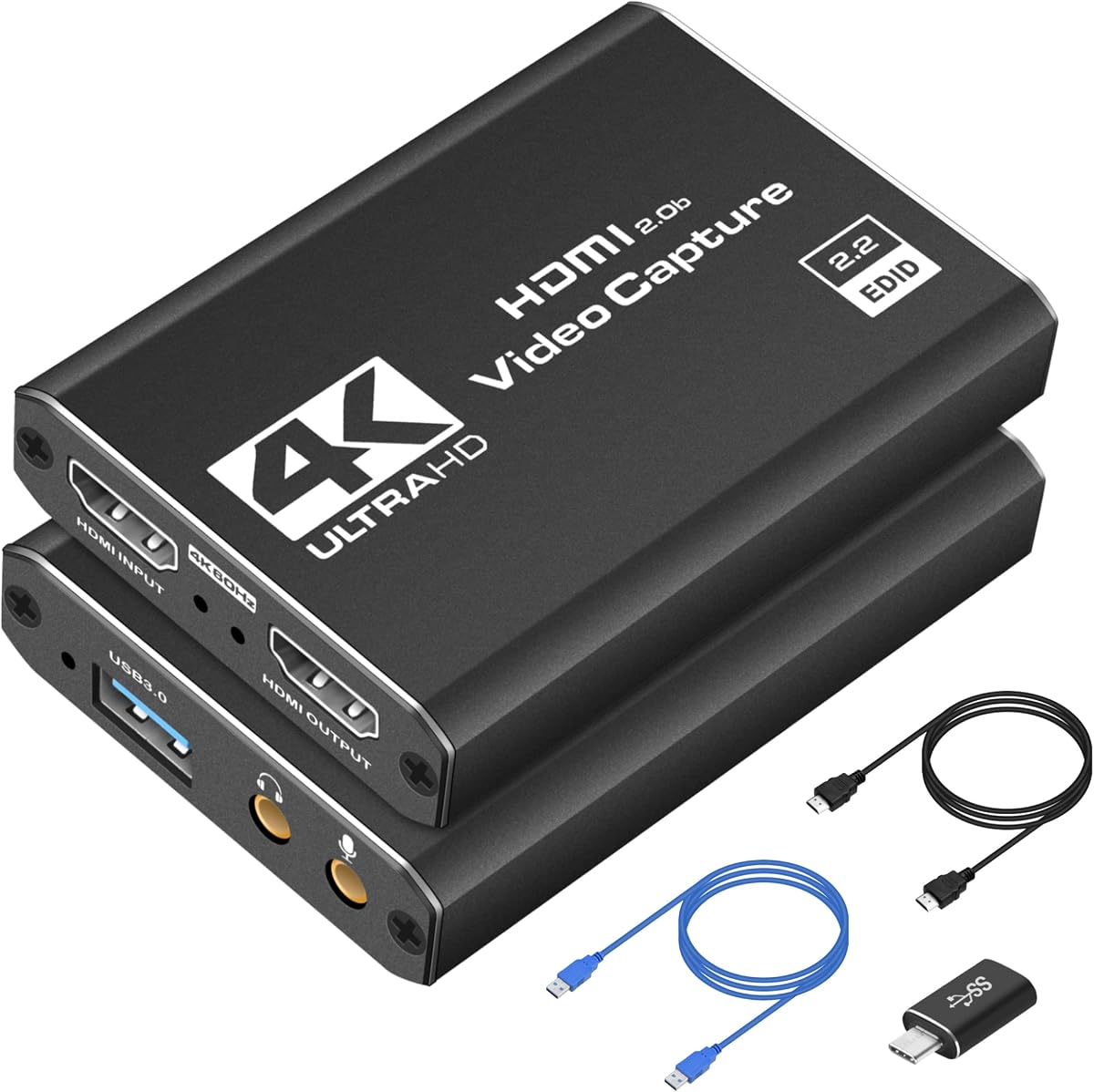
The FourK USB 3.0 Capture Card is a compact 4.4-rated device aimed at gamers, streamers, and mobile content creators. It captures up to 1080p at 60fps and connects through USB 3.0, offering a more current interface than basic USB 2.0 capture devices.
We may earn a commission when you buy through this link, at no additional cost to you.
It supports recording and streaming with OBS Studio, Streamlabs, and XSplit. Compatible source categories include Nintendo Switch, PS5, Xbox Series X, DSLR cameras, and PCs. The product description also emphasizes passthrough for simultaneous viewing and a lightweight enclosure that can move between home, event, and studio environments.
As with other computer-based capture cards, the device cannot store footage on its own and requires suitable capture software. A fourK-capable HDMI input should not be confused with fourK recording, because the stated capture target is 1080p at 60fps. Low latency is desirable, but actual results depend on the source, computer, software settings, and connection.
The card is a good fit for a creator who wants 60fps console or camera capture in a portable form. Its plug-and-play approach reduces setup friction, while broad application support makes it useful for live broadcasts, podcasts, and recorded streaming content. A standalone recorder remains preferable when computer-free operation is essential.
The 1080p at 60fps target matches a common practical balance between detailed motion and manageable data requirements. It is suitable for gameplay, demonstrations, and camera feeds that will be edited or streamed on a computer.
The compact enclosure and no-driver design make the device easy to carry between setups. It is a practical option for events, LAN gatherings, temporary teaching spaces, and collaborative production locations.
We may earn a commission when you buy through this link, at no additional cost to you.
The 4K60 Video Capture Box is a standalone recorder with two HDMI inputs, a seven-inch screen, and a 3.8 rating. It accepts source signals up to 4K60 but outputs and records at 1080p 60fps, distinguishing it from recorders that can preserve fourK files.
We may earn a commission when you buy through this link, at no additional cost to you.
The built-in display allows users to preview sources, manage recordings, and replay footage without connecting a television. PIP, POP, and PMP layouts help organize two sources, while USB flash drives, USB hard drives, and SD cards provide flexible storage. The unit also supports USB connectivity to a computer for use with OBS.
It accepts consoles, cameras, set-top boxes, PCs, televisions, projectors, and monitors, but cannot display, record, or stream copyrighted or content-protected HDMI. It can operate from the included power supply or compatible batteries, although batteries are not included. Those restrictions and the lower 1080p recording ceiling should be checked before purchase.
This capture box is ideal for users who need to switch between two HDMI sources and appreciate an integrated screen. It is useful for live demonstrations, mobile production, event monitoring, and multi-source recording. The main tradeoff is that a 4K60 input capability does not translate into native 4K recording files.
Dual inputs reduce the need to reconnect cables when moving between a console, camera, or computer. Picture-in-picture and pop-up layouts make it easier to monitor both feeds before or during a recording.
The integrated seven-inch screen provides immediate visual feedback in locations where a monitor would be inconvenient. Local storage and playback also simplify collecting footage before transferring it to a computer.
We may earn a commission when you buy through this link, at no additional cost to you.
The ZowieREC 4K HDMI Recorder is a compact standalone unit with a 3.3 rating. It records up to 4K at 30fps without a computer, supports television playback, and uses a one-piece silver aluminum enclosure intended to suit both home and professional environments.
We may earn a commission when you buy through this link, at no additional cost to you.
Its passthrough supports 4K at 60Hz and 1080p at 120Hz input, while recording can be output at 4K, 1080p at 60fps, or cinematic 24fps formats. TF card and USB storage are both supported, and scheduled recording provides a way to capture predictable sessions automatically. Pause, resume, and stop controls simplify longer recording tasks.
The main drawbacks are its lower listed rating and several usage caveats. Protected and copyrighted HDMI sources do not work, and an AV-to-HDMI adapter is not included for users with legacy composite or component sources. The advertised latency-free passthrough and fourK capabilities should also be interpreted alongside the 30fps recording limit.
The ZowieREC is worth considering for users who value a polished enclosure, standalone fourK capture, flexible storage, and scheduled operation. It is less compelling for anyone seeking a built-in monitor or broad analog input support. The design and feature set are attractive, but buyers should carefully assess compatibility with their exact source.
Recording directly to a TF card or USB drive removes the computer from the process. The result can be replayed on a television, making the device convenient for presentations, gameplay capture, and stored demonstrations.
The molded silver enclosure gives the recorder a more finished appearance than a basic capture card. Scheduled recording adds convenience for creators who already know when a source will be active.
We may earn a commission when you buy through this link, at no additional cost to you.
The ClonerAlliance ViewPro is a premium portable recorder with a 4.3 rating. It records H.264 MP4 files at up to 1080p at 60fps, accepts 4K at 30fps input, and includes a seven-inch LCD and built-in speaker for previewing and immediate playback without a television.
We may earn a commission when you buy through this link, at no additional cost to you.
Its input flexibility is one of its strongest features. HDMI covers modern consoles, computers, cameras, media players, and drones, while RCA, VGA, YPbPr, and AV connections allow users to digitize VHS, VCR, DVD, camcorder, and surgical camera sources. USB storage and SD card support make recordings portable, while the included infrared remote simplifies navigation.
Windows users can also stream to YouTube, Twitch, and Facebook through bundled software, and a 3.5mm microphone jack supports commentary. Scheduled recording can automate captures from a selected media-player channel. The trade-offs are a 1080p recording ceiling, a Windows-only emphasis for the live software, and no support for HDCP-protected sources.
The ViewPro is the most complete premium option for a user who needs both modern HDMI capture and analog digitization in a portable enclosure. Its built-in display makes it particularly valuable for field work, teaching, presentations, and legacy-media projects. Those capabilities justify choosing it over a cheaper capture card when standalone operation is essential.
The seven-inch LCD and speaker let users frame recordings, check sources, and review files without carrying a separate monitor. For mobile archiving and presentations, this all-in-one design is more convenient than a basic HDMI-to-USB adapter.
Supporting HDMI alongside RCA, VGA, YPbPr, and AV inputs allows one device to handle current and older media. It is especially useful for converting tapes, disc players, legacy camcorders, and specialized camera feeds into H.264 MP4 files.
We may earn a commission when you buy through this link, at no additional cost to you.
The Blackmagic Design UltraStudio Express Recorder 3G is a professional recording product with a compact, broadcast-oriented connection set. It is included for comparison because the supplied specifications identify one SDI video input, two program outputs, and one loop output rather than standard HDMI capture.
We may earn a commission when you buy through this link, at no additional cost to you.
The SDI side supports 270Mbit, 1.5G, 3G, 6G, and 12G standards. This makes the unit relevant to cameras, switchers, and production environments that already use SDI infrastructure. The program and loop outputs provide options for routing a recorded or monitored feed within a professional signal chain.
It should not be treated as a direct substitute for the HDMI recorders listed above. A user with only a game console, laptop, camera, or television HDMI output would need suitable conversion equipment and should not assume HDMI functionality from the product name. No customer rating was supplied for this listing.
The recorder is best considered by production teams whose primary requirement is SDI capture rather than HDMI convenience. Its value lies in professional routing and compatibility with broadcast equipment. For ordinary desktop capture, gaming, or legacy-media archiving, the HDMI-focused products in this guide offer more direct applicability.
SDI is common in professional camera, live-production, and studio workflows. Supporting several SDI rates makes this recorder more relevant to users already operating within that ecosystem than to consumers shopping for a simple HDMI adapter.
Two program outputs and a loop output offer routing flexibility that a basic capture card does not provide. They can support monitoring and production configurations, although exact behavior depends on the surrounding equipment and software workflow.
We may earn a commission when you buy through this link, at no additional cost to you.
The right HDMI recorder depends on the source, the required output, the available computer, and whether you need local storage, passthrough, analog inputs, or a built-in display. Review these factors before comparing specifications.
A standalone recorder saves directly to USB storage, a memory card, or both, and can often replay files on a television without a computer. This is convenient for meetings, presentations, scheduled events, legacy archiving, and locations where a permanent workstation is unavailable. A capture card is smaller and often less expensive, but it requires a computer, compatible software, and enough processing and storage capacity to record the incoming feed.
Choose standalone operation when reliability and simple file collection are the priority. Choose a capture card when you already use OBS Studio or similar software and need flexible editing, scene control, live streaming, and computer-based post-production.
Input resolution and recording resolution are not always the same. Some products accept 4K at 30Hz or 60Hz but output only 1080p, while others record fourK at up to 30fps. Frame rate matters significantly for fast motion, gameplay, and demonstrations. Look at both dimensions instead of relying on a fourK label in the product name.
Choose a higher recording ceiling when you need fine detail or a high-quality master file. If 1080p at 60fps meets your needs, a capture card with that output can provide a simpler and more compact solution than a larger standalone recorder.
Passthrough sends the incoming source onward to a television or monitor while the recorder captures it. This is valuable for gaming, live demonstrations, presentations, and camera monitoring because the user does not have to depend solely on a computer preview. Some products specify very low latency, but the full path also depends on the source, display, software, and recording settings.
Prioritize passthrough when you plan to watch and record at the same time. For unattended recording, it is less important. For competitive play or live control, verify the stated latency behavior and test the complete connection chain before an important session.
Standalone recorders commonly save to USB flash drives, USB hard drives, SD cards, or TF cards. Computer-based devices usually record directly to the computer's drive through software. Check supported file systems, available capacity, and whether the device expects a particular folder structure. MP4 is convenient because it can be opened on many modern and older computer systems.
Use a storage device with enough space for the expected bitrate and recording duration. For long sessions, a larger USB hard drive may be more appropriate than a small flash drive. Keep the file-system guidance for the selected recorder in mind when formatting media.
HDMI is common on consoles, laptops, cameras, disc players, set-top boxes, and media players, but legacy footage may arrive through RCA, composite, component, YPbPr, or VGA connections. A recorder that accepts both modern digital and older analog signals is more useful for comprehensive archiving. Some devices also offer microphone inputs for commentary or a bundled adapter for analog-to-HDMI conversion.
List every source you intend to connect before purchasing. Check output direction as well as input direction: a capture card cannot generally add an HDMI output to a computer that lacks one. Also check whether your source is a set-top box, smart television, or antenna, because those are not direct video sources in every configuration.
Several recorders explicitly cannot capture HDCP-protected or copyrighted HDMI content. That restriction commonly affects streaming services, some disc playback, and certain television outputs. A black screen, error message, or missing signal may be caused by content protection rather than a hardware fault. Standalone devices are particularly likely to advertise this limitation.
Use an unprotected source or obtain content in a way that permits recording. Do not attempt to bypass access controls. If most of your planned material comes from protected services, confirm legality and technical compatibility before buying a recorder for that purpose.
A built-in screen makes setup, framing, and playback easier when no television is available. Larger displays are particularly useful for legacy archiving, field work, and live monitoring. Portable recorders can also be moved between locations, while desktop capture cards are usually easier to keep near a computer. Consider remote controls, front-facing displays, simple menus, and whether battery operation is important.
Choose a built-in display when mobility and independent monitoring are central. Choose a compact capture card when a computer and monitor are already part of the workflow. If planning to use batteries or removable media, verify that the necessary accessories and formats are supported.
Capture cards require compatible software, while some standalone recorders include editing, conversion, or live-streaming utilities. The supplied information mentions OBS Studio, Streamlabs, XSplit, Zoom, VLC, Potplayer, and bundled Windows software across different products. Operating-system support varies, and some bundled editing or streaming features are explicitly limited to Windows.
Check the application list before setting up a recorder, especially if your production relies on a particular streaming platform. Confirm that your computer has a native USB 3.0 port where higher bandwidth is needed, and be prepared to adjust audio or video settings after the first connection.
Before connecting anything, identify the output available on the source and the input required by the recorder. Use a suitable HDMI cable, configure the source to deliver the desired resolution and frame rate, and disable HDR or Dolby audio when the product instructions recommend doing so. Confirm that the content is not protected before attempting a capture.
For a capture card, connect the HDMI source to the card, connect the card to a native USB 3.0 port when available, and install or open the intended recording software. Select the capture input, set the resolution and format, test the audio, and save a short sample before starting a long recording. Restart the application after changing audio settings if the product guidance recommends it.
For a standalone recorder, format the selected USB drive, memory card, or storage device according to the instructions, connect the source, and perform a short test recording. Review the file on the recorder's display or television, confirm the image and sound, and then enable scheduling or passthrough as needed. Keep the recorder ventilated, protect its connections from strain, and use only compatible storage media.
An HDMI recorder is generally a standalone device that saves video directly to USB storage or a memory card and may include a display, remote, scheduling, and television playback. An HDMI capture card sends the source to a computer through USB and requires capture software. Standalone recorders are better for computer-free collection, while capture cards usually provide more software control and editing flexibility.
Not reliably. Many streaming services and commercial content use HDCP or another content-protection system, and the recorders in this guide generally cannot capture protected sources. A blank screen or error message may indicate protection rather than a defective connection. Record only content that is available without technical restrictions or for which you have clear permission to capture.
No. Input and output resolution are separate specifications. The 4K60 Video Capture Box accepts up to 4K60 but records at 1080p 60fps, while the ClonerAlliance UHD Pro records up to 4K at 30fps. Check the actual recording resolution and frame rate, along with passthrough specifications, before purchasing.
It depends on the model. Capture cards such as the Guermok, Rybozen, Audio Express, and FourK USB 3.0 options require a computer and suitable software. Standalone models such as the ClonerAlliance Box Pro, ClonerAlliance UHD Pro, ZowieREC, and ViewPro can record directly to connected storage and generally do not need a computer for basic recording and playback.
The ClonerAlliance Box Pro and ClonerAlliance ViewPro stand out because they explicitly support analog inputs such as RCA, YPbPr, composite, and VGA, with the ViewPro also offering AV input and a built-in display. The ViewPro is especially convenient when no television is available. Verify the exact output connector on each legacy device before connecting it.
Yes, if the selected product supports HDMI loop-out or passthrough. The Rybozen Capture Card includes HDMI loop-out, while the ClonerAlliance UHD Pro supports 4K at 60fps passthrough and the ZowieREC supports high-frame-rate input with loop-out. The source, recorder, and display must use compatible connections, and the display must be connected to the recorder's passthrough output.
Choose a storage type explicitly supported by the recorder, such as USB flash drives, USB hard drives, SD cards, or TF cards. Format it using a supported file system such as exFAT, NTFS, or FAT32 as directed in the product instructions. Ensure that its capacity and sustained write speed are sufficient for the chosen resolution and recording duration.
Confirm operating-system compatibility, the required streaming or recording application, and the card's actual output resolution. Use a native USB 3.0 port whenever possible, especially for higher frame rates. Test the video and audio separately, then restart the application if required after changing audio settings. Some cards also require a USB-C adapter whose port orientation and protocol support USB 3.0.
The ClonerAlliance UHD Pro offers the strongest overall balance for 4K standalone recording, codec flexibility, passthrough, and direct playback. The ClonerAlliance ViewPro stands out as the premium portable option with a large built-in screen and broad analog support, while the Guermok Video Capture Card delivers an affordable route to 1080p 60fps computer-based capture.
Prioritize the features your actual workflow requires: a standalone recorder for computer-free collection, a capture card for OBS-style control, analog inputs for legacy media, passthrough for simultaneous viewing, and a built-in display for mobile work. Also check protected-content limitations, operating-system requirements, and the difference between input and recording resolution before ordering.
Ratings, product details, software compatibility, and availability can change, so review the current listing and documentation when you shop. Confirm every connection, storage format, and source requirement against the final product information, then choose the recorder that best fits your equipment and recording schedule.