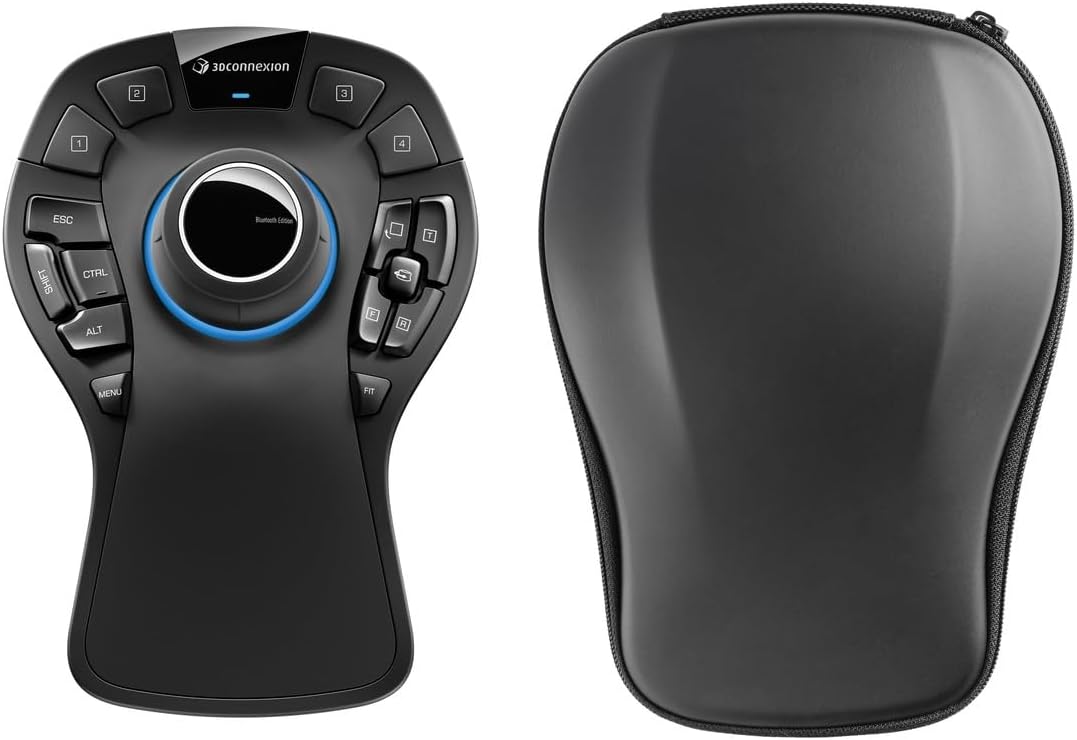
3Dconnexion SpaceMouse Pro Wireless BT
4.4Editor score
Six-degrees-of-freedom navigation
Rechargeable 1100 mAh battery
Wireless USB-C connectivity
Discover the best mouse for drafting by comparing precision, ergonomics, controls, connectivity, scrolling, and suitability for CAD workflows.
A mouse for drafting must translate fine hand movements into accurate on-screen positioning while remaining comfortable through long design sessions. Ergonomic shape, precise tracking, configurable controls, smooth scrolling, and dependable connectivity matter more than decorative features. The strongest options also adapt well to CAD applications and demanding creative work.
We compared all ten products by examining their stated sensors, ergonomic designs, button layouts, scrolling systems, wireless options, battery information, and cross-platform support. The list includes traditional ergonomic mice, vertical designs, trackballs, and a six-degrees-of-freedom controller, revealing which fits each drafting style and workspace.
Each review identifies the product's strongest contribution, practical trade-offs, and ideal user. The SpaceMouse stands out for three-dimensional navigation, while the MX and ERGO families serve precision, productivity, and long-session needs. Ratings and specifications reflect the supplied product information, and current prices should be checked before purchasing.
4.4Editor score

4.3Editor score

4.6Editor score
This comparison evaluates the ten recommendations across control style, navigation method, ergonomic design, connectivity, and workflow suitability, helping drafting professionals select a mouse that matches their software, hand comfort needs, and desk setup.
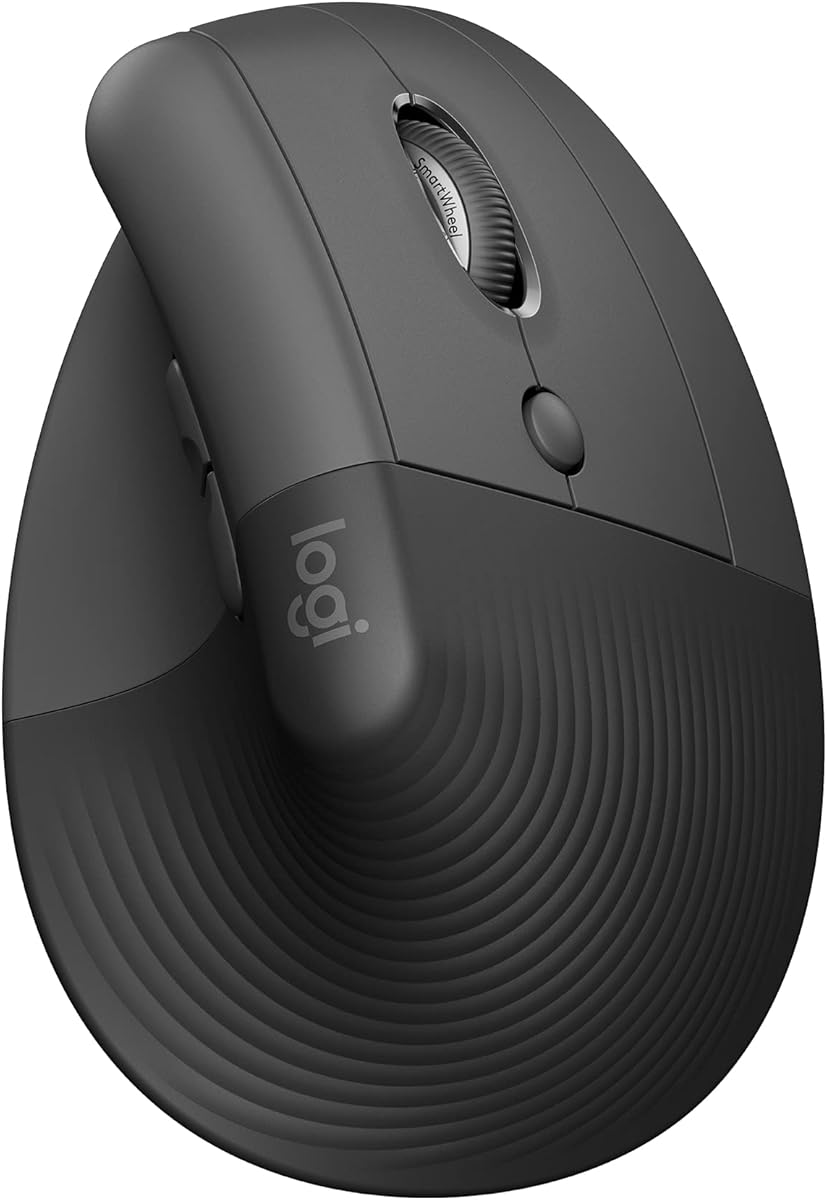


The Logitech Lift Vertical combines a compact body with a 57-degree grip that can make extended drafting sessions more comfortable than a conventional flat mouse. Its supplied rating is 4.4, and the design is especially attractive for users who want a noticeable posture change without moving to a much larger ergonomic mouse.
We may earn a commission when you buy through this link, at no additional cost to you.
The softly textured surface and snug thumb rest help keep the hand stable while the mouse's vertical shape promotes a more natural forearm position. A SmartWheel handles ordinary scrolling and faster scrolling, while customizable buttons give designers shortcuts for common commands. Bluetooth Low Energy and Logi Bolt connectivity make it suitable for systems used across design, documentation, and communication tasks.
The important limitation is that Lift is a general ergonomic productivity mouse rather than a CAD controller with dedicated navigation functions. It is also described as a fit for small to medium right hands, so users with larger hands may find the compact shape less accommodating. Its value lies in combining familiar pointing controls with meaningful ergonomic benefits.
Choose Lift if you want a compact wireless mouse that improves wrist posture while remaining versatile enough for everyday work. It is especially suitable for drafters who spend substantial time in CAD but also switch among spreadsheets, browsers, and communication software and prefer conventional button-and-scroll interaction.
Lift's smaller footprint makes it easier to keep the mouse close to the keyboard, while the 57-degree orientation reduces the need to rotate the forearm as aggressively. That balance can suit drafting offices where equipment must share limited desk space.
Customizable buttons and the SmartWheel provide shortcuts and fluid scrolling without introducing a separate navigation device. These features are useful for moving between CAD canvases, reference documents, and project-management tools.
We may earn a commission when you buy through this link, at no additional cost to you.
The Logitech MX Master 4 is a strong all-around choice for drafters who want more than accurate point-and-click navigation. It carries a 4.3 rating and introduces a Haptic Sense Panel that can deliver configurable feedback for specific actions, shortcuts, and notifications, giving users tactile confirmation without looking away from the design.
We may earn a commission when you buy through this link, at no additional cost to you.
Its Actions Ring places frequently used filters, adjustments, and shortcuts near the cursor and can adapt to individual applications. The MagSpeed wheel supports up to 1,000 lines per second and precise stopping, while the separate thumb wheel supports fluid lateral navigation. Quiet Clicks reduce noise by 90% according to the supplied product information.
This is not a dedicated drafting peripheral, so its value depends on configuring the software for the user's own applications. The Actions Ring and haptics take more time to learn than a conventional mouse, and some users may prefer a dedicated CAD controller's physical six-axis control. Even so, the feature set supports broader creative workflows than a basic office mouse.
Pick the MX Master 4 if you alternate among CAD, illustration, document editing, and browser-based tools and want a single device that can handle all of them. It is especially appealing to users who value fast scrolling, quiet operation, tactile feedback, and customizable app-specific controls.
The Haptic Sense Panel can provide a subtle physical signal when a selected action or notification occurs. In a long drafting session, that confirmation can reduce visual interruptions and help maintain attention on the model.
The Actions Ring is designed to surface relevant tools for each application. Drafters can assign frequently invoked adjustments or filters and move through them without repeatedly searching menus or leaving the immediate workspace.
We may earn a commission when you buy through this link, at no additional cost to you.
The Graphite version of the MX Master 4 offers the same advanced productivity toolkit in a darker finish suited to professional workspaces. It has a 4.3 rating and retains the Haptic Sense Panel, adaptive Actions Ring, MagSpeed wheel, thumb scroll wheel, and quiet-click design that make it relevant to demanding design workflows.
We may earn a commission when you buy through this link, at no additional cost to you.
The natural tilt and intuitively placed controls can reduce hand stress during extended periods of use. Its wheel can scroll as many as 1,000 lines per second and stop at very precise intervals, helping users navigate long drawings, specifications, and timetables efficiently. A USB-C dongle with an advanced radio chip and optimized antenna supports a stronger wireless connection.
As with the Pale Gray edition, the mouse does not provide specialized CAD axes or model manipulation controls. Haptics and the Actions Ring must be configured to deliver meaningful value, and a user working exclusively in 3D software might eventually prefer a dedicated 6DoF device. Its broader productivity features remain useful for interpreting plans and coordinating revisions.
This graphite model is a sensible pick for professionals who want a restrained appearance alongside high-speed scrolling and extensive customization. It works particularly well for drafters who split their day between technical drawing, technical writing, research, meetings, and file management.
The MagSpeed wheel combines rapid line scrolling with precise stopping control. That combination is useful when inspecting lengthy drawings or switching between zoom levels while preserving control over cursor placement.
The graphite appearance integrates easily with dark desks and professional equipment. More importantly, its ergonomic tilt and thumb controls maintain a natural working posture while keeping core navigation within reach.
We may earn a commission when you buy through this link, at no additional cost to you.
The Logitech MX Ergo S Advanced Wireless Trackball Mouse is a compelling drafting choice when desk space is tight or the user prefers not to move a conventional mouse around. Its 4.4 rating reflects a strong feature set, including a sculpted shape, 20-degree tilt, and advanced thumb-operated tracking.
We may earn a commission when you buy through this link, at no additional cost to you.
The trackball provides more control with less physical movement, and a button lets users switch between speed and high-precision tracking. Six customizable buttons, Smart Actions, and Logi Options+ support can streamline repeated commands. The sculpted form and soft rubber grip are intended for medium to large hands, while the stated 20-degree tilt can reduce muscle strain.
A learning curve is the main trade-off. Trackball control can feel different from moving a mouse across a surface, particularly during very fine line placement. Although one minute of charging is stated to provide up to 24 hours of use, a full charge can last up to 120 days depending on how intensively the controls are used.
The MX Ergo S suits drafters with crowded desks, accessibility concerns, or a preference for low desk movement. It is less appropriate for someone who wants the familiar response of a surface-driven mouse, but it can be an excellent precision tool once the user becomes comfortable with the trackball.
Users can switch the trackball into a high-precision mode when precise positioning matters. That mode is well suited to tracing geometry, adjusting annotation points, and navigating detailed CAD views.
Six customizable buttons and Smart Actions can assign frequent commands to reachable locations. This reduces repeated menu navigation, although users should invest time in creating a layout that suits their drafting application.
We may earn a commission when you buy through this link, at no additional cost to you.
The Logitech MX Vertical is built around a 57-degree angle intended to reduce wrist pressure and place the hand in a natural handshake position. With a 4.4 rating, it offers a compelling ergonomic alternative for drafters who experience discomfort with flat mice but still want a familiar pointing device.
We may earn a commission when you buy through this link, at no additional cost to you.
The 4000 DPI sensor delivers high-precision tracking, and the cursor-speed switch lets users move instantly between sensitivity settings. Compared with a traditional 1000 DPI mouse, the supplied information states that it can require four times less hand movement. The textured rubber surface improves grip while the sculpted form accommodates a variety of hand shapes and sizes.
The main compromise is the initial adjustment period. A vertical angle changes muscle engagement, so users may need to slow down before returning to full drafting speed. There are no application-specific CAD controls or six-axis navigation features, so it remains a conventional mouse with a different shape and adjustable sensitivity.
Choose MX Vertical when reducing wrist strain is a priority and you still want button-based mouse interaction. It is a mature, well-rounded choice for technical drawing, document review, and general professional work, particularly for users who can adapt to a raised hand position.
The raised orientation keeps the forearm in a more natural handshake alignment. That can reduce strain during repetitive drawing, panning, and selection tasks compared with a low-profile traditional mouse.
The high-precision sensor and instant speed switch let users move quickly across large drawing areas and then reduce sensitivity for close work. This makes the mouse adaptable to both overview and detail tasks.
We may earn a commission when you buy through this link, at no additional cost to you.
The Space Black MX Master 4 for Mac is a strong choice for drafters whose primary workstation uses macOS. Its 4.4 rating, matching Apple-oriented finish, macOS-aware Logi Options+ functionality, and USB-C charging make it feel purpose-built for a modern creative desk.
We may earn a commission when you buy through this link, at no additional cost to you.
The mouse retains the Haptic Sense Panel, application-adaptive Actions Ring, MagSpeed wheel capable of up to 1,000 lines per second, quiet clicks, and an ergonomic thumb wheel. Together, these features support long drawing sessions, detailed document review, and switching among design, browser, and communication applications.
The charging cable is not included, and some functions require configuration in Logi Options+. While macOS support is emphasized, the supplied title also lists iPadOS and Windows, which adds flexibility for mixed-device workspaces. As with other general-purpose MX models, it does not provide dedicated six-axis CAD navigation.
Buy this version if you want an MX Master 4 that fits naturally into an Apple-based drafting environment. It is ideal for Mac users who value coherent industrial design, convenient charging, fast scrolling, and software that can tailor commands to each application.
Logi Options+ functions for macOS are central to this model's appeal. Application profiles and the adaptive Actions Ring can make the mouse easier to tailor for macOS-based drafting and creative tools.
The MagSpeed wheel handles large document jumps while retaining precise stopping positions. Quiet Clicks help limit distractions in shared studios or focused offices where ordinary mouse noise can be disruptive.
We may earn a commission when you buy through this link, at no additional cost to you.
The Logitech MX Master 3S Bluetooth Edition has the highest supplied rating in this group at 4.6. Its 8000 DPI sensor, customizable sensitivity, and ability to work on any surface—including glass—make it a precise and adaptable option for drafting on varied workspaces.
We may earn a commission when you buy through this link, at no additional cost to you.
MagSpeed scrolling is stated to be 90% faster and 87% more precise than the previous generation, with near-silent operation. Quiet Clicks deliver the same tactile response with 90% less click noise. The mouse also supports three Bluetooth devices and FLOW cross-computer control for moving text, images, and files between Windows and macOS systems.
This Bluetooth-only edition does not include a Logi Bolt USB receiver, adapter, or charging cable. Users who need a dedicated receiver cannot use one with this specific package. The high DPI is useful for detailed work, but more sensitivity does not automatically improve every drafting workflow, and some users may prefer a receiver for a dedicated connection.
Choose the MX Master 3S if your drafting setup is Bluetooth-based and you value precision, quiet operation, and smooth device switching. It is a refined everyday productivity mouse that can handle technical work well without adding specialized 3D navigation hardware.
The 8000 DPI sensor and customizable sensitivity support different levels of detail. Its ability to track on glass also makes it useful in studios where a conventional mouse would need a dedicated pad.
Three-device Bluetooth support and FLOW file transfer help drafters move between a workstation, laptop, and portable device. The lack of a bundled receiver keeps the package simple for users comfortable pairing directly over Bluetooth.
We may earn a commission when you buy through this link, at no additional cost to you.
The Logitech Ergo M575S combines a 4.6 rating with an accessible trackball format, making it an appealing value-focused option for drafting. It supports control by thumb movement, keeps the cursor active without hand travel, and can be used on virtually any surface.
We may earn a commission when you buy through this link, at no additional cost to you.
Three customizable buttons, time-saving shortcuts, and Smart Actions provide a manageable amount of workflow customization. Its sculpted shape is designed to support the hand and realign the forearm into better posture, while the stated fit for most hand sizes broadens its appeal. Bluetooth and an included Logi Bolt receiver make connection flexible.
Compared with the MX Ergo S, the M575S has fewer customizable controls and does not list the same quick USB-C charging arrangement. Trackball operation also requires practice, particularly for users accustomed to pushing a mouse laterally. Nevertheless, it fulfills the core needs of a space-saving ergonomic pointing device without an elaborate feature set.
The M575S is best for drafters who want to reduce arm movement, reclaim desk space, or work without a mouse pad. It also suits buyers who want a straightforward trackball with wireless connectivity and an included receiver while avoiding the complexity of a more advanced premium model.
The M575S focuses on three customizable buttons and Smart Actions rather than a dense control layout. That makes its configuration manageable for users who want useful shortcuts without an intimidating number of inputs.
Because the trackball does not require a flat surface, it can operate on desks, drafting boards, or other usable areas. Its support-oriented shape and broad hand-size fit make it a flexible option for varied workspaces.
We may earn a commission when you buy through this link, at no additional cost to you.
The 3Dconnexion SpaceMouse Pro Wireless BT is the clearest choice for drafters who routinely work with three-dimensional models and want dedicated spatial navigation. Unlike a standard mouse, it uses a six-degrees-of-freedom sensor to move the view along multiple axes instead of merely across a two-dimensional screen.
We may earn a commission when you buy through this link, at no additional cost to you.
This makes it particularly relevant for CAD, 3D modeling, architecture visualization, and other software that can interpret six-axis input. The controller supports wireless operation through USB-C and Bluetooth Low Energy, while its rechargeable 1100 mAh lithium-polymer battery removes the need for disposable batteries.
Its specialized nature is both strength and limitation. It is not a conventional mouse for text, web browsing, or general document editing, and its usefulness depends on software support and the user's ability to work with 6DoF navigation. A drafting professional who never manipulates 3D views may find a general MX or ERGO model more versatile.
Choose the SpaceMouse Pro if your drafting workflow includes frequent zooming, panning, and rotating through 3D environments. It is best treated as a dedicated companion for spatial navigation, especially when paired with a conventional mouse for selection, annotation, and interface control.
A six-degrees-of-freedom sensor gives the controller direct spatial input. This can reduce repeated on-screen navigation commands when rotating, panning, and inspecting a three-dimensional design.
USB-C wireless connectivity and Bluetooth Low Energy give users options for a cleaner desk. The rechargeable battery also removes the routine battery replacement associated with many conventional wireless mice.
We may earn a commission when you buy through this link, at no additional cost to you.
The White Silver MX Master 4 for Mac brings the advanced features of the MX Master 4 to a light-finished Apple-oriented workspace. Its 4.4 rating and macOS-specific Logi Options+ support make it a polished option for drafters working primarily with MacBook-based or desktop systems.
We may earn a commission when you buy through this link, at no additional cost to you.
The Haptic Sense Panel delivers configurable physical feedback, while the Actions Ring adapts to the active application and places relevant controls near the cursor. The MagSpeed wheel can move through 1,000 lines per second and stop at precise locations. An ergonomic tilt, thumb scroll wheel, and Quiet Clicks support extended, focused work.
As with the Space Black version, the charging cable is not included, and advanced behavior depends on configuration. Although the product title mentions macOS, iPadOS, and Windows, the design is especially coordinated with Apple equipment. It also lacks the six-axis navigation offered by the SpaceMouse Pro.
Choose the White Silver model for a professional drafting setup that emphasizes a clean, coordinated appearance and rich productivity controls. It is a strong match for Mac users who want fast scrolling, app-aware shortcuts, quiet operation, and convenient USB-C charging in one ergonomic mouse.
The White Silver finish is designed to match Apple-oriented equipment, giving a drafting desk a more deliberate visual appearance. Its practical advantage is the combination of coordinated design with Logi Options+ support for macOS.
Customizable haptics can confirm actions or notifications without requiring the user to look away. Combined with adaptive Actions Ring controls, this creates a more informative interface for demanding creative tasks.
We may earn a commission when you buy through this link, at no additional cost to you.
The right drafting mouse should match your software, hand comfort preferences, physical workspace, and navigation habits. Consider the type of design work, precision requirements, connection method, and need for programmable controls before choosing.
Drafting often involves tracing lines, selecting small features, placing dimensions, and moving between zoom levels. Sensor sensitivity contributes to control in these tasks, so options such as the MX Master 3S with an 8000 DPI sensor and the MX Vertical with a 4000 DPI sensor deserve attention. Higher sensitivity is not automatically better for everyone: some users benefit from low-speed settings for close detail, while others use fast movement to cross an entire drawing.
Choose a mouse with adjustable sensitivity if you move between broad overview work and fine editing. Cursor-speed switching is especially helpful because it lets you change the relationship between hand movement and pointer travel without replacing the device.
A drafting mouse is commonly used for hours, making comfort a functional requirement rather than a luxury. The Lift and MX Vertical use a 57-degree vertical angle, the MX Ergo S uses a 20-degree tilt and thumb-operated trackball, and the M575S supports the hand without requiring repeated arm movement. Ergonomist certification or stated reductions in strain are useful indicators, but personal hand size and work habits still matter.
Match the shape to your hand and verify that essential controls are reachable without stretching. Vertical and trackball designs may require an adjustment period, so give a new mouse time before judging its comfort.
A standard mouse excels at selecting, clicking, and moving a pointer across a two-dimensional interface. A six-degrees-of-freedom controller is different: the SpaceMouse Pro can translate input across multiple axes, which is useful for rotating, panning, and zooming through 3D models. This distinction is crucial because the most specialized option is not a substitute for every ordinary mouse task.
Choose six-axis navigation if spatial model inspection is central to your drafting. If most work occurs in 2D plans or conventional application interfaces, prioritize precision buttons, scrolling, and comfort instead.
Repeated menu navigation interrupts concentration, particularly when drafting tools contain deep command hierarchies. The MX Master 4 family offers an adaptive Actions Ring, the MX Ergo S provides six customizable buttons and Smart Actions, and the M575S provides three customizable buttons. These features can assign tools, filters, commands, or shortcuts to physical controls that are easier to reach.
Look for enough controls to cover your highest-frequency actions without overcrowding the palm grip. Also check whether the mouse supports the customization software required by your drafting application and operating system.
Large drawings and long specifications create a heavy scrolling workload. The MagSpeed wheel found across the MX Master 4 and MX Master 3S is designed for rapid movement and precise stopping, while the SmartWheel on the Lift adapts between regular and faster scrolling. Dedicated thumb wheels add lateral movement, which can be valuable when moving through wide timelines or documents.
Prioritize smooth, quiet scrolling if you share a quiet office or work on long documents. Test whether a standard wheel or a separate horizontal control best supports the way you inspect plans.
Wireless mice reduce cable clutter, but connection stability and charging habits vary. Bluetooth-only configurations are clean and convenient, while included Logi Bolt receivers provide a dedicated connection path. USB-C charging simplifies power management on modern desks, although some products require a cable that is not included in the box.
Choose based on how your computer is already configured. Make sure the selected package includes the receiver type you need, and account for battery life, recharge cycles, and the availability of replacement batteries if the product uses standard cells.
The operating system matters because customization software and shortcut behavior may differ across platforms. Logitech lists support for Windows, macOS, iPadOS, Chrome OS, and Linux across several models. The Mac-focused MX Master 4 versions emphasize Logi Options+ functionality for macOS, and the SpaceMouse Pro's usefulness likewise depends on software capable of interpreting its multi-axis input.
Confirm that your preferred CAD program, operating system, and customization utilities work together. A feature is only valuable if the surrounding software can use it as intended.
The amount of space available can determine the most practical input method. Compact mice such as the Lift are easy to keep close to a keyboard, while the M575S trackball needs almost no surface area and can be used anywhere. Surface-driven mice provide familiar movement but require room to travel. Ergonomic mice can also have a broader footprint because their sculpted shapes support a more relaxed hand position.
Consider your desk, drawing surface, and whether you alternate between seated drafting and other tasks. The best device is one that fits your space naturally and supports the posture you can maintain throughout the day.
Begin by adjusting your workstation before configuring the device. Position the mouse within easy reach, keep your wrist neutral, and choose a sensitivity that lets you reach the edges of the drawing with modest movement. For vertical or tilted mice, allow several days of regular use to adapt to the new angle rather than reverting immediately to a flat mouse.
Set up the mouse's companion software and assign buttons based on the commands you perform most often. Keep a stable application profile for each drafting program if profiles are available. Learn the secondary navigation controls before assigning complex actions, and avoid placing critical commands on buttons that require an awkward reach.
Clean the mouse regularly with a soft, dry cloth, remove loose debris from buttons and scroll wheels, and follow the manufacturer's guidance for rechargeable batteries or battery-powered models. Keep wireless receivers unobstructed, preserve the original cable or receiver for transport, and update the device software when corrections or compatibility improvements become available.
Yes, a regular ergonomic mouse can handle many CAD drafting tasks, particularly 2D drawing, annotation, selection, and specification work. Its precision, comfort, scroll wheel, and programmable buttons should be considered. A six-degrees-of-freedom controller becomes more valuable when you frequently navigate 3D models.
A vertical mouse may be beneficial if you experience wrist or forearm discomfort during long sessions. The Lift and MX Vertical both place the hand at a 57-degree angle, which can support a more natural posture. The transition requires adjustment, so test one before committing to a different shape.
A trackball moves the pointer through finger or thumb rotation rather than whole-arm movement across the desk. This saves space and can reduce repetitive arm movement during long work sessions. It does not automatically provide better precision, and users generally need practice to control small movements smoothly.
A SpaceMouse is better for spatial navigation within compatible 3D software because its six-degrees-of-freedom sensor can pan, rotate, and move through multiple axes. It is not a general replacement for a standard mouse. Many drafters use both, reserving the SpaceMouse for 3D navigation and a conventional mouse for clicking and editing.
No. Higher DPI allows the pointer to travel farther with less physical movement, which can help in large workspaces but may feel too fast for fine editing. Adjustable sensitivity and quick cursor-speed controls let users move between broad navigation and detailed placement more comfortably.
They can be valuable when they place frequently used commands, tools, layers, or views on reachable buttons. The number of buttons matters less than whether the mouse supports the desired customization software and whether the layout remains comfortable. Begin with only a few common actions and expand from there.
Several Logitech models support multiple Bluetooth devices or Easy-Switch functionality, while the MX Master 3S supports up to three devices. The exact workflow depends on the model's connection options, and some packages include a Logi Bolt receiver while others are Bluetooth-only. Check the package contents before planning a multi-computer setup.
A rating is a useful general signal, but feature fit and ergonomics matter more for drafting. Look for precise tracking, suitable controls, comfortable hand support, reliable connectivity, and a navigation method suited to your software. Ratings should complement, rather than replace, a careful check of specifications and workspace needs.
The Logitech MX Master 4 stands out as the most versatile all-around recommendation because it combines precise scrolling, quiet clicks, customizable actions, haptics, and strong wireless connectivity. The SpaceMouse Pro is the specialist choice for compatible 3D workflows, while the M575S offers an approachable trackball design with a high user rating and flexible connection options.
Prioritize the input method that matches your work. Choose a 6DoF controller for spatial model navigation, a vertical mouse for posture-focused traditional use, a trackball for desk-space savings, or a feature-rich MX mouse for mixed creative and productivity workflows. Confirm hand fit, software support, button customization, and connection requirements before making a final decision.
Product specifications, ratings, availability, and prices can change, so check the current listing and accessories before buying. Taking time to compare your drafting software, desk setup, and comfort needs will lead to a more satisfying long-term choice than selecting on appearance or rating alone.