
Selore&S-Global USB-C to Dual HDMI Adapter
4.5Editor score
Dual HDMI 2.0 outputs
100-watt host power delivery
Five-gigabit USB-A transfer
Our Dual HDMI Monitor Adapter guide compares ten adapters for display modes, resolution, ports, compatibility, power delivery, and setup ease.
A dual HDMI monitor adapter can turn one compatible computer connection into a two-display workstation, but the best model depends heavily on your ports, operating system, resolution needs, and preferred display mode. The right unit should provide smooth visuals, dependable connections, and the charging or peripheral support your setup needs.
We compared all ten products using their stated specifications, including supported resolutions, host connections, extended-display capabilities, operating-system compatibility, power requirements, and included accessories. The list covers USB-C and USB-A adapters, DisplayPort converters, full docking stations, and a simple HDMI-to-HDMI splitter.
Each review explains where the adapter fits best and where its limitations matter. Some products are ready for Windows extend mode, some mirror only on macOS, and others require drivers or external power. Product details and availability can change, so readers should verify their computer's ports and current specifications before purchasing.
4.5Editor score
4.5Editor score

4.4Editor score
The table below compares all ten adapters by source connection, maximum display resolution, extended-display behavior, and major compatibility considerations, making it easier to identify the option that matches your computer and monitors.



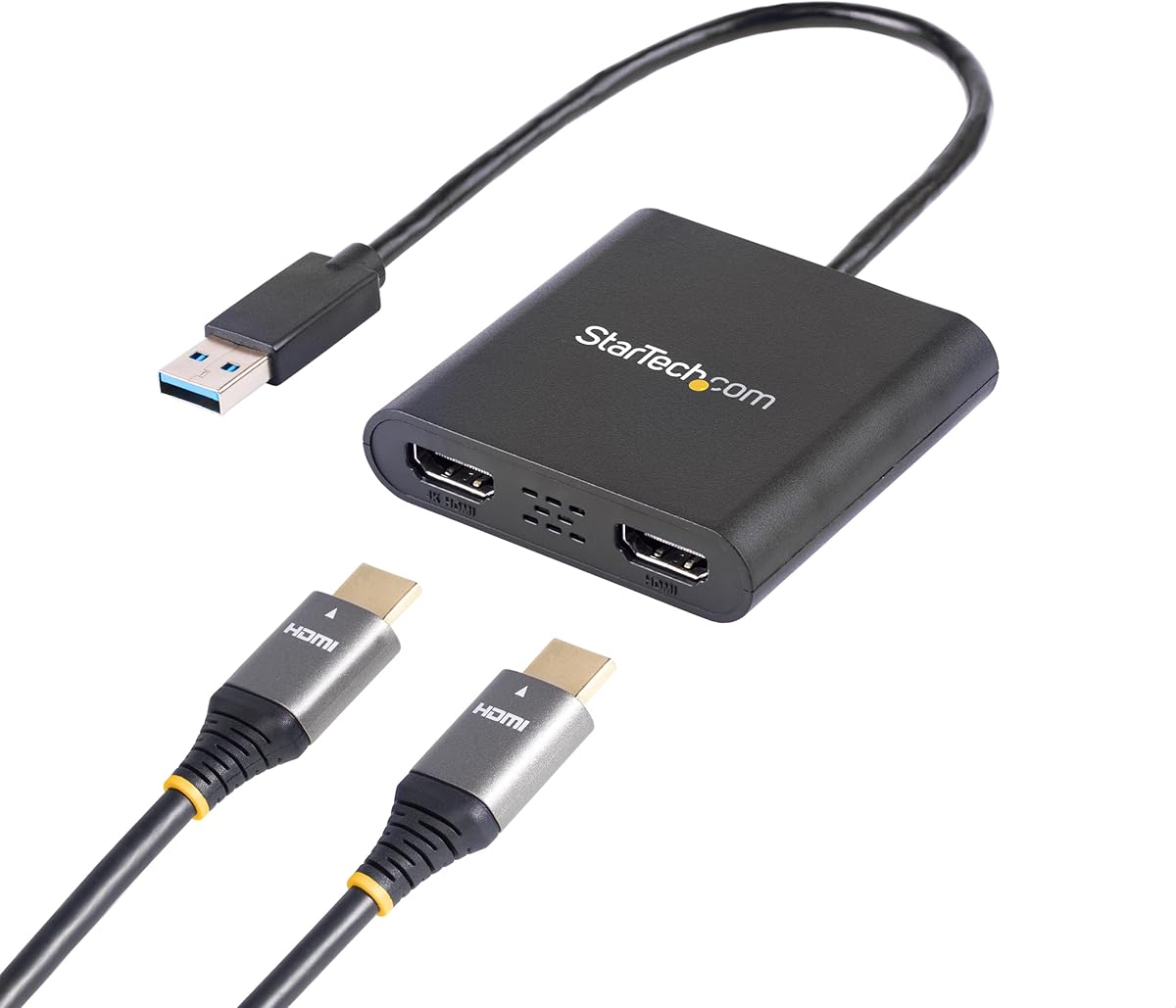
The StarTech USB-A 3.0 to Dual HDMI Adapter is a strong overall choice for Windows users who want to turn one USB-A port into two display connections. Its 4.5 rating reflects a useful balance of clear specifications and workstation-oriented design. The adapter can add up to two HDMI monitors, with one output supporting 4K at 30Hz and the other supporting 1080p at 60Hz.
We may earn a commission when you buy through this link, at no additional cost to you.
Its most valuable feature is the ability to extend the Windows desktop rather than simply duplicate one screen. That makes the adapter useful for separating documents, communication windows, and reference material across two panels. A 4K display can handle detailed work at the higher resolution, while a 1080p monitor can serve as a convenient secondary workspace at a faster refresh rate. The built-in 9.8-inch cable also gives you more freedom than a very short dongle-style connection.
The restrictions are significant. StarTech specifies compatibility only with Windows, including Intel, AMD, and Snapdragon X Copilot+ PC platforms, rather than macOS, ChromeOS, or Linux. Driver installation requires administrator rights, which may be a problem on a managed work computer. The 4K output is limited to 30Hz, so users who need smoother 4K motion should look at a USB-C dock with HDMI 2.0 outputs instead.
This adapter is best for a Windows laptop or desktop that lacks spare HDMI ports, particularly when one detailed display and one standard secondary display are desired. It is also a sensible option for an IT-managed environment because the stated support extends across three years and includes lifetime 24/5 multilingual technical assistance. For most Windows productivity users, its extended-display capability and generous integrated cable outweigh the platform limitations.
Extending rather than mirroring the desktop is the feature that makes this adapter useful for research, office work, and multitasking. Each monitor can hold a different set of windows, reducing the need to keep applications hidden behind one another.
The 4K30 and 1080p60 combination is especially sensible when one panel is used for detailed documents or data and the other handles chat, email, and scheduling. It balances resolution with refresh rate without requiring two identically equipped displays.
We may earn a commission when you buy through this link, at no additional cost to you.
The Acer 4-in-1 USB C Hub combines dual-display output, data transfer, and laptop charging in a compact USB-C device. It carries a 4.2 rating and is aimed at users who want more than a basic video converter. Its two HDMI 2.0 ports can each support 4K at 60Hz when the computer, cables, and displays support the required standards.
We may earn a commission when you buy through this link, at no additional cost to you.
The integrated USB-A 3.0 port offers transfer speeds up to 5Gbps, making the hub useful for a keyboard, mouse, storage device, or other peripheral. Its Power Delivery input accepts up to 100W and provides 90W to the host laptop, which is valuable during long work sessions. The product also works with Windows and macOS systems that support DisplayPort Alternate Mode, though the Mac limitation remains important: macOS can mirror the same content across external monitors rather than provide two distinct extended desktops.
This hub is not a self-contained charging solution. A compatible 100W external power adapter and cable are not included, and the host USB-C port must support both video and power delivery. Its 20-centimeter cable is short, so it may be preferable for a desk setup where the hub can sit near the computer rather than for a laptop positioned far from the monitors. The 4K60 claims also depend on every component in the connection chain supporting HDMI 2.0 or a suitable equivalent.
The Acer is a strong choice for a desk-bound professional who wants two smooth 4K outputs, a fast USB-A peripheral connection, and a single-cable charging workflow. It is less suitable for a traveler who needs a long cable or cannot supply suitable power. It also requires an extra check before purchase: if your work revolves around two separate application workspaces on a Mac, the display limitation could outweigh its charging and data features.
Combining display, charging, and data connections reduces cable clutter around a laptop. A permanent workstation with the hub close to the computer can benefit more from this design than a frequently mobile setup.
The dual 4K60 capability is a meaningful upgrade for productivity and media workflows. Confirmation that both monitors and the HDMI cables meet HDMI 2.0 requirements is essential for reliable results.
We may earn a commission when you buy through this link, at no additional cost to you.
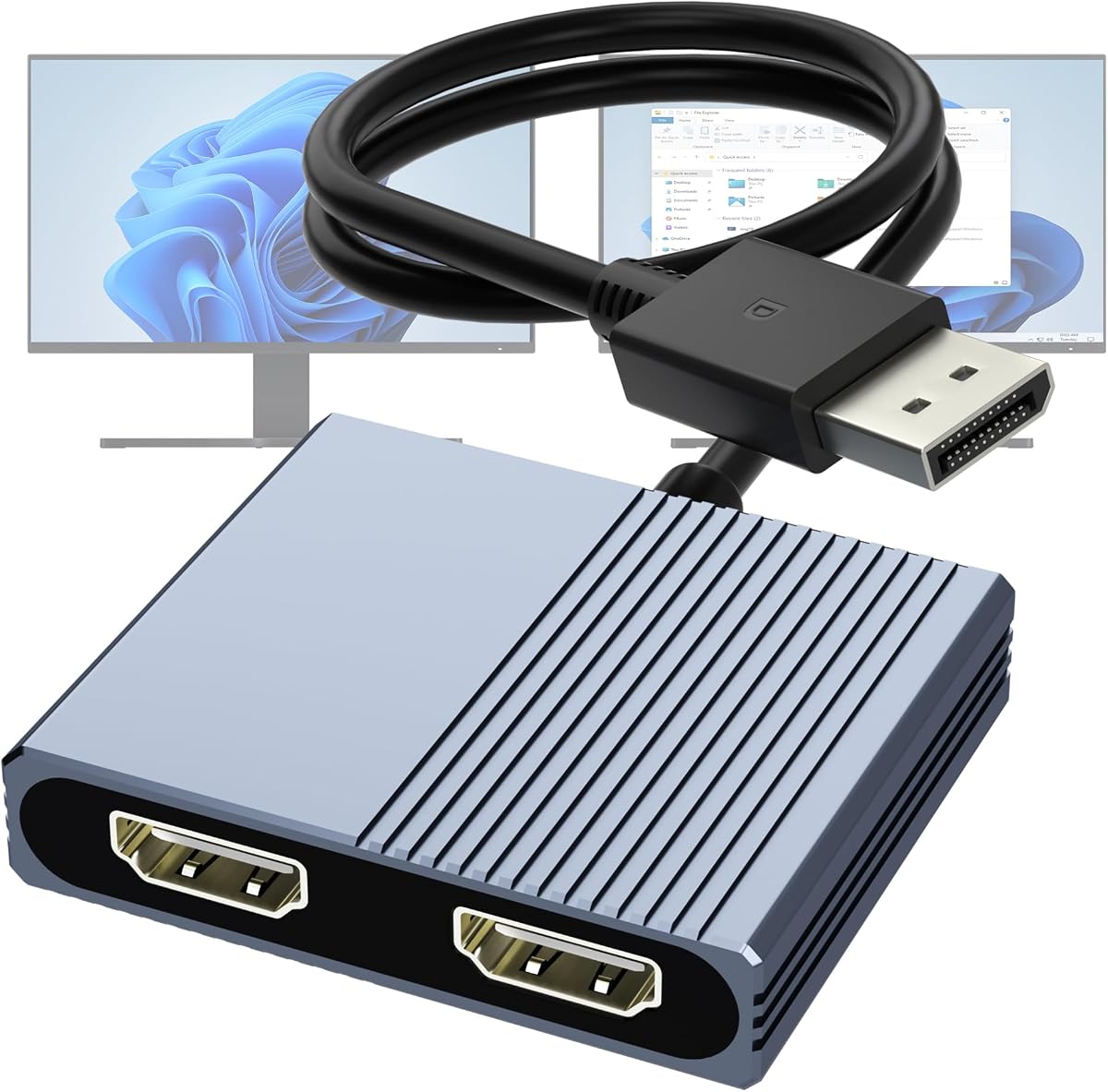
This DisplayPort to Dual HDMI MST Hub is designed for a desktop or laptop that already has a suitable DisplayPort output and needs two HDMI monitor connections. Its 4.1 rating reflects solid core functionality, including mirrored or extended output, SST and MST support, and backward compatibility with 4K30 and 1080p. Both HDMI outputs can be used simultaneously.
We may earn a commission when you buy through this link, at no additional cost to you.
With a DisplayPort 1.4 source, the adapter can support two 4K60 displays. With DP1.2, the stated maximum changes to one 4K60 display or two 4K30 displays. A USB power cable must be connected to the hub before use so the internal chipset receives the required 5V 2A power. The included USB power cable is helpful, but the external power adapter is not included. The product also calls for a DisplayPort cable no longer than 6.5 feet to preserve the advertised high-resolution performance.
Compatibility must be checked carefully. The adapter supports only a DisplayPort source feeding dual HDMI monitors and is not intended to sit behind docking stations, USB hubs, or KVM switches. The listed compatible mini PCs and graphics cards provide a useful starting point, while the recommendation to use a dedicated graphics card is important because integrated graphics may not support extended output. Its non-locking DisplayPort connector is intended to reduce stress on a graphics-card port during repeated removal.
This hub is best for a desktop builder or performance-oriented laptop user with DisplayPort 1.4, two HDMI 2.0 displays, and access to suitable USB power. It offers a direct path to extended high-resolution work without display drivers. Buyers should verify graphics-card bandwidth, port layout, monitor capabilities, and power requirements before ordering, because the adapter is specialized rather than universally interchangeable.
Connecting directly from a capable graphics card avoids uncertainty associated with chaining this unit behind another hub. A dedicated card with adequate bandwidth is the most dependable choice for extended operation.
The need for USB power and a DP1.4 source is a fair trade for broad high-resolution support. Buyers should budget for the omitted power adapter and use short, compliant DisplayPort and HDMI cables.
We may earn a commission when you buy through this link, at no additional cost to you.
The WAVLINK HDMI Splitter Extended Display is a budget-conscious option for adding two monitors through a single USB 3.0 connection. It holds a 4.4 rating and supports both USB-A and USB-C hosts, including USB4 and Thunderbolt 3 or 4 connections. Unlike several dual-HDMI choices, it is compatible with Windows, macOS, Chrome OS, and Android devices with OTG.
We may earn a commission when you buy through this link, at no additional cost to you.
Its resolution capabilities are modest but clearly specified. The adapter can drive one 2560×1440 display at 60Hz alongside one 1920×1080 display at 60Hz, or provide two 1080p60 outputs. It can extend or mirror screens as needed, making it suitable for office applications, web browsing, document work, and a three-screen setup consisting of a laptop display plus two external monitors.
Setup is less convenient than it would be with a fully plug-and-play device because driver installation is required. The short 12-centimeter cable also limits placement flexibility. The product is not recommended for gaming, graphic-intensive tasks, or design work, and it cannot display HDCP-protected content from services such as Netflix and Hulu. Mac and mobile users should also note that Android is limited to mirror mode and up to 1080p.
This is a sensible budget pick for a productivity-focused workspace that already has compatible USB-C or USB-A hardware and does not need 4K60 output. It stands out for broad platform support, a 24-month warranty, and lifetime technical support. Those protections and flexible host connection make it a more versatile budget choice than a basic HDMI splitter, even though its driver requirement and resolution ceiling deserve attention.
Supporting USB-A as well as USB-C lets the adapter serve laptops, desktops, and systems with newer high-bandwidth ports. That flexibility reduces the need to replace a computer just to add a second display.
The 1440p60-plus-1080p60 arrangement provides comfortable room for documents, communication tools, and browser windows. Its stated limitations make it less attractive for gaming, protected streaming, and demanding visual work.
We may earn a commission when you buy through this link, at no additional cost to you.
The OREI SplitExtend HDMI Adapter is a compact way to add two external displays to a compatible computer. It supports mirrored or extended viewing and can create a three-screen workstation by combining two external monitors with a laptop panel. Its 4.1 rating reflects a straightforward product with broad operating-system support but several setup requirements.
We may earn a commission when you buy through this link, at no additional cost to you.
Compatibility includes Windows 7, 8, 8.1, 10, and 11, macOS 10.10 and later, Chrome OS, and Android 7.1 or newer. Android output is restricted to 1080p mirroring, while Linux, Unix, and iOS are not supported. The integrated USB-A-to-USB-C arrangement gives users a choice of USB-C, USB-A, Thunderbolt 3 or 4, and USB4 host connections.
The adapter is not plug-and-play. It requires the Silicon Motion driver, and administrators must approve installation on managed computers. OREI also recommends an Intel Core i5 processor or better for optimal performance. Maximum video resolution is 4K at 30Hz, which is suitable for standard productivity and media use but falls short of the 60Hz refresh rate offered by newer HDMI 2.0 hubs.
The OREI is a good fit for someone who primarily needs two extended productivity screens and values a small, integrated design. It is less suitable for a locked-down business laptop that cannot install drivers or for users seeking high-refresh 4K. Buyers should also confirm that their host port supports the required video mode and treat the processor recommendation as part of the setup checklist rather than an afterthought.
The integrated connector arrangement makes this a focused display adapter rather than a bulky desktop hub. It is well suited to adding screens without purchasing several separate accessories.
A device with no administrator access may reject the required Silicon Motion driver. Checking permissions and processor capability before purchase prevents an avoidable installation problem.
We may earn a commission when you buy through this link, at no additional cost to you.
The Selore USB-C Docking Station is the most conventional all-in-one workstation option in this guide. It combines two 4K60 HDMI outputs with 100-watt host charging, one 5Gbps USB-C data port, two 5Gbps USB-A ports, and an SD/microSD card reader. Its 4.4 rating aligns with a versatile package designed for home and office productivity.
We may earn a commission when you buy through this link, at no additional cost to you.
Windows users can extend two displays simultaneously through MST mode, making the dock suitable for a laptop connected to a multi-screen desk. The USB-A ports can accommodate common peripherals such as a keyboard and mouse, while the card reader is useful for moving photos and videos at up to 104Mbps. Power Delivery accepts up to 100W at the input and is stated to provide 85W to the laptop, which is helpful during a full workday.
Compatibility depends on a full-featured USB-C or Thunderbolt port rather than a data-only or charging-only connector. The included power charger and charging cable are absent, so a user who wants full charging speed should already have suitable equipment. macOS systems can mirror the same content across external displays but do not support the two-screen MST extension offered on Windows. The second USB-C port is also limited to data transfer rather than another video or charging function.
This dock is best for a Windows professional building a permanent desk setup around a modern Thunderbolt or USB-C laptop. It reduces cable clutter while providing the display, storage, charging, and peripheral functions expected from a compact workstation hub. Mac users can still use it for mirrored displays and peripheral connectivity, but they should choose a different adapter if two independent extended desktops are essential.
The combination of dual displays, fast USB-A ports, card reading, and host charging removes the need for several separate desktop accessories. A single full-featured cable can serve as the central link for a modern Windows laptop.
MST extension is the major advantage for Windows users. Mac owners can use the dock for mirrored external screens, but they should set expectations about the lack of two separate extended desktops.
We may earn a commission when you buy through this link, at no additional cost to you.
The 4K HDMI 1-in-2-Out Splitter is the simplest product in the guide and serves a narrower purpose than the USB and DisplayPort adapters. It divides one HDMI source between two displays, televisions, or projectors, and its 4.1 rating reflects a straightforward approach with broad source-device compatibility. The product is particularly useful when the same content should appear on two screens.
We may earn a commission when you buy through this link, at no additional cost to you.
It can be used with a TV box, game console, PC, graphics card, television, monitor, or projector. Maximum resolution is 4K at 30Hz, with stated backward support for 2K60, 1080p60, and 720p60. Audio travels with the HDMI signal and is synchronized between the outputs, so a separate audio cable is unnecessary. The splitter also requires no driver installation, making setup considerably simpler than several USB-based alternatives.
The critical limitation is that the two outputs show the same content. Despite some broader wording in the product description, this is a mirroring splitter, not a tool for creating two independently extended desktops. Actual output also depends on the source device, selected settings, and connected displays. A user may need to adjust the relevant resolution or display configuration after the first connection.
Choose this product for presentations, shared viewing, duplicated gaming displays, or a setup in which a laptop needs to send the same presentation to a projector and a nearby monitor. It is not the right choice for productivity users who want separate application windows on each panel. Its ease of use and lack of driver requirements make it a useful low-complexity option, provided mirrored output matches your needs.
Sending one source to two screens is useful for presentations, shared entertainment, and status displays. The identical output also keeps attention on a shared image rather than dividing applications across separate desktops.
The advertised 4K ceiling is only available when the source, splitter, cable, and display can all support it. Checking the source's output settings can resolve many first-connection resolution issues.
We may earn a commission when you buy through this link, at no additional cost to you.
The Selore&S-Global USB-C to Dual HDMI Adapter is a premium-style all-in-one adapter for a modern Windows workstation. It combines dual 4K60 HDMI output, 5Gbps USB-A data transfer, and 100-watt Power Delivery in one compact body. Its 4.5 rating places it alongside the strongest products in the guide, and the breadth of its functions makes it appealing to laptop users who want a single desktop connection.
We may earn a commission when you buy through this link, at no additional cost to you.
Windows supports both SST and MST, so two different screens can be extended from the same host. macOS is limited to mirrored content, which is an important distinction from full desktop extension. The HDMI outputs support 4K at 60Hz, 1440p60, and 1080p60, although the stated dual-monitor 4K configuration is also listed at 3840×2160 at 30Hz. Users should therefore verify their monitors, host capabilities, and HDMI 2.0 cables to understand the exact combination each display will receive.
The host connection must be Thunderbolt 3, Thunderbolt 4, Thunderbolt 5, USB4, or a full-function USB-C port with DisplayPort Alternate Mode. The PD input accepts up to 100W and supplies a stated 90W to the laptop, but a suitable 100W power adapter and data cable are not included. A separate standard HDMI cable is also required for the display connections. The included package contains the adapter and user manual rather than a complete set of workstation cables.
This adapter is an excellent choice for a Windows professional who values high-refresh dual displays, charging, and one fast peripheral connection in a compact package. It suits a permanent desk more than a highly mobile arrangement because the charging package must be assembled separately. Mac users can still benefit from mirrored 4K output and charging, but should not mistake the product for a native two-screen extension solution on macOS.
Combining high-refresh dual displays with substantial host charging creates a streamlined workstation connection. The product reduces the number of separate adapters required for a USB-C laptop setup.
Windows offers the more complete experience through MST extension, while macOS mirrors the external content. Checking the required operating-system behavior before purchase is essential for multi-screen workflows.
We may earn a commission when you buy through this link, at no additional cost to you.
The DisplayPort Dual HDMI MST Hub is a well-specified option for a desktop with a modern discrete graphics card. It supports one DisplayPort source, two HDMI outputs, and extended or mirrored arrangements, all without installing display drivers. Its 4.4 rating and metal construction make it a compelling option for users who want a permanent graphics-card-to-dual-monitor connection.
We may earn a commission when you buy through this link, at no additional cost to you.
Both HDMI ports can carry 4K60 when the source supports DisplayPort 1.4, the graphics card provides enough bandwidth, and suitable HDMI 2.0 cables are used. Windows supports extended and mirrored configurations, while macOS is described as supporting SST arrangements. The product notes that a graphics card should support at least 18Gbps for multi-monitor extension and recommends a quality DisplayPort 1.4 cable longer than six feet for stable transmission.
The adapter is designed specifically for a DisplayPort source feeding dual HDMI monitors. It does not support three monitors and should not be connected behind a hub, dock, or KVM. Integrated graphics may provide only mirror mode or no display output, so using a dedicated card is the more dependable path. Its aluminum alloy housing helps dissipate heat, while the gold-plated DisplayPort connector is stated to withstand more than 25,000 insertion cycles.
This adapter is best for a desktop builder with an NVIDIA or AMD graphics card, a DP1.4 output, and two HDMI 2.0 monitors. It offers a clean, durable solution with no driver dependency, provided the source and graphics hardware meet the bandwidth requirements. It is less convenient for laptop users or computers without a direct DisplayPort output, and Mac users should confirm whether the required display arrangement is available in their graphics environment.
The adapter is optimized to sit between a capable discrete GPU and two HDMI displays. That focused design helps preserve the bandwidth needed for extended high-resolution output.
The aluminum housing and gold-plated connector are useful for a dock or desk installation that remains connected for long periods. Physical construction is a secondary benefit, though, and should not replace a careful bandwidth check.
We may earn a commission when you buy through this link, at no additional cost to you.
The UANTIN 6-in-1 USB-C Hub combines dual display output, charging, and three USB-A ports in a slim, driver-free design. Its 4.3 rating reflects a convenient general-purpose hub for modern laptops. Two HDMI 2.0 outputs support 4K at 60Hz, making it a strong productivity option for users who want more than basic mirrored projection.
We may earn a commission when you buy through this link, at no additional cost to you.
The host USB-C port must support DisplayPort Alternate Mode, and both the computer and connected displays must handle the desired resolution. Windows supports MST extension to two screens. macOS is limited to mirroring with the same content on both displays or extending to one additional display, so the adapter is more flexible on Windows than on Mac. The built-in cable is 30 centimeters long, offering a little more reach than the shortest docks in the guide without approaching the reach of a full workstation cable.
Power Delivery accepts up to 100W and provides a stated 90W to the host laptop, but a 65-watt-or-higher external power adapter and cable are required and not included. The three USB-A ports operate at 480Mbps, which is suitable for keyboards, mice, flash drives, and printers but less appropriate for sustained high-speed storage transfers. The lack of drivers makes initial setup considerably more convenient than the options that require operating-system software.
The UANTIN is a strong choice for a Windows user who wants a compact two-monitor setup without installing additional display software. Its combination of dual 4K60 output, charging, and basic peripheral connectivity is especially useful for hybrid workers building a temporary desk setup. Mac owners should account for the reduced extension behavior, and buyers who regularly move large files should choose an adapter with faster USB-A data connectivity.
Driver-free operation removes a common source of setup friction, especially for temporary workstations. Users can focus on cable placement, display selection, and power rather than software installation.
The three USB-A ports cover common desk accessories, and the 90-watt host output supports extended laptop use. These are general-purpose connections rather than high-speed storage features.
We may earn a commission when you buy through this link, at no additional cost to you.
The correct dual HDMI monitor adapter depends first on your computer's available output, then on whether you need true extended desktops, high-refresh 4K, host charging, or simple mirrored video. Reviewing these factors before shopping prevents many compatibility problems.
Begin with the ports available on your laptop or desktop. USB-C adapters require a full-function port with DisplayPort Alternate Mode, while Thunderbolt 3, 4, and 5 and USB4 generally provide the bandwidth needed for dual-display output. A USB-A 3.0 adapter offers broader legacy compatibility, but its maximum output and driver behavior depend on the operating system. DisplayPort adapters are a different category: they require a direct DP source, and a suitable graphics card is often needed for extended displays.
An extended desktop lets you move applications independently across two screens, which is essential for serious multitasking. Mirrored output repeats the same image on both displays and is useful for presentations, shared viewing, or a laptop screen shown on a larger monitor. Several products in this guide support extension on Windows but only mirror on macOS, and the basic 1-in-2-out HDMI splitter is intended primarily for duplication rather than independent workspaces.
A 4K30 adapter is adequate for many office applications, while 4K60 provides smoother motion and is better suited to modern high-density displays, media, and detailed visual work. Mixed-output adapters may drive one monitor at 4K30 and another at 1080p60. Full HDMI 2.0 hubs commonly advertise dual 4K60, but the final result depends on the host, graphics output, cables, and monitors. Resolution claims also differ when both displays are active.
The adapter is only one part of the display chain. A 4K60 connection may require HDMI 2.0 cables, while a DisplayPort MST hub may require a short, high-quality DP cable and a compatible HDMI cable for each monitor. The built-in host cable also matters in a permanent desk because a short 12-, 20-, or 30-centimeter lead may be inadequate if the computer sits away from the monitors. Products that require external power may need another cable or adapter entirely.
A full USB-C dock can simplify a laptop workstation by combining video, host charging, data, and peripheral connections. Power Delivery ratings describe input capability and laptop charging output, but most of these products do not include the promised power adapter or charging cable. USB-A data speeds also vary: 5Gbps ports suit more demanding transfers, while 480Mbps ports are primarily appropriate for keyboards, mice, printers, and simple storage.
Some USB-based adapters install a driver to enable multi-screen operation, while others work without additional software. Driver-based options may be blocked on a managed work device or require approval from an IT administrator. Some products also recommend a particular processor class for performance. OS compatibility lists are worth reading closely because support for Windows does not automatically mean support for macOS, Chrome OS, Linux, Android, or iPadOS.
Many dual-HDMI adapters support two different extended screens on Windows through MST but reproduce one image across both outputs on macOS. A few products allow macOS to extend to one additional screen, but that is not equivalent to two independent external desktops. These limitations arise from how the host system and adapter manage display modes. Mac users should therefore read the operating-system notes closely and avoid assuming that dual HDMI physically means dual extension on every platform.
A compact adapter is useful for travel, but a fixed workstation may benefit more from a short hub with a longer host cable, sturdy housing, and easy access to peripheral ports. DisplayPort adapters designed for desktop graphics cards should use a direct DP connection and may require a desktop power supply to power an internal chipset. Consider where the adapter will sit, whether the connector is under strain, and whether the housing can dissipate heat during sustained use.
Start by confirming that your computer has the required source port and that each monitor supports the resolution and refresh rate you intend to use. Connect the adapter directly to the computer, connect each display with a suitable HDMI cable, and complete any specified USB power connection. For USB-C models, verify DisplayPort Alternate Mode, Power Delivery, or Thunderbolt compatibility before plugging in expensive equipment.
After the hardware is connected, open the computer's display settings and select the desired layout. Choose Extend if the monitors need different content, Mirror if both must show the same image, and the appropriate native resolution for each display. If a DisplayPort product requests a USB power lead, connect it before attempting to configure the displays. Products requiring drivers should be configured according to their included instructions, with administrator approval obtained when necessary.
To care for the adapter, avoid sharply bending the host cable near its connector and do not unplug it by pulling the attached lead. Keep any required power adapter on a stable surface with ventilation, and keep the compact hub away from liquids and excessive heat. If the image flickers, check the display settings, cable connections, source bandwidth, and refresh rate before changing hardware. For unusual combinations not covered by the product instructions, contacting the manufacturer is preferable to relying on unverified adapters or converters.
Yes, but only when the adapter, computer, operating system, graphics output, and displays all support extended mode. Many USB-C and USB-A adapters support MST extension on Windows but mirror the same content on macOS. The basic 1-in-2-out HDMI splitter included in this guide is intended for duplicated visuals rather than separate application desktops.
You need a full-function USB-C port with DisplayPort Alternate Mode, or a compatible Thunderbolt or USB4 port. A USB-C connector that supports only data or charging cannot carry the video signals required by the adapter. Confirm the port's video and Power Delivery features in the computer specifications before purchasing.
Several models claim dual 4K60 output, but the complete connection must support that mode. The computer's graphics output, adapter, HDMI cables, and both monitors need compatible specifications. Some mixed-output designs provide only one 4K30 display alongside a 1080p60 display, so check the exact dual-monitor configuration rather than relying on a general resolution claim.
Many adapters support two-screen extension on Windows through MST but mirror the same content on macOS. This is an operating-system limitation reflected in the product specifications, not necessarily a faulty cable. Mac users who need two independent extended desktops should look for a model that explicitly states support for that behavior.
It depends on the model. The DisplayPort MST hub in this guide requires a 5V 2A power connection and does not include the external adapter. Several USB-C hubs accept power input but omit the charger and charging cable. Check the package contents and host power-delivery requirements before ordering so the adapter can operate at its advertised capabilities.
The adapter must connect to a source that can output the required video, such as a desktop with a compatible DisplayPort or graphics-card output, or a laptop with a full-featured USB-C port. The product data also distinguishes direct DisplayPort connections from hubs, docks, and KVM switches, so the connection path should be checked carefully.
Use cables and monitors that support HDMI 2.0 or an appropriate higher standard. The adapter alone cannot compensate for an older cable or display. Product instructions also recommend checking maximum cable lengths for certain DisplayPort MST adapters because longer or lower-quality cables can prevent stable high-resolution operation.
It depends on the model and the desired game resolution. Products with 4K60 HDMI 2.0 output are more appropriate than adapters limited to 4K30 or 1080p60, but gaming performance also depends on the computer, GPU, game settings, and display response. The WAVLINK model is specifically not recommended for gaming or graphic-intensive work.
The StarTech USB-A 3.0 adapter stands out as the best overall choice for Windows users who value dependable extended desktops, a useful 4K30-plus-1080p60 combination, and substantial technical support. The Selore&S-Global USB-C model is the premium all-in-one option for a modern Windows desk that benefits from 4K60 output, charging, and fast USB-A data connectivity. The WAVLINK adapter is the budget pick for broad operating-system support and flexible USB-C or USB-A connectivity.
Before choosing, prioritize the connection your computer genuinely supports, whether you need independent extended desktops, and the resolution your monitors can sustain together. Pay equal attention to driver requirements, macOS limitations, external power, included accessories, and HDMI cable standards. A basic mirrored splitter is appropriate for shared presentations, while a productivity dock or video adapter is necessary for separate work areas.
Finally, verify the current specifications and accessories directly on the product listing before purchasing. Ports, operating-system behavior, firmware or driver guidance, and included components can change over time. Current product details and availability also vary, so readers should use the guide as a compatibility framework rather than assuming every detail remains permanent.