
ASUS ProArt PA278QV
4.6Editor score
Factory-calibrated Delta E under 2
100% sRGB and Rec. 709
Fully adjustable ergonomic stand
The best monitor for Premiere Pro video editing is compared across color accuracy, resolution, HDR, connectivity, ergonomics, and refresh rate for creators.
A monitor for Premiere Pro video editing does more than display a timeline. It shapes how accurately you judge color, detail, contrast, motion, and the final image. The right display should provide accurate color, sufficient resolution, clean connectivity, and comfortable ergonomics for long editing sessions.
We compared ten professional and creator-focused monitors using the specifications supplied for each product. Our evaluation considers resolution, color gamut, calibration claims, HDR capability, port selection, refresh rate, panel technology, stand adjustment, and features that simplify a Premiere Pro workflow.
Each pick below explains who the monitor is best suited for and where its compromises matter most. We also highlight the standout characteristics of every option, from the ASUS ProArt PA278QV to the MSI PRO MAX 271UPX12G, while noting that availability and offers can change.
4.6Editor score

3.9Editor score

3.8Editor score
The comparison highlights the differences that matter most in Premiere Pro: display resolution, color coverage, factory calibration, panel capability, high-speed performance, and desktop connectivity. Each model offers a distinct balance for editors working with standard-definition delivery, high-resolution timelines, HDR grading, or demanding motion workflows.


The ASUS ProArt PA278QV combines a 27-inch WQHD IPS panel with factory-calibrated color accuracy, 100% sRGB coverage, and 100% Rec. 709 coverage. Its 4.6 rating reflects a strong balance of professional features, and the Delta E below 2 claim makes it particularly appealing for editors who need dependable color without moving to a high-end reference display.
We may earn a commission when you buy through this link, at no additional cost to you.
The monitor is especially useful for standard web, social, broadcast, and Rec. 709 delivery projects. Its 2560 by 1440 resolution provides enough space for a Premiere Pro timeline and preview arrangement while avoiding the scaling demands associated with a 4K panel. DisplayPort, HDMI, DVI-D, Mini DisplayPort, and a built-in USB hub make it straightforward to connect a laptop, desktop, controller, and drive.
The main compromise is resolution. At 4K, editors can inspect more of a 4K image at native detail, but this display instead concentrates on accurate color and a flexible physical setup. The stand supports height adjustment, tilt, swivel, and pivot, while ASUS Eye Care features and an anti-glare coating help manage fatigue during long sessions. There is also no USB-C power delivery, so a MacBook or other laptop user may need a separate charging connection.
This is our Best Budget pick because it prioritizes the features that directly support consistent editing: accurate Rec. 709 output, wide viewing angles, a useful collection of ports, and an adjustable stand. It is an excellent choice for freelance editors, students, and professionals who need a dependable ProArt workspace without moving to a 5K or 6K panel.
Full Rec. 709 coverage is central to the PA278QV's value for video work. The factory calibration and stated Delta E below 2 performance support consistent judgment when matching footage, checking skin tones, and preparing a timeline for standard online or broadcast delivery.
Height, tilt, swivel, and pivot adjustments let users position the panel precisely, while the anti-glare finish and flicker-free backlighting support long sessions. A USB hub also reduces the need to reconnect peripherals every time the workstation changes.
We may earn a commission when you buy through this link, at no additional cost to you.
The ASUS ProArt PA32QCV delivers a 31.5-inch 6K display with 6016 by 3384 native resolution, making it the most detailed option in this guide. Its 3.9 rating may appear modest beside some conventional office monitors, but the supplied specifications identify it as a specialized professional display designed around demanding color, high-resolution media, and streamlined multi-device workflows.
We may earn a commission when you buy through this link, at no additional cost to you.
A 6K canvas changes how Premiere Pro feels in practice. Editors can arrange the program monitor, source monitor, timeline, effect controls, and audio meters while retaining readable interface text. The IPS panel offers a 178-degree wide viewing angle, and the 98% DCI-P3 gamut makes the display appropriate for projects that need more color headroom than a basic sRGB-only screen.
Connectivity is a major strength. Dual Thunderbolt 4 ports provide up to 96W of power delivery and support daisy-chaining, while HDMI 2.1, DisplayPort 1.4, and a USB hub cover conventional editing configurations. An Auto KVM function simplifies moving between two connected systems, and the M Model-P3 preset is intended to match the color performance of a MacBook display.
This is the Editor's Choice for editors who routinely work with 5K or 6K footage and want a single display to handle both image inspection and a large editing interface. It is best suited to a spacious desk, a capable workstation, and a color-managed workflow rather than a compact, general-purpose setup.
The 6K resolution and 31.5-inch panel reduce the need to alternate between separate preview and interface areas. That makes this display especially valuable for editors managing detailed timelines, multilayer composites, or large collections of bins and metadata.
Thunderbolt 4 power delivery, daisy-chaining, and automatic KVM switching reduce cable friction. The MacBook-oriented color preset also helps create a more consistent viewing environment when switching between a portable computer and the main editing system.
We may earn a commission when you buy through this link, at no additional cost to you.
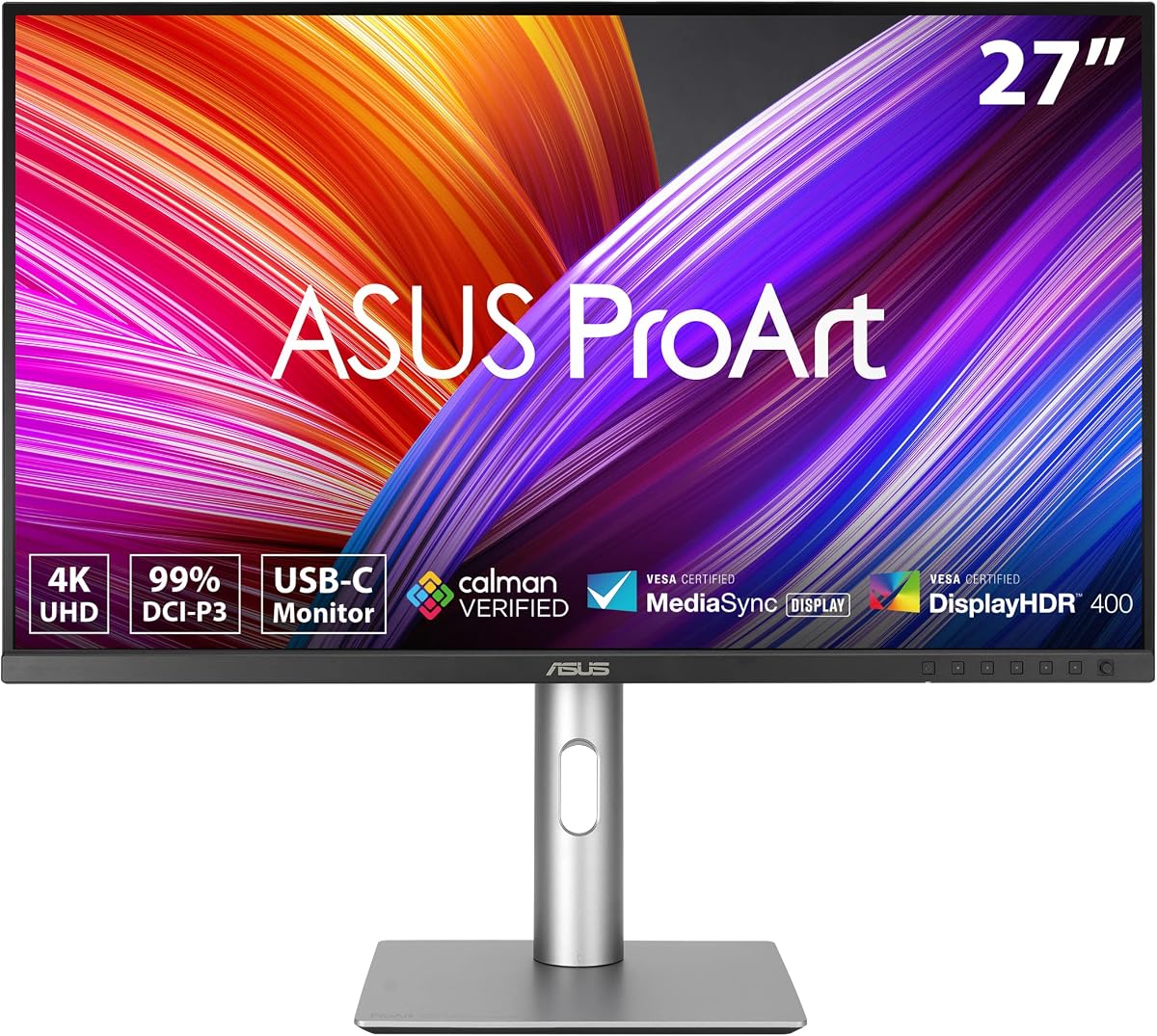
The ASUS ProArt PA279CRV pairs a 27-inch 4K LED-backlit HDR display with factory calibration, 99% DCI-P3 coverage, and 99% Adobe RGB coverage. Its 4.2 rating is supported by a versatile specification sheet that addresses the two common needs of Premiere Pro editors: fine image detail and broad creative color ranges.
We may earn a commission when you buy through this link, at no additional cost to you.
The 3840 by 2160 native resolution gives editors substantially more usable workspace than a QHD panel. That extra room is valuable for a larger Premiere Pro interface, and it allows 4K footage to be viewed at 100% scale. The wide-view IPS panel, Delta E below 2 factory calibration, and broad color coverage support professional work where accurate representation matters.
Its USB-C connection supports DisplayPort Alt Mode, data transfer, and up to 96W of power delivery. DisplayPort, HDMI, and a USB hub broaden compatibility, while daisy-chaining makes a dual-screen workstation manageable. The main limitation is that its HDR description does not provide the detailed peak-brightness figures or deep-black behavior associated with OLED and advanced Mini LED models.
The PA279CRV is a strong all-rounder for editors working with 4K footage, graphics, and mixed creative media. It is particularly well suited to Mac users and laptop-based editors who want one cable for display, data, and charging, while still requiring a dependable IPS-style editing panel.
Native 4K resolution gives Premiere Pro a much more open canvas than 1440p. Editors can keep the timeline and program monitor visible at once, and 4K sequences can be inspected at their full pixel dimensions without demanding a 5K or 6K panel.
Ninety-nine percent DCI-P3 and 99% Adobe RGB coverage make this monitor relevant to video, photography, and design workflows. Professionals should still use an appropriate output space and calibration process rather than assuming a wide gamut automatically delivers correct color in every application.
We may earn a commission when you buy through this link, at no additional cost to you.
The MSI PRO MAX 271UPX12G is a 27-inch 4K QD-OLED monitor rated 5.0, and its specifications emphasize the qualities that make OLED compelling for video review. The panel combines deep blacks, vivid color, a 120Hz refresh rate, adaptive synchronization, and VESA DisplayHDR True Black 400 certification.
We may earn a commission when you buy through this link, at no additional cost to you.
Its stated Delta E under 2 accuracy gives the visual appeal of OLED a professional foundation. A 3840 by 2160 canvas supports detailed editing interfaces, while the high refresh rate can make timeline interaction, playback, and navigation feel more responsive than on a conventional 60Hz professional monitor. Adaptive-Sync support may also improve the experience when the system and application support it.
The supplied 15W USB-C power delivery is less convenient than the 65W to 96W implementations found on several ASUS ProArt models. A Mac-oriented feature list, built-in speakers, height adjustment, and TÜV-certified eye care features add convenience, but none changes the importance of using a separate charger for a power-hungry laptop.
This monitor is best for editors who prioritize contrast, visual impact, and smooth performance over a conventional office-style panel. It is a particularly compelling choice for dark-interface editing, cinematic previews, and motion-oriented workflows, provided the user understands the care considerations associated with OLED displays.
QD-OLED technology gives the display its standout visual trait: extremely dark black levels and very high perceived contrast. That makes it useful for reviewing dark scenes in a controlled environment and gives the image a more dimensional appearance than a typical IPS editing display.
The 120Hz refresh rate is well above the baseline used by most video editors. Although the principal job of the monitor is not gaming, smooth playback and timeline responsiveness can make routine creative work feel more immediate.
We may earn a commission when you buy through this link, at no additional cost to you.
The ASUS ProArt PA278CGRV combines a color-focused 27-inch QHD IPS panel with a 144Hz variable refresh rate. Its 4.3 rating and broad feature set make it a compelling hybrid for editors who also need a responsive display for animation, interactive work, design review, or general creative use.
We may earn a commission when you buy through this link, at no additional cost to you.
Factory calibration, a stated Delta E below 2, 100% sRGB coverage, and 97% DCI-P3 coverage support professional color work. The 2560 by 1440 resolution is spacious enough for timeline and preview panels, although it does not provide the native 4K detail of the PA279CRV or the 5K and 6K models in this guide.
The monitor's USB-C port supports up to 96W of power delivery, and the Auto KVM function makes switching between two computers straightforward. DisplayPort daisy-chaining and a built-in USB hub improve desk organization, while DisplayWidget Center puts frequently used settings within mouse-based control. VESA DisplayHDR 400 support improves perceived contrast in compatible content, although no detailed peak-brightness figure is provided.
The PA278CGRV is ideal for a creator who wants a single monitor to support both editing and interactive production. It is less suitable when native 4K inspection or very fine 4K detail is the central requirement, but it compensates with a high refresh rate, accurate color, and especially convenient laptop connectivity.
ProArt color tools and broad gamut coverage support professional visual work, while the 144Hz panel adds fluidity for animation previews and other interactive tasks. That makes the display more versatile than a basic office monitor without losing the core benefits of the ProArt family.
Ninety-six-watt USB-C power delivery can power and connect a compatible laptop through one cable. The built-in USB hub and KVM switching further simplify a mobile editing setup, particularly for creators moving between a desktop workstation and a portable machine.
We may earn a commission when you buy through this link, at no additional cost to you.
The ASUS ProArt PA248QV brings professional color accuracy to a compact 24-inch form factor. Its 4.6 rating is supported by full sRGB and Rec. 709 coverage, a stated Delta E below 2, and Calman Verified technology. The 1920 by 1200 WUXGA panel uses a 16:10 ratio, offering more vertical room than a standard 16:9 display.
We may earn a commission when you buy through this link, at no additional cost to you.
For Premiere Pro, the taller aspect ratio can be useful when arranging the timeline vertically or keeping additional controls visible. The IPS panel provides wide viewing angles, while the anti-glare coating helps control reflections. Connectivity is conventional but dependable, with DisplayPort, HDMI, and D-Sub options supporting laptops and desktop editing systems.
Its primary limitation is pixel density. The screen is well suited to HD and 1080p editing, but it cannot reveal native 4K detail at full scale and offers less interface space than a 4K display. There is also no USB-C power delivery, so modern laptop users may need separate power and display connections.
Choose the PA248QV when desk space is limited, portability matters, or your delivery work is primarily standard-definition or HD. It is also a sensible second display for color-accurate reference beside a larger high-resolution editing screen, provided both displays are calibrated for the same viewing environment.
The taller WUXGA format offers a useful balance between compact size and usable editing space. Premiere Pro panels can be arranged more comfortably than on a similarly sized 16:9 display, while the overall footprint remains manageable for a smaller studio or home office.
Full sRGB and Rec. 709 coverage targets the color spaces most commonly used for online video and HD production. With factory calibration and an ergonomic stand, the model offers professional essentials in a straightforward package.
We may earn a commission when you buy through this link, at no additional cost to you.
The LG 27UP850K-W combines a 27-inch 4K IPS panel with up to 95% DCI-P3 color coverage, VESA DisplayHDR 400 support, and a generous collection of ports. Its 4.4 rating reflects a well-rounded display that serves creative work, media viewing, and general productivity from a single screen.
We may earn a commission when you buy through this link, at no additional cost to you.
Native 3840 by 2160 resolution provides a clear advantage for Premiere Pro because the interface has more room and 4K footage can be viewed at 100%. The IPS panel retains the wide viewing angles and consistent color expected from this class of professional display, while HDR support broadens its usefulness for compatible material.
USB Type-C provides data transfer and up to 90W of power delivery, and the monitor also includes DisplayPort, two HDMI connections, two USB 3.0 ports, and a headphone jack. Built-in Waves MaxxAudio speakers and a Switch app for screen layouts add value beyond conventional editing requirements. The stand adjusts height, tilt, and pivot.
The LG is a good general-purpose creator monitor when USB-C convenience, 4K clarity, and media features matter. Its color claims are not accompanied by the same explicit Delta E and Calman Verified language found on the ProArt options, so professionals doing exacting reference work may prefer a model with more detailed factory-calibration information.
Ninety-watt USB-C power delivery, multiple video inputs, and USB ports allow the display to serve as the center of a compact workstation. A single-cable laptop connection can support a cleaner desk and a more portable editing routine.
DisplayHDR 400 support and integrated stereo speakers are useful for reviewing footage and communicating with clients. The Switch app can also divide the screen into several sections, giving the display a broader role in presentation and production workflows.
We may earn a commission when you buy through this link, at no additional cost to you.
The ASUS ProArt PA27JCV combines a 27-inch 5K IPS panel with 99% DCI-P3 coverage, 95% Adobe RGB coverage, and factory calibration to a stated Delta E below 2. Its 3.6 rating is the lowest in this selection, but the underlying specifications position it as a professional color display for detailed production work.
We may earn a commission when you buy through this link, at no additional cost to you.
At 5120 by 2880, the panel provides more pixels than a standard 4K monitor while remaining smaller than the 31.5-inch 6K PA32QCV. For editors, that means room for a detailed interface and high-resolution footage without needing an ultrawide display. The broad color coverage also supports workflows that cross video, photography, and graphic design boundaries.
USB-C handles DisplayPort, fast data transfer, and up to 96W of power delivery. An Auto KVM function helps users move between two computers, and ambient-light and backlight sensors provide intelligent brightness adjustment. The latter may be useful in changing rooms, though editors should still establish a consistent viewing environment and verify the monitor's behavior for critical work.
The PA27JCV is most appropriate for a dedicated color-conscious workstation with a compact desk. It gives serious creators the detail of 5K and strong color specifications in a smaller footprint than the 6K alternative, but buyers should consider its lower rating alongside the strong feature set.
Native 5K resolution creates an unusually sharp editing environment for a 27-inch panel. It is well suited to detailed 4K timelines, high-resolution stills, and work that benefits from a large Premiere Pro interface without moving to a 32-inch display.
The intelligent brightness system uses ambient and backlight sensors to support more consistent image presentation. Color-critical professionals may still prefer to disable automation where necessary and maintain a fixed, controlled calibration environment.
We may earn a commission when you buy through this link, at no additional cost to you.
The ASUS ProArt PA27UCDMR is built for creators who want the image quality of QD-OLED combined with professional calibration and connectivity. It offers a 26.5-inch 4K panel, 240Hz refresh rate, 0.1ms GTG response time, 1000-nit peak brightness, and VESA DisplayHDR True Black 400 certification.
We may earn a commission when you buy through this link, at no additional cost to you.
Its standout color specification is an E below 1 claim, which is more ambitious than the Delta E below 2 figures common across the other ProArt models. True 10-bit color, 100% sRGB, 99% DCI-P3, and Rec. 2020 coverage make it suitable for demanding creative pipelines, while hardware calibration and profile write-back support repeated color management.
The monitor supports Dolby Vision, HLG, and HDR10, although the supplied information states that Dolby Vision is intended to become ready in 2026 through a firmware update. Dual Thunderbolt 4 ports deliver up to 96W and support daisy-chaining, and HDMI 2.1, DisplayPort 1.4 DSC, and a USB hub round out the connections.
This display is a specialist option for colorists, high-end editors, and motion-focused creators who can exploit its full specification. The 240Hz rate is far beyond conventional video requirements, so buyers should consider whether the additional cost and OLED maintenance expectations align with their actual workflow.
True 10-bit color and a stated E below 1 performance distinguish this model from conventional IPS displays. The combination of high brightness, deep blacks, and broad gamut gives editors a capable foundation for HDR review and color-sensitive work.
ProArt Hardware Calibration Technology and profile write-back allow the display to integrate more deeply into a managed color workflow. These features are most valuable for creators who understand LUTs, ICC profiles, output transforms, and the importance of controlling the viewing environment.
We may earn a commission when you buy through this link, at no additional cost to you.
The ASUS ProArt PA278CV is a 27-inch QHD IPS monitor designed around accurate Rec. 709 color, flexible connectivity, and multi-screen productivity. Its 4.4 rating, Calman Verified Delta E below 2 claim, and 100% sRGB and Rec. 709 coverage make it a credible professional editing option for standard video work.
We may earn a commission when you buy through this link, at no additional cost to you.
The 2560 by 1440 panel offers enough space for Premiere Pro's timeline and preview panels without the processing demands of a 4K model. DisplayPort daisy-chaining can connect up to four displays through a single connection, making the monitor well suited to an editing desk built around several separate program, source, and reference screens.
USB-C provides 65W of power delivery, while HDMI and DisplayPort cover common editing configurations. The ergonomic stand provides tilt, swivel, pivot, and height adjustment, including a 90-degree pivot for vertical use. The supplied feature list also notes USB-C, HDMI, and DisplayPort cables in the box, reducing the need for separate lead purchases at setup.
The PA278CV is best for editors who value an accurate, dependable video monitor and a multi-display workflow more than native 4K detail. Its 65W charging capacity may be sufficient for many laptops, but demanding mobile workstations may still require their own charger. It remains a practical choice for HD, Rec. 709, and multi-monitor editing setups.
DisplayPort daisy-chaining reduces the number of direct connections needed from the editing computer. This is particularly useful when each screen has a defined role, such as a program monitor, source display, scopes, and project management area.
The fully adjustable stand, accurate Rec. 709 output, and modern USB-C connection cover the essentials without a high-refresh-rate specification. This makes the monitor a sensible foundation for editors who prioritize a stable, flexible workstation.
We may earn a commission when you buy through this link, at no additional cost to you.
A Premiere Pro monitor should be judged by the type of footage you edit, the precision your work demands, the size of your desk, and the computer you use. Resolution, color, HDR, connectivity, and ergonomics matter, but they should be considered as parts of one workflow rather than isolated specifications.
Resolution determines how many pixels are available for both the program monitor and the Premiere Pro interface. A QHD 2560 by 1440 panel is a practical middle ground and provides enough room for standard editing layouts, while 4K delivers a noticeably more open workspace and allows 4K footage to be viewed at 100%. At 5K or 6K, editors can inspect high-resolution media more closely and keep multiple panels visible without making interface text disproportionately small.
Choose QHD for HD-centric work and modest desk space, 4K for a modern general-purpose editing setup, and 5K or 6K when your footage, graphics, or multi-panel workflow justifies the additional detail. Always consider whether the editing computer can drive the selected resolution and refresh rate smoothly.
For standard online video, full sRGB coverage and accurate Rec. 709 output are the essential baseline. A broad DCI-P3 gamut gives you more room for grading and high-quality source material, while Adobe RGB coverage can help when a project combines video with photography, print-oriented graphics, or broad-gamut design work. Factory calibration, Calman Verified status, and published Delta E figures provide stronger evidence of accuracy than a wide-gamut claim alone.
Prioritize a monitor with documented calibration performance if color decisions directly affect delivery. Otherwise, a model with sRGB and Rec. 709 coverage may be more practical for editors who need an uncomplicated and dependable standard workflow.
IPS panels are the traditional choice for professional offices because they provide wide viewing angles, consistent color, and stable geometry. They are an excellent match for conventional editing and color work, although their darkest areas generally do not reach the black levels of OLED. QD-OLED offers exceptional contrast, deep blacks, and strong HDR performance, making it attractive for cinematic review, but editors should understand the longer-term care considerations associated with OLED panels.
Use IPS when consistency, geometry, and a conventional professional workflow matter most. Consider OLED when contrast, black level, smoothness, and HDR impact are central to your work, and manage it with sensible brightness practices and an appropriate screen-protection routine.
HDR capability is more than a badge or compatibility label. Look for the specific VESA standard, peak brightness, black-level behavior, and supported formats. OLED models generally deliver very deep blacks, while high-brightness professional panels can provide more luminance for controlled grading environments. A monitor with limited peak brightness may still be useful for HDR preview, but it should not be mistaken for a fully realized mastering reference.
Match the display to your delivery target. SDR Rec. 709 editing remains essential, but an HDR-capable model adds value if you regularly review HDR masters, create graphics for HDR delivery, or need to understand how a finished sequence will appear in high dynamic range.
A higher refresh rate makes timeline navigation, playback, and other interface actions appear smoother. It is not a substitute for accurate color or sufficient resolution, and most professional video editing does not require 120Hz or above. Nevertheless, a 120Hz or 144Hz panel can make the everyday editing experience more fluid, particularly for editors who work with motion graphics, animation previews, or complex interface navigation.
A standard 60Hz or 120Hz display is sufficient for conventional editing, while 144Hz is a useful hybrid feature for interactive creative work. The 240Hz model in this guide is best understood as a specialist performance option rather than a requirement for Premiere Pro.
The best monitor for a Premiere Pro workstation is the one that connects cleanly to your computer and peripherals. DisplayPort and HDMI are common priorities, while USB-C can carry video, data, and power through one cable. A built-in USB hub is useful for controllers, drives, card readers, and audio interfaces. Thunderbolt 4 adds high bandwidth, daisy-chaining, and strong power delivery, while KVM switching makes it easier to move between a desktop and laptop.
Verify the power rating if you plan to charge through USB-C, and check whether your workstation supports the desired refresh rate over the specific port. A monitor with excellent ports can simplify daily work considerably, but incompatible bandwidth will limit the benefits.
Screen size should be chosen with your desk, viewing distance, and workflow in mind. A 24-inch model is compact and may suit HD editing or a secondary reference display. A 27-inch 4K screen offers a strong balance of detail and footprint, while 31.5-inch and larger 5K or 6K displays create more workspace but require more physical space. Adjustable stands help position the panel correctly and can reduce neck and shoulder strain during long sessions.
Look for height adjustment, tilt, swivel, and pivot, along with a viewing angle that works with your chair and desk. Anti-glare treatment and eye-care features can also improve comfort, although a carefully placed monitor remains the foundation of an ergonomic setup.
A professional monitor may support factory calibration, hardware adjustment, ICC profiles, or profile write-back. These tools help maintain consistency, but they do not replace a controlled room, correct output settings, and a disciplined color-management process. For ordinary editing, a dependable factory-calibrated sRGB or Rec. 709 display is enough. For commercial grading and high-end finishing, document your workflow and ensure the monitor supports the color management features your studio actually uses.
Choose simpler calibration when you want a predictable display with minimal maintenance. Choose hardware calibration and advanced color features when a dedicated color specialist or carefully managed pipeline justifies them.
Begin by positioning the monitor directly in front of you, with its center near eye level and the viewing distance that feels natural for its size. Adjust brightness for the room rather than simply maximizing it, select the intended output color space in the monitor controls, and avoid leaving a strong light source directly behind or beside the panel. If the display supports an ambient-light sensor, evaluate whether automatic brightness behavior is appropriate for a consistent color-review environment.
In Premiere Pro, choose the correct display and color-management settings for the project rather than applying a workspace layout that the program cannot reproduce accurately. Use scopes when grading, keep the program monitor at the intended playback size, and avoid judging delivery brightness from an overly bright panel in a dark room. If the monitor supports hardware calibration, follow the manufacturer's procedure and save a separate profile for each intended operating mode.
For OLED models, use practical settings that avoid leaving bright static interfaces on-screen for extended periods, activate the operating system's screen-saver or sleep behavior, and keep the panel clean with a soft microfiber cloth. For IPS displays, manage direct sunlight, avoid pushing excessive brightness, and clean with manufacturer-approved methods. Periodically check the stand, cables, firmware, color settings, and calibration state as part of the same maintenance routine used for your editing workstation.
For most professional editors, 4K at 27 inches is the strongest all-around resolution because it provides a spacious interface and allows 4K footage to be viewed at 100%. QHD is sufficient for HD-focused work, while 5K and 6K are worthwhile when high-resolution source material or extensive panel layouts are central to the job. Your computer should also be capable of driving the chosen resolution comfortably.
Not for every type of work, but it can be valuable when editing high-quality source footage, preparing HDR-capable deliverables, or performing color work beyond standard sRGB delivery. Full sRGB and Rec. 709 coverage are the important baseline for ordinary online video. Wide gamut is most useful when paired with accurate calibration and a clearly defined output workflow.
OLED is not automatically better for every editor. It provides deep blacks, strong contrast, high brightness, and excellent motion performance, which can make cinematic footage look impressive and the interface feel responsive. IPS remains a practical standard for color stability, wide viewing angles, and conventional professional use. The right choice depends on your grading process, HDR needs, and tolerance for OLED care considerations.
It can make playback, scrubbing, and interface navigation feel smoother, but refresh rate is less important than color accuracy, resolution, and comfortable ergonomics. A 120Hz or 144Hz monitor can be a useful creative hybrid, particularly for motion graphics or animation previews. A standard 60Hz display remains perfectly capable for many professional editing workflows.
DisplayPort is a dependable choice for many desktop workstations and supports high refresh rates and daisy-chaining. USB-C is especially convenient for laptop editors because one cable can carry video, data, and power, provided the monitor's power delivery meets the laptop's requirements. Thunderbolt 4 adds bandwidth and flexible chaining, but the most important factor is whether your computer and adapters support the intended resolution and refresh rate.
HDR is necessary if your final delivery target is HDR or if clients regularly request HDR previews. For standard SDR projects, it is optional. A capable HDR monitor can help with tone mapping and visual evaluation, but meaningful HDR work also requires correct timeline settings, calibrated output, appropriate HDR metadata, and knowledge of the intended mastering display.
A separate reference display is helpful for critical grading, high-end finishing, and checking the output of a calibrated editing monitor, but it is not required for every Premiere Pro project. Most editors can work effectively with one accurately configured display. Consider a second calibrated monitor when clients use different standards or when you regularly need to compare color-managed outputs.
Yes, but you will usually view 4K footage at a reduced scale because a QHD panel has fewer native pixels than a 4K sequence. You can still edit, trim, grade, and deliver 4K projects, but native inspection is less detailed. Choose 4K or higher when critical frame-level judgment, macro detail, or large interface layouts are central to your work.
The ASUS ProArt PA278QV is the most balanced practical choice, combining factory-calibrated Rec. 709 output, a roomy QHD workspace, extensive ports, and an adjustable stand. The ASUS ProArt PA32QCV takes resolution and screen space to a specialist level with 6K detail, while the MSI PRO MAX 271UPX12G offers the strongest combination of OLED contrast, 4K clarity, and fluid 120Hz performance.
Prioritize the specification that affects your daily work: choose 4K or 5K for detailed timelines, full Rec. 709 for standard delivery, wide gamut and calibration for grading, and OLED or strong HDR for high-contrast content. Also account for desk space, laptop charging needs, and whether the extra features of a premium model will genuinely improve your finished work rather than simply add specialized hardware.
Before purchasing, confirm the monitor's current specifications, port compatibility, stand arrangement, and included accessories. Availability and special offers can change, so check the latest listing and manufacturer details at the time of purchase to ensure the model remains the right fit for your Premiere Pro workstation.