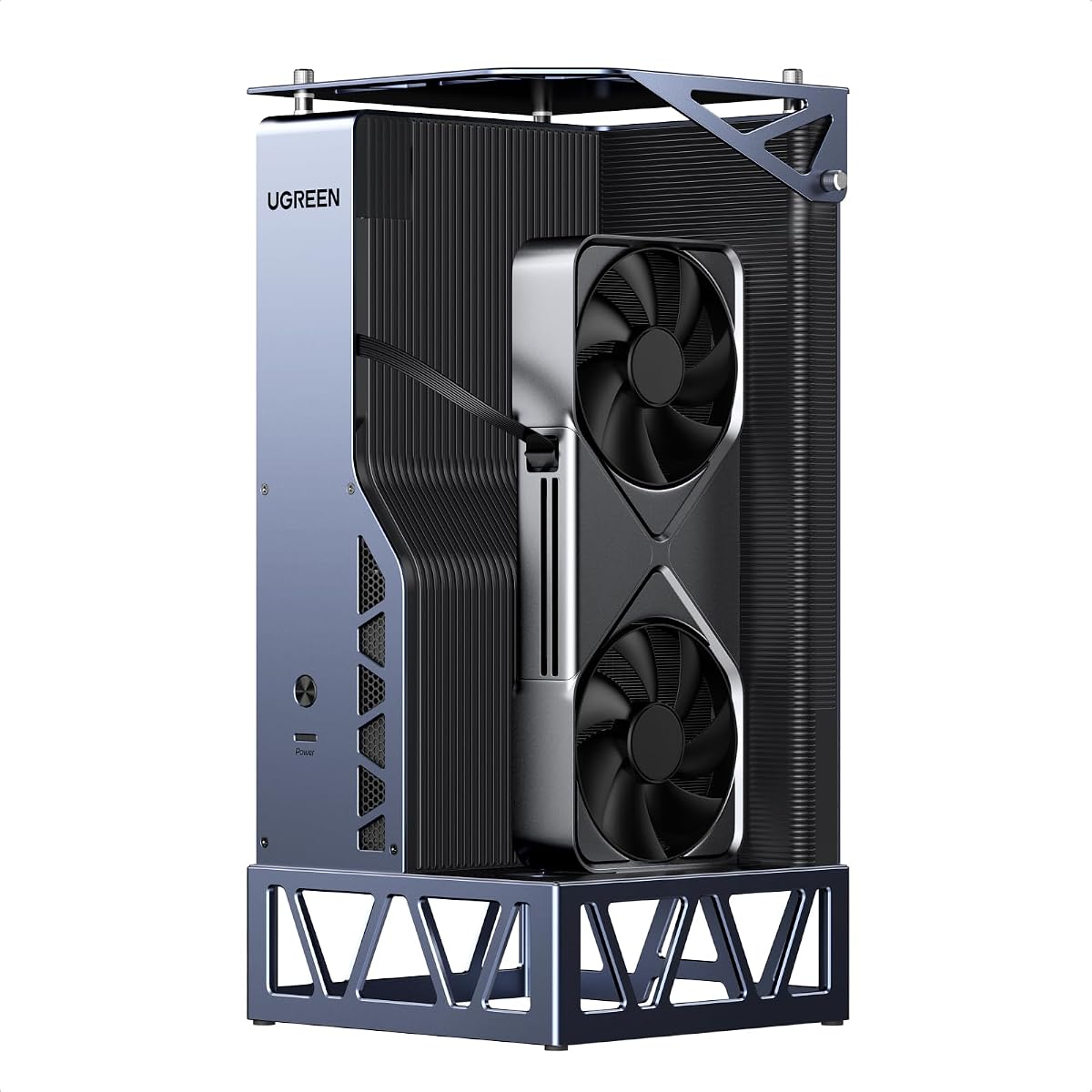
UGREEN LinkStation eGPU Dock
4.8Editor score
OCuLink and USB4 dual connectivity
Broad desktop GPU compatibility
Single-cable 100W charging
Explore the best Egpu Docks of October 2026, comparing bandwidth, GPU compatibility, power options, ports, cooling, portability, and ideal setups for users.
An eGPU dock turns a compatible laptop, mini PC, handheld, or other compact system into a workstation with access to a desktop-class graphics card. A useful dock balances fast host connectivity, broad graphics-card support, clean power delivery, and enough expansion for a dependable gaming, creative, or AI workflow.
We compared the ten featured Egpu Docks using their stated uplink standards, supported graphics cards, power options, port layouts, cooling features, and physical design. The list covers OCuLink, USB4, Thunderbolt, and combined-interface enclosures, with special attention to the needs of portable and stationary systems.
Each review identifies the strongest use case and the compromises that buyers should understand. Ratings and technical details reflect the supplied product information, while current prices and availability can change at any time. Read the full comparison to determine which dock best matches your device, GPU, power supply, and intended workload.
4.8Editor score

5.0Editor score

4.5Editor score
The table below compares the ten Egpu Docks by host connection, stated bandwidth, power flexibility, expansion, and the target systems. The wide mix makes it possible to compare premium all-in-one designs with focused OCuLink and Thunderbolt alternatives.


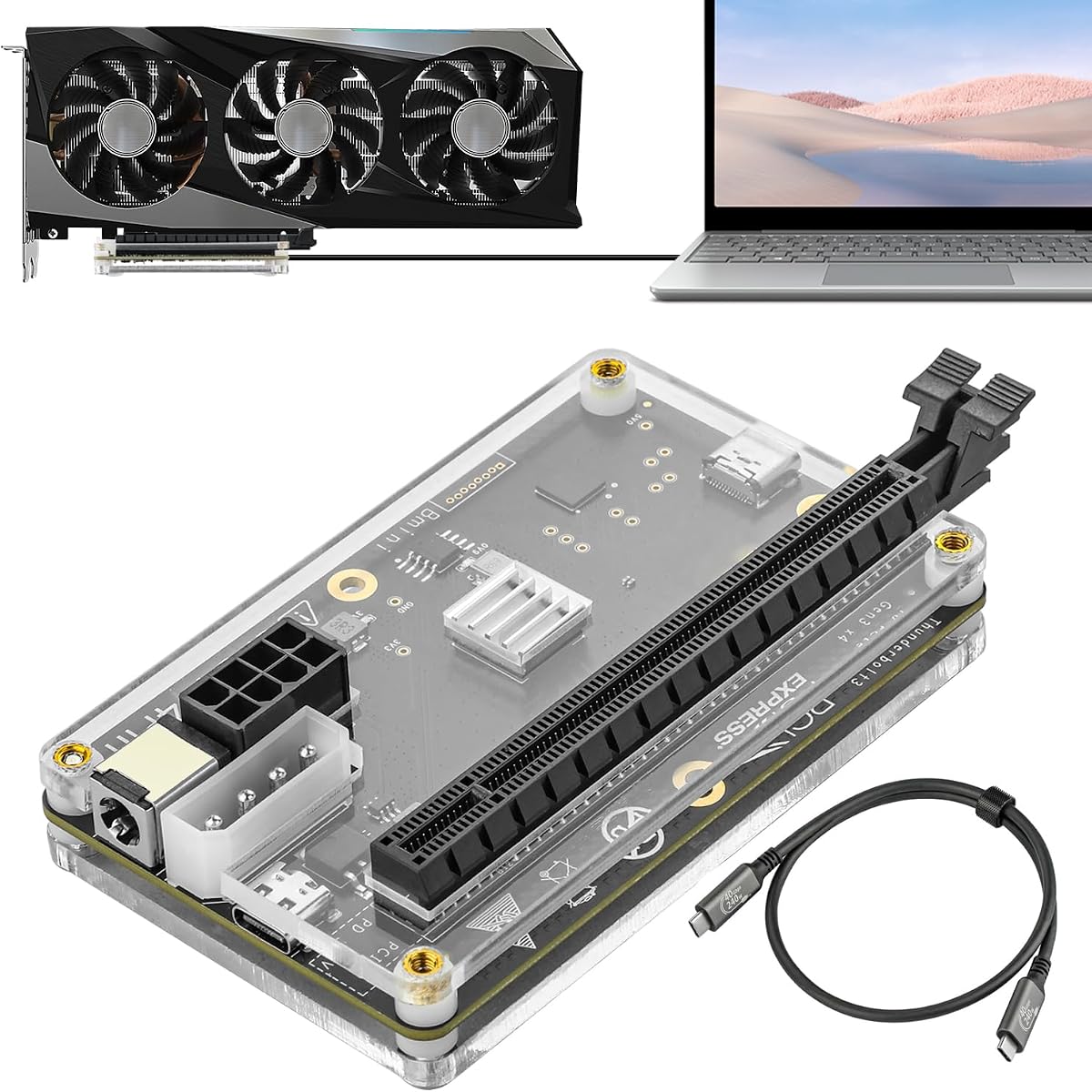


The MINISFORUM DEG2 USB4 V2 combines OCuLink and USB4 V2 in one external graphics enclosure, giving users a choice between two high-bandwidth connection strategies. Its 4.4 rating reflects a well-rounded design, particularly for owners who alternate between host devices or need more than a basic PCIe-to-graphics adapter.
We may earn a commission when you buy through this link, at no additional cost to you.
The USB4 V2 path is stated at up to 80Gbps, while OCuLink provides up to 64Gbps. A dedicated hardware switch allows the user to change modes without rearranging cables or adjusting software, which is particularly useful for a workstation that may connect to a Thunderbolt laptop, a USB4 desktop, or another compatible system. The built-in M.2 2280 slot is another meaningful expansion for model files, project assets, and other active data.
Compatibility is broad on paper. The enclosure supports standard ATX and SFX power supplies and is designed for a variety of desktop graphics cards. Its re-drive signal booster is intended to stabilize high-bandwidth transfers, while automatic power-on and host synchronization reduce the friction of starting a desktop-like session. These are useful features, although they do not eliminate the need to provide a suitable GPU and power supply.
This DEG2 is a strong recommendation for builders who want one dock to support both OCuLink and the newest USB4 V2 generation. It is especially appealing for rendering, AI inference, and other bandwidth-sensitive workflows where storage, display connectivity, charging, and graphics expansion are all desirable. Buyers should verify the physical clearance of their chosen card and confirm host-interface support before assembling the system.
The physical mode switch is the defining convenience. OCuLink can provide a dedicated PCIe path, while USB4 V2 offers broader one-cable integration, including the stated ability to handle data, display output, and laptop charging.
The M.2 2280 slot keeps frequently used models and project files close to the external graphics card. That can make a portable host feel more like a modular workstation rather than a thin client.
We may earn a commission when you buy through this link, at no additional cost to you.
The MINISFORUM DEG2 eGPU Docking Station is an unusually complete expansion platform, pairing OCuLink and USB4 V2 with a built-in M.2 slot, 2.5G LAN, and multiple USB ports. Its 5.0 rating makes it a leading choice for users who want a one-cable desktop environment rather than a barebones graphics adapter.
We may earn a commission when you buy through this link, at no additional cost to you.
The physical toggle between TB5 and OCuLink makes the enclosure adaptable to different hosts. Its port inventory includes a 140W and 30W TB5 connection, a 64Gbps OCuLink port, 2.5G Ethernet, USB 3.2 Gen2 and Gen1 connections, M.2 2280 storage, and a PCIe x16 slot. Reverse power and automatic host synchronization are designed to create a desktop-like startup experience, while the M.2 slot can hold models, assets, and project files.
The main caveat is that this is an enclosure rather than a complete graphics system. The GPU, ATX supply, and SFX supply are not included, and the product is not compatible with the MINISFORUM MS-02 workstation. Its two-mode design also demands careful attention to the host's physical ports and the power requirements of the selected desktop card.
Choose this DEG2 when the goal is to create a full desktop expansion hub around a compact computer. It is particularly compelling for AI, rendering, editing, and multi-device users who value the built-in Ethernet and storage alongside flexible graphics connectivity. Among the docks in this guide, it offers the most explicitly listed dock-style connectivity in a compact package.
The 2.5G LAN port separates network traffic from the graphics and storage connections, while the M.2 2280 bay provides fast local storage. Together they make the enclosure useful as a semi-permanent workstation hub.
Automatic power-on and reverse power reduce the number of separate startup steps. For compatible systems, the result is a more consistent transition from a portable host to a full external-GPU configuration.
We may earn a commission when you buy through this link, at no additional cost to you.
The Razer Core X V2 is a spacious Thunderbolt 5 enclosure aimed at builders who want to fit substantial desktop graphics cards into a laptop or compact system. Its 4.0 rating reflects a straightforward, modular approach, with support for PCIe desktop cards up to four slots wide and up to 140W of host charging.
We may earn a commission when you buy through this link, at no additional cost to you.
Thunderbolt 5 is specified at up to 80Gbps, while compatibility extends to Thunderbolt 4, Thunderbolt 5, and USB4 devices. The enclosure accepts current NVIDIA and AMD desktop cards, and its modular installation uses included thumbscrews for swapping the GPU and ATX power supply. A built-in 120mm fan automatically ramps during heavier loads, with a customizable fan curve for users who want more control.
The GPU and power supply must be purchased separately, and the product is not suitable for Mac systems using M1 or later chips because those devices do not support eGPUs. The enclosure also focuses on graphics expansion rather than adding a local M.2 drive, Ethernet, or a broad collection of peripheral ports.
The Core X V2 is a sensible choice for a Windows workstation that needs room for a wide card and a straightforward Thunderbolt connection. It suits gamers, creators, and Thunderbolt 5 owners who prioritize enclosure capacity and modular installation over additional storage or networking features. Checking the card's physical dimensions and host compatibility remains essential.
Four-slot capacity separates this enclosure from smaller solutions that restrict card width or length. That gives builders more freedom when choosing a powerful NVIDIA GeForce or AMD Radeon desktop card.
Included thumbscrews make the GPU and ATX power supply easier to replace. This is valuable for users who expect to upgrade their graphics hardware over time.
We may earn a commission when you buy through this link, at no additional cost to you.
The MINISFORUM DEG1 Docking Station focuses on the essentials of portable eGPU expansion. At approximately 14 centimeters long, 6.5 centimeters wide, and 2 centimeters high, it is designed to fit in a bag while providing an OCuLink 4i uplink, a PCIe 4.0 x4 downlink, and support for ATX or SFX power supplies.
We may earn a commission when you buy through this link, at no additional cost to you.
Its stated transfer rate is up to 64Gbps, and a signal amplifier is included to improve transmission stability. The ForcePowerOn control and LED provide a convenient startup option for supported workflows. The startup-tracking function is limited to MINISFORUM mini PCs and requires original cables, so buyers using other host systems should treat it as a general power-on aid rather than universal host synchronization.
Unlike USB4-based docks, the OCuLink connection does not support hot plugging. Users must turn the computer off before unplugging the cable. The locking mechanism helps prevent accidental removal, but this operating requirement makes the enclosure less convenient for spontaneous reconnects than a Thunderbolt or USB4 solution.
The DEG1 is a compelling value for builders who already have a compatible OCuLink host and want a compact, dedicated graphics expansion. It is well suited to gaming and professional processing on the move, provided they can plan around the shutdown-before-disconnect rule and confirm support for the ForcePowerOn function on their particular system.
The DEG1's compact dimensions make it easier to transport than a full-size desktop enclosure. It can serve as a mobile graphics kit for compatible laptops and mini PCs.
OCuLink provides a direct PCIe pathway without sharing bandwidth with display or USB traffic. The result is a focused option for users who value predictable graphics expansion.
We may earn a commission when you buy through this link, at no additional cost to you.
This PCIe 4.0 x4 OCuLink eGPU Dock is a direct graphics expansion enclosure centered on a 64Gbps connection. Its 4.4 rating reflects a practical design with detachable cable ends, a thin shielded SFF-8611 cable, broad support for desktop card sizes, and standard ATX power supply mounting.
We may earn a commission when you buy through this link, at no additional cost to you.
Detachable connectors at both ends improve portability and storage because the cable can be removed rather than leaving the enclosure tethered. The 0.5-millimeter-thick male-to-male cable uses full-coverage shielding and EMI materials, while the dock's PCB has 10-microinch gold-plated contacts intended to maintain conductivity and resist oxidation-related resistance. Multi-status LEDs provide visual feedback during operation.
The enclosure supports standard ATX power supplies and is designed to accept various desktop graphics card sizes without a general length restriction. However, it does not list SFX support, making it less flexible than several premium docks. OCuLink also does not support hot plugging, and the host must be shut down before the cable is disconnected.
This dock is well suited to users with an existing OCuLink-equipped computer who want a straightforward PCIe graphics path. It is less convenient for cross-platform work or frequent hot-swapping, but its detachable cable and broad card accommodation offer practical value. Buyers should confirm ATX power dimensions and the physical space available for their selected GPU.
Detachable ends let users separate the dock and cable for compact storage. The thin flat cable is also easier to arrange than a rigid conventional OCuLink lead.
Gold-plated contacts are intended to reduce resistance and oxidation concerns. Combined with shielding around the cable, they support more dependable high-bandwidth operation.
We may earn a commission when you buy through this link, at no additional cost to you.
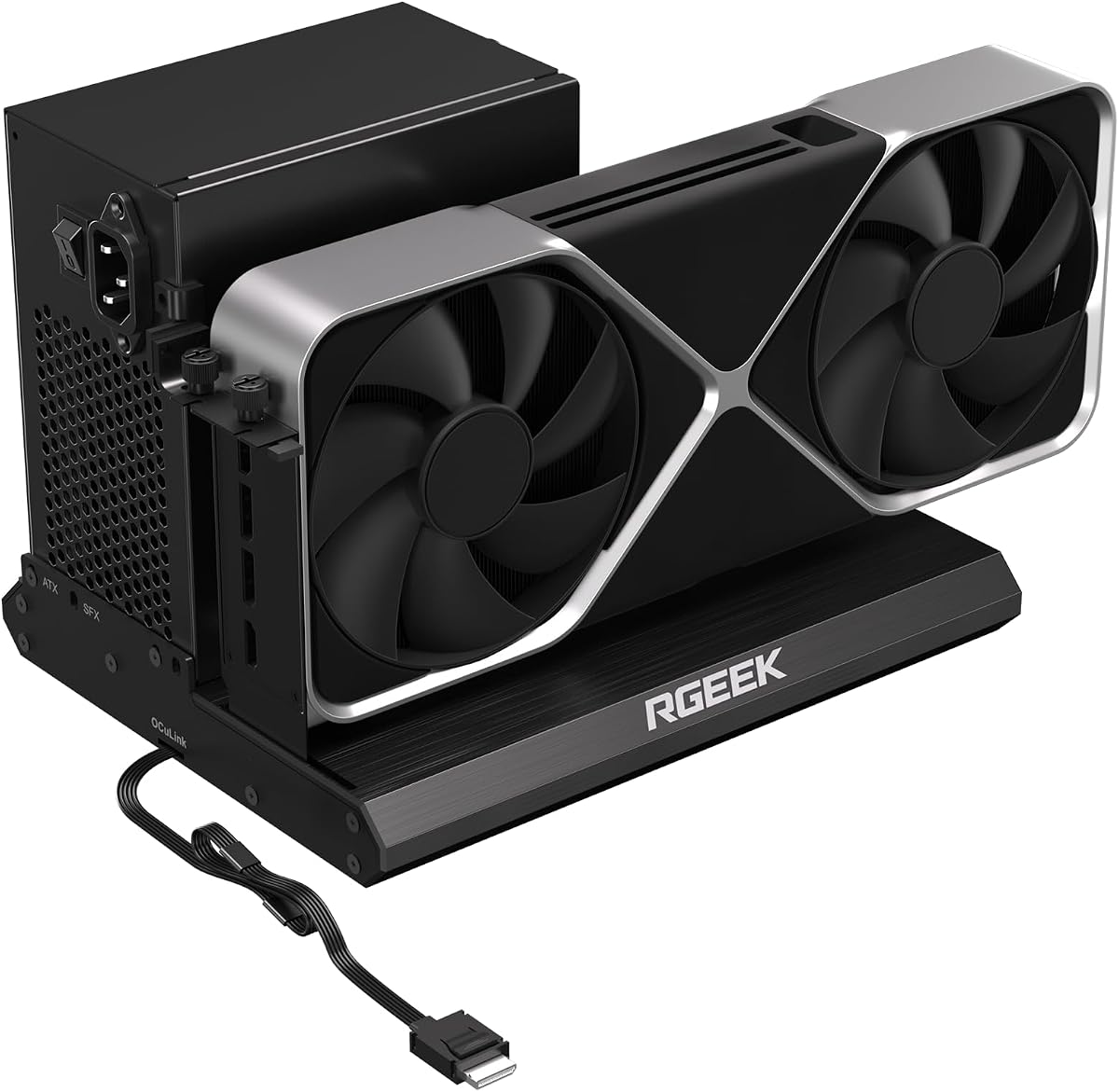
The RGEEK OCuLink eGPU Dock targets high-bandwidth expansion with a stated PCIe 5.0 x4 interface capable of up to 128Gbps. It is backward compatible with PCIe 4.0 and 3.0, making it a potentially forward-looking choice for owners who already have a suitable PCIe 5.0 host or adapter.
We may earn a commission when you buy through this link, at no additional cost to you.
The all-aluminum enclosure is intended to dissipate heat while maintaining structural rigidity. A factory-soldered SFF-8611 cable eliminates the need for a separate dock-side adapter and is designed to introduce negligible signal loss. Broad graphics-card acceptance covers mainstream NVIDIA and AMD products, while the power design supports ATX, SFX, and SFX-L supplies.
Reaching the full PCIe 5.0 rate requires an M.2 slot or a PCIe 5.0-to-OCuLink adapter, and that adapter is not included. Most existing OCuLink ports support PCIe 4.0 x4 and 64Gbps, so the headline capability will not automatically be available. Hot plugging is also unsupported, meaning the system must be shut down before disconnecting the cable.
The RGEEK dock is a compelling option for an enthusiast building a high-speed PCIe 5.0 workstation or laptop project. It is less accessible to buyers with a conventional PCIe 4.0 OCuLink host because the maximum specification depends on additional host-side hardware. It is best for users who are deliberately planning a next-generation expansion path.
The stated 128Gbps capability gives the enclosure room for future host-side PCIe 5.0 configurations. Users can still work with older generations, although throughput will follow the slower link.
The full aluminum body supports heat dissipation and provides a rigid enclosure for a desktop graphics card. A factory-soldered cable keeps the internal connection path simple.
We may earn a commission when you buy through this link, at no additional cost to you.
The UGREEN LinkStation eGPU Dock is the most ambitious premium enclosure in this group, combining a 64Gbps OCuLink path with 40Gbps USB4 and up to 100W of host charging. Its 4.8 rating reflects extensive compatibility, a flexible chassis, quiet cooling design, and support for several operating systems.
We may earn a commission when you buy through this link, at no additional cost to you.
Compatibility is a major strength. The product information lists tested NVIDIA, AMD, and Intel graphics cards, including recent and high-end desktop models. The removable top cover allows cards up to 370 millimeters long and four slots thick, although the external PCIe bracket opening is limited to dual-slot brackets. Support for current 12V-2×6 and PCIe 8-pin connectors simplifies connections with RTX 40- and 50-series cards.
Users can select OCuLink for dedicated high-speed PCIe transfer or USB4 and Thunderbolt 4 for broad device compatibility and hot-swap convenience. The built-in signal booster is intended to stabilize 4K gaming and intensive AI workloads, while Windows, Linux, and Intel-based macOS support broadens the software side of the equation. The semi-open all-aluminum chassis and large, low-RPM ATX 3.1 PSU fan focus on efficient cooling and lower noise.
This LinkStation is ideal for enthusiasts who want a polished, flexible external-GPU platform rather than a minimal adapter. It suits high-end laptops, handhelds, and mini PCs, particularly when the chosen card needs substantial length. Buyers should still check the bracket limitation, card dimensions, PSU requirements, and host compatibility before making a final selection.
OCuLink offers a dedicated 64Gbps PCIe route, while USB4 provides a more universal 40Gbps path with hot-swap convenience. The choice can be based on the host rather than being limited to one device type.
A removable top cover and four-slot capacity support oversized cards up to 370 millimeters long. The dual-slot bracket requirement remains an important dimensional caveat.
A semi-open aluminum chassis, large low-RPM fan, and integrated cable storage compartment are designed to manage heat while keeping the installation orderly.
We may earn a commission when you buy through this link, at no additional cost to you.
The PCIe 3.0 x16 Thunderbolt Dock offers broad host compatibility and unusual flexibility in how the enclosure receives power. Its 3.8 rating makes it a practical choice for systems using Thunderbolt 3, Thunderbolt 4, or USB4 rather than a current high-bandwidth OCuLink or USB4 V2 link.
We may earn a commission when you buy through this link, at no additional cost to you.
A JHL6340 controller provides a stated transfer speed of around 22Gbps, which the product positions for graphics work, video editing, AI art, and gaming. Compatibility covers most Windows 10, Windows 11, and Linux laptops, desktops, and consoles with a suitable Thunderbolt or USB4 port and an Intel or AMD processor. Some USB4 consoles may require a BIOS update before the interface becomes available.
Four power-input methods broaden the possible installations: CPU 4+4-pin, Molex, PD 3.0 up to 60W, and DC5521 up to 120W. This makes the enclosure useful where a standard ATX supply is inconvenient. The package includes the dock, a 23.6-inch Thunderbolt 4 cable, and a 24-pin power jumper cable.
The main limitation is bandwidth. Its approximately 22Gbps transfer rate is lower than the 40Gbps, 64Gbps, 80Gbps, and 128Gbps figures associated with other docks in this guide. It is most appropriate for users prioritizing device reach and flexible power over maximum transfer throughput, and it is not recommended for Intel graphics cards.
CPU, Molex, PD 3.0, and DC5521 inputs let users adapt the dock to different power environments. This is useful where an ATX supply is unavailable or impractical.
The dock supports Windows and Linux systems with Thunderbolt 3, Thunderbolt 4, or USB4. Console users may need to enable USB4 through a BIOS update.
We may earn a commission when you buy through this link, at no additional cost to you.
The MINISFORUM DEG2 External Dock shares the broad feature set of the other DEG2 listings, including OCuLink, USB4 V2 with Thunderbolt 5 support, a 2.5G LAN port, USB connectivity, and an M.2 2280 slot. It is a feature-rich option, although its 3.2 rating is the lowest among the products compared.
We may earn a commission when you buy through this link, at no additional cost to you.
A physical toggle changes between the 80Gbps TB5 path and the 64Gbps OCuLink interface without changing cables or software. The enclosure can hold full-size graphics cards, accepts ATX and SFX power supplies, and offers M.2 storage for models or project files. Automatic power-on and USB4 V2 reverse power are designed to create a desktop-like single-cable setup.
As with the other DEG2 models, the GPU and power supplies are not included, and the dock does not work with the MINISFORUM MS-02 workstation. The low rating may reflect differences in the listed product experience, but the supplied specification still describes a capable and versatile platform.
This DEG2 listing is best considered by buyers who specifically want its combination of dual high-speed links, Ethernet, and local NVMe storage. It offers many of the same core strengths as the higher-rated DEG2 variant, so careful comparison of the final listing, included components, and warranty information is advisable before purchase.
The combination of storage, Ethernet, USB, and two graphics uplinks gives the enclosure more utility than a simple PCIe adapter. It can act as the central hub for a compact workstation.
The physical OCuLink and TB5 toggle offers an easy way to match the enclosure to different compatible hosts while retaining the same graphics and power hardware.
We may earn a commission when you buy through this link, at no additional cost to you.
The JHL7440 Thunderbolt eGPU Dock is a hub-style external graphics solution built around an officially certified JHL7440 controller. Its 3.9 rating reflects a capable 40Gbps Thunderbolt 4 connection and broad device support, though the enclosure falls behind the newest dual-mode docks on peak bandwidth.
We may earn a commission when you buy through this link, at no additional cost to you.
Thunderbolt 3, Thunderbolt 4, and USB4 systems are supported, including NUCs, laptops, and gaming machines. The product information lists support for NVIDIA RTX 50-series and AMD RX 7000-series graphics cards, as well as local deployment of Deepseek-R1 on compatible hardware. The hub also includes a USB-A port and a daisy-chain connection, making it more versatile than a display-only adapter.
The host interface also provides 85W of USB-C power delivery. The package does not include a graphics card or ATX power supply, so the enclosure is intended to be configured by the buyer. A prominent warning notes that the CPU power cable must not be inserted into the PCIe 8-pin dock port because that incorrect connection can trigger automatic shutdown protection.
This dock is best for a user who wants Thunderbolt connectivity, peripheral expansion, and host charging without the complexity of choosing between OCuLink and USB4 V2. It works well for compact systems and mainstream desktop graphics cards, but buyers should carefully follow the power-cable guidance and confirm that the host exposes the required controller interface.
A 40Gbps Thunderbolt 4 connection handles graphics expansion while also providing 85W of host charging. This supports a cleaner single-cable workstation arrangement.
USB-A and daisy-chain ports allow the enclosure to function as a broader hub. That makes it useful when external storage, networking, or other peripherals also need to be connected.
The CPU power lead belongs in its designated connector, not the PCIe 8-pin socket. Following the stated shutdown-recovery procedure helps prevent an avoidable interruption.
We may earn a commission when you buy through this link, at no additional cost to you.
Choosing an eGPU dock requires matching its interface to the host, its physical capacity to the graphics card, and its power system to the installation. Bandwidth matters, but compatibility, cooling, and everyday operating constraints usually determine whether the setup is convenient.
The host interface is the most important link in the chain. OCuLink offers a dedicated PCIe connection and is available in PCIe 4.0 x4 and newer designs. USB4 and Thunderbolt provide broader device support and can offer hot-swapping, while the newest USB4 V2 products support 80Gbps connections. Razer, UGREEN, and the DEG2 models support high-speed USB4 or Thunderbolt paths, while the JHL7440 dock uses 40Gbps Thunderbolt 4.
Choose the interface your computer actually provides, not merely the fastest number printed on the box. A higher theoretical dock bandwidth cannot overcome a slower host connection.
Desktop graphics cards vary dramatically in length, height, thickness, and bracket design. Several products in this guide describe broad card compatibility, but the UGREEN LinkStation has a specific dual-slot bracket limitation, while the Razer Core X V2 is designed around cards up to four slots wide. Larger cards may also require more clearance inside the enclosure and a more substantial power supply.
Measure the available length and height, inspect the card bracket, and account for the power connector and cable bend. A card that fits the advertised maximum width may still be difficult to install if clearance is tight.
External graphics cards need enough power for the card, and some also power the host through the dock. The MINISFORUM DEG1 and DEG2 models support ATX and SFX supplies, and the RGEEK dock extends support to SFX-L. The UGREEN LinkStation uses an ATX 3.1 power supply, while the PCIe 3.0 x16 dock accepts several alternative low-voltage inputs.
Match the dock to a properly rated supply and confirm that the connector arrangement and physical space work together. Also account for the host-charging and GPU power paths, which may be separate depending on the model.
An eGPU cannot operate without compatible drivers, operating-system support, and a host interface. The UGREEN LinkStation lists Windows, Linux, and Intel-based macOS support, while the Razer Core X V2 is described for Windows 11 systems and excludes Macs with M1 or later chipsets. The PCIe 3.0 x16 dock is listed for Windows and Linux hosts.
Check the manufacturer's compatibility information before buying, particularly for less common mini PCs, consoles, and handhelds. A system that has a USB4-shaped port may still require a specific controller, firmware version, or BIOS setting.
Some eGPU enclosures function as full docking stations rather than simple graphics adapters. The MINISFORUM DEG2 models include an M.2 2280 slot, and two of the listed DEG2 variants also provide 2.5G LAN. The JHL7440 dock adds USB-A and daisy-chain connectivity, while the UGREEN LinkStation includes cable storage and broad GPU support.
Additional ports can reduce desk clutter, but they should complement rather than distract from the core requirement of stable graphics expansion. Consider which features you will use regularly before paying for a more elaborate enclosure.
A powerful desktop card generates heat, and a compact enclosure can trap it. The Razer Core X V2 includes a 120mm fan that automatically increases speed under load and supports a custom fan curve. The UGREEN LinkStation uses a semi-open aluminum chassis and a large, low-RPM ATX 3.1 PSU fan intended to provide efficient, quiet cooling. Aluminum construction also appears in the RGEEK dock.
Prioritize airflow, a sensible fan strategy, and enough space around the graphics card. Noise matters in offices and home offices, where a constantly high-speed fan can be as disruptive as a throttled card.
A dock that stays on a desk can be larger than one carried between locations. The MINISFORUM DEG1 is exceptionally compact at roughly 14 by 6.5 by 2 centimeters, while the PCIe 4.0 x4 OCuLink model uses detachable cable ends for more compact storage. Other full-size enclosures may better accommodate large cards and organized cable management.
Think about where the enclosure will live, how often it will move, and whether the host can reach its OCuLink or USB4 port easily. Portability is only useful if the enclosure and graphics card remain physically manageable for the intended user.
OCuLink docks in this guide do not support hot plugging, so the computer should be shut down before the cable is disconnected. USB4 and Thunderbolt designs offer more convenient reconnection behavior, with the UGREEN LinkStation specifically noting USB4 hot-swap convenience. The MINISFORUM DEG1 includes a locking OCuLink interface to reduce accidental unplugging.
Follow the manufacturer's connection procedure rather than assuming every dock behaves the same. Proper shutdown, connection, and startup habits can prevent link faults and protect both the host and enclosure.
Begin by confirming that the host supports the dock's interface, that the operating system recognizes the required controller, and that the graphics card and power supply fit the enclosure. Install the graphics card and PSU according to the dock's instructions, secure all connections, and verify that the card receives adequate clearance for airflow and power-cable bending.
For an OCuLink setup, shut down the host before connecting or disconnecting the cable, then unlock the connector if the enclosure includes a locking mechanism. For Thunderbolt or USB4, follow the connection order given by the manufacturer, and use the specified cable whenever possible. Install the required graphics drivers and confirm that the system detects the external GPU before launching a demanding workload.
Leave the dock's vents unobstructed and avoid placing it in a closed cabinet unless adequate airflow is available. Keep the power connections secure, monitor temperatures under sustained load, and update the host and graphics drivers as needed. When moving an OCuLink system, power it down fully first; for portable use, pack the GPU securely and protect the cable connectors from bending or impact.
It depends on the generation of each connection. A PCIe 4.0 x4 OCuLink link is listed at 64Gbps, while a 40Gbps USB4 or Thunderbolt 4 connection is generally used for broader compatibility. Newer USB4 V2 docks can reach 80Gbps, so the fastest available route depends on both the dock and the host rather than the connector name alone.
No. The host needs a compatible interface, appropriate drivers, and operating-system support. OCuLink requires a host with the matching PCIe connection, while Thunderbolt and USB4 docks need the correct controller and firmware support. Some consoles and mini PCs may also require a BIOS update before their USB4 connection becomes usable.
No. The featured enclosures are generally sold without a desktop graphics card, and most also require the buyer to provide an appropriate power supply. This allows the same dock to be paired with different GPUs, but it also means the complete system cost and physical compatibility must be considered before purchase.
The OCuLink models in this guide do not support hot plugging. Shut down the computer before unplugging the OCuLink cable, then reconnect it and start the system when ready. USB4 and Thunderbolt docks generally offer more flexible reconnection behavior, subject to the host and operating system.
Use a power supply with sufficient wattage and the exact connector or form factor supported by the enclosure. The reviewed products vary widely: some accept ATX and SFX, one also supports SFX-L, and another accepts several low-voltage input styles. Check both the graphics card's requirements and any separate host-charging needs.
It can, provided the host interface, driver support, graphics card, and workload are all suitable. A capable desktop card can improve demanding games and creative applications compared with integrated or lower-tier mobile graphics. However, bottlenecks in host bandwidth, thermals, storage, CPU performance, or software compatibility can reduce the benefit.
Not necessarily, but it can be valuable for active workflows. The DEG2 models include an M.2 2280 bay for models, project files, and assets, reducing the need to keep large working sets on the portable host. If you mainly play games or perform lighter tasks, the extra storage feature may be less important than chassis size, cooling, or card clearance.
Many can, but support depends on the dock and host. The UGREEN LinkStation lists tested NVIDIA, AMD, and Intel desktop cards, while most other products emphasize NVIDIA and AMD compatibility. The PCIe 3.0 x16 dock specifically does not recommend Intel graphics cards, so the manufacturer's compatibility list should be checked before selecting a less common card.
The UGREEN LinkStation eGPU Dock stands out for premium hybrid connectivity, extensive GPU compatibility, flexible card accommodation, and a quiet, organized enclosure. The MINISFORUM DEG2 listings offer an especially rich combination of OCuLink, USB4 V2, Ethernet, and M.2 storage, while the MINISFORUM DEG1 is a compact, budget-minded option for compatible OCuLink systems.
Prioritize the interface your host supports, the dimensions of your chosen graphics card, and the power supply format required by the enclosure. High theoretical bandwidth is valuable, but it is only one part of a successful configuration. Consider cooling, local storage, networking, portability, and whether the dock's shutdown or reconnection rules suit your workflow.
Current prices, availability, component bundles, and product details can change, so review the current listing before buying. Confirm that the graphics card, PSU, host interface, operating system, and required drivers are mutually compatible. With those checks completed, the right Egpu Docks choice can turn a compact computer into a capable gaming, creation, or AI workstation.