
Elgato 4K Pro Internal Capture Card
4.5Editor score
8K60 passthrough support
4K60 gameplay capture
PCIe internal installation
This Dual PC Streaming Setup Capture Card guide compares ten capture cards for dual-PC recording, low latency, passthrough, resolution, and compatibility.
A dual PC streaming setup separates gaming, capture, encoding, and broadcasting across two systems, making capture-card selection more demanding than a basic webcam choice. The right device must preserve high-quality visuals, maintain low latency, and integrate smoothly with software such as OBS, Streamlabs, Zoom, and Teams while supporting the equipment in your workflow.
We compared ten capture cards using the supplied specifications, customer ratings, connectivity, supported resolutions, recording formats, passthrough behavior, and compatibility claims. The list covers external USB devices, internal PCIe cards, integrated audio interfaces, and multi-input options designed for console, camera, and dual-computer workflows without suggesting that every model suits every creator.
Each review identifies the product's strongest use case, important limitations, and suitability for a two-PC arrangement. Ratings and specifications reflect the supplied product information, while feature support can vary with source devices, operating systems, software, firmware, and display standards. Product pricing and availability can change, so confirm current listings before purchasing.
4.5Editor score
4.5Editor score

4.3Editor score
The comparison below organizes all ten options by connection style, maximum stated capture capability, passthrough support, and practical relevance to a two-PC streaming workflow. Internal cards favor direct PCIe integration, while external models offer flexible placement and several include audio connections or multi-source switching.


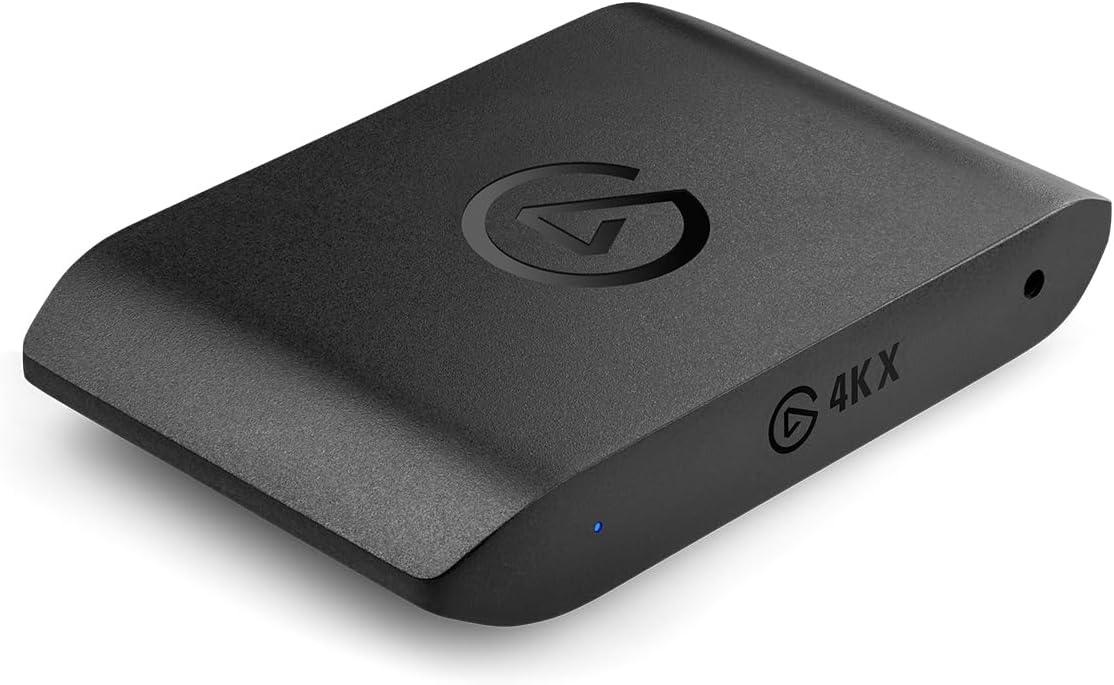
The Elgato 4K X earns a 4.5 rating and stands out as the most balanced option in this guide for creators who want high-frame-rate capture without moving to an internal installation. Its headline capability is 4K144 capture, while HDMI 2.1 support opens the door to demanding console, camera, and PC sources. That makes it particularly relevant when one PC handles gameplay and another runs OBS, recording software, or a broadcast encoder.
We may earn a commission when you buy through this link, at no additional cost to you.
The card supports capture through USB 3.2 Gen 2 with an emphasis on ultra-low latency, helping keep the source and software monitor responsive. Its stated compatibility extends across OBS, Streamlabs, Twitch Studio, Restream, Zoom, Teams, YouTube, Twitch, Discord, and Facebook Gaming. HDMI passthrough can send the source to a local display while software captures it, and VRR passthrough supports smoother variable-refresh-rate presentation when the entire chain is compatible.
The important qualification is that impressive headline figures depend on the source, display, cable, software, and host computer. HDMI 2.1 does not automatically guarantee 4K144 capture or passthrough in every environment, and the game PC must also provide an appropriate output. Even so, the card offers more latitude for high-refresh workflows than many external alternatives, while its broad software support makes setup less restrictive.
This is the most broadly convincing choice for a serious dual-PC streaming arrangement that values 4K, high frame rates, passthrough, and low latency. It is especially attractive when the capture PC is separated from the gaming PC and connected through USB. Creators should still verify the exact resolution and refresh-rate combinations their camera or console can deliver before building the final workflow.
Support for 4K144 capture and up to 240fps at 1080p provides useful headroom for fast gameplay and detailed motion. The host software, graphics output, storage, and encoder must all be able to process the selected format without compromising the rest of the production chain.
Keeping capture on a dedicated PC separates encoding and recording tasks from the game machine. USB 3.2 Gen 2 provides a modern connection path, while HDMI passthrough allows the source to remain visible on a local display.
We may earn a commission when you buy through this link, at no additional cost to you.
This generic 4K internal capture card carries a 4.3 rating and directly addresses dual-PC setups, making it a practical option for creators who prefer a PCIe connection over an external USB device. Its key attraction is the combination of 4K60 passthrough, matching 4K60 capture, and stated near-zero latency passthrough. Those features suit a game PC feeding a dedicated streaming or recording system.
We may earn a commission when you buy through this link, at no additional cost to you.
The card can also record high-motion footage at 240fps in 1080p, providing a more specialized option for fast action. Its compatibility with OBS, YouTube, Zoom, Teams, and other streaming environments means it can sit within a familiar production pipeline. Direct PCIe integration can also avoid some of the bandwidth and connection uncertainty associated with external capture devices, provided the computer has a compatible expansion slot and drivers.
Its trade-offs come from being an internal product. The destination computer must have an available PCIe slot, appropriate installation space, and enough system resources for the intended workflow. A generic model also demands closer attention to system requirements and support documentation than a more narrowly specified capture device. The stated near-zero latency should be understood as a passthrough feature, not a guarantee of end-to-end delay across every software and display combination.
For builders comfortable opening a desktop, this is a strong choice when the second PC is dedicated to streaming, recording, or encoding. It makes less sense for a laptop-based production system or for anyone who needs to move the capture device between machines. Confirm case clearance, slot availability, and source-format support before installation.
The product information specifically identifies single and dual PC setups as a target. That makes it easier to justify a separate streaming PC when gameplay rendering, recording, encoding, and broadcasting would otherwise compete for the same resources.
The stated 240fps recording capability at 1080p is useful for slow-motion analysis, sports, and energetic gameplay. It provides a different reason to choose an internal card beyond ordinary 4K60 streaming output.
We may earn a commission when you buy through this link, at no additional cost to you.
The RØDE X Streamer X is the most complete integrated hub in the group, combining a 4K video capture card with an audio interface. Its 3.8 rating is lower than those of the leading capture-only products, but that figure should be considered alongside its unusually broad set of audio and computer-routing features. It is designed for creators who want fewer separate devices in a compact streaming station.
We may earn a commission when you buy through this link, at no additional cost to you.
Its dual USB-C outputs allow two computers to be connected simultaneously: one can supply the video feed while the other receives the streaming workload. That arrangement maps naturally onto a dual-PC setup, reducing the need for additional USB routing hardware. The Neutrik combination input, Revolution Preamp, and 3.5mm audio connections also support microphones, line-level equipment, and commentary workflows without treating audio as an afterthought.
For video, the device records up to 4K30 or 1440p60 through HDMI and supports real-time monitoring up to 4K60 via HDMI passthrough. This is not the strongest raw capture specification in the guide, and 4K60 passthrough does not mean 4K60 recording. The on-board receiver for supported RØDE Series IV wireless products is a notable convenience, but buyers should confirm that their intended microphone or transmitter is among the compatible models.
Choose the X Streamer X when audio quality, compactness, and two-computer connectivity matter as much as maximum capture resolution. It is particularly attractive for podcast-style streams, interviews, and commentary-led production. It is less compelling for creators whose only priority is the highest possible gaming capture rate.
The dual USB-C outputs support a source computer and a separate streaming computer at the same time. This makes the device particularly natural for a two-PC production desk where video capture and broadcast control are divided between systems.
A Neutrik combination input and Revolution Preamp give creators a more deliberate microphone path than a basic capture device with a generic headset jack. That is valuable when voice quality is central to the finished program.
We may earn a commission when you buy through this link, at no additional cost to you.
The Elgato 4K Pro is a premium internal option with a 4.5 rating, and its differentiator is an impressive 8K60 passthrough capability. Capture is specified at 4K60, allowing the local display chain to carry a higher-resolution image than the recorded output. For a dual-PC setup, that can provide a sharp gameplay monitor while a second machine handles capture, recording, and streaming.
We may earn a commission when you buy through this link, at no additional cost to you.
HDMI 2.1 input and output support modern high-bandwidth sources, while the listed ability to record high frame rates up to 240fps at 1080p expands the choice for motion-heavy content. VRR passthrough is another meaningful feature for modern gaming displays. The supplied information also lists compatibility with OBS, Streamlabs, Twitch Studio, Restream, Zoom, Teams, and major streaming platforms.
The main limitation is obvious: it must be installed inside a compatible desktop rather than connected to a laptop or moved between systems. An 8K60 headline is also primarily a passthrough capability and should not be mistaken for 8K60 recording. The source device, GPU, display, cables, and capture software all need to cooperate. Actual image quality and latency can also depend on how the host is configured.
This card is suited to creators with a capable desktop who want a premium, high-bandwidth internal solution. It is an excellent fit when the game PC remains visually immersive at 8K60 while another computer performs broadcast duties. For simpler 1080p streams, its extra capabilities may go unused, but the underlying HDMI 2.1 platform offers useful long-term flexibility.
The ability to pass through 8K60 while capturing 4K60 supports a split-role workflow. The game PC can drive a high-end display, while the dedicated capture PC receives the signal intended for recording and broadcasting.
VRR passthrough helps preserve smooth variable-refresh-rate visuals when the game, graphics card, capture card, and display all support the same standard. This is more relevant to the local viewing experience than to the encoded recording itself.
We may earn a commission when you buy through this link, at no additional cost to you.
The Rybozen 4K HDMI Video Capture Card offers a straightforward path into dual-PC streaming at a modest entry point, earning a 4.3 rating. Although its name emphasizes 4K input, the stated capture resolution is 1080p, which is the number that matters most when evaluating live production output. It is a practical choice for tutorials, consoles, and standard 1080p broadcasts.
We may earn a commission when you buy through this link, at no additional cost to you.
Plug-and-play operation is the main convenience. The device requires no driver or external power and is automatically identified as a webcam, reducing the setup burden on a secondary streaming PC. HDMI loop-out provides local monitoring, while a 3.5mm microphone input allows commentary to be mixed into the production workflow. Windows and Mac support extends its usability across common dual-PC arrangements.
The limitations are significant for advanced users. Input accepts 4K30 or 4K60 signals and higher 1080p refresh rates, but it does not support 4K120 or 4K144, and output reaches only 2K30 according to the supplied specifications. It also relies on UVC-style behavior rather than offering a raw high-bandwidth PCIe path. The claim of no freeze depends on correct software settings, so source-format configuration still matters.
Buy this card if your core requirement is dependable 1080p capture, automatic setup, and commentary support without installing internal hardware. It is less appropriate for creators chasing 4K60 recording, 240fps footage, VRR, or the lowest possible latency. Within those boundaries, it offers a convincing foundation for a two-PC streaming desk.
Treating the capture card as a webcam allows common streaming and recording applications to recognize it with minimal configuration. This simplifies setup on a dedicated second PC and reduces reliance on device-specific drivers.
The most important distinction is between accepting a 4K input and recording 4K output. This model is primarily built around 1080p capture, so its value is strongest for creators whose streaming platform and production requirements are equally focused on 1080p.
We may earn a commission when you buy through this link, at no additional cost to you.
The PORTTA DX20R pairs a 4.2 rating with one of the most versatile external feature sets in the guide. It supports 4K60 capture, 2K144 capture, and 1080p240 capture according to the supplied data, while passthrough extends to 1080p240 and 2K120. That range makes it appealing to gamers who want flexibility without installing a PCIe card.
We may earn a commission when you buy through this link, at no additional cost to you.
HDR and VRR support improve the potential local viewing experience, and the inclusion of YUY2, NV12, and RGB24 formats gives the software several ways to handle video data. Plug-and-play operation is advertised for Windows, macOS, and Linux. A smart display and ring-light control, along with real-time operating parameters, makes the device more approachable for a creator assembling a complete desk setup.
The PORTTA CapHub Utility adds deeper control over video settings, audio mixing, firmware, and EDID or VRR modes. That is useful, but it also means the card is not necessarily the simplest option for a first-time streamer. Users must also ensure that the host's USB 3.0 implementation and source device can support their chosen format. HDR, VRR, and high-refresh modes also require compatible displays and source hardware.
The DX20R is a good middle ground for a dual-PC setup where the streaming PC is external to a gaming system. It provides the resolution and refresh-rate range to handle demanding sources while retaining a straightforward USB connection. Choose it when flexible formats, high-refresh passthrough, and desktop control utilities matter more than the absolute simplicity of a basic webcam-style device.
YUY2, NV12, and RGB24 support allows software to use different video formats depending on workflow and hardware. This can help creators balance color quality, processing load, and recording efficiency rather than accepting one fixed output path.
EDID and VRR management through CapHub can make it easier to establish a stable display arrangement between the source and capture PC. The ring-light and status controls also reduce the need to reach behind the device during production.
We may earn a commission when you buy through this link, at no additional cost to you.
The Acer USB 3.0 HDMI Capture Card combines a 4.4 rating with an approachable design centered on 1080p60 streaming. It accepts 4K HDMI input and includes loop-out, but its stated output performance is 1080p60. That makes it most attractive to creators who need a dependable, uncomplicated bridge between a game or camera source and a separate streaming computer.
We may earn a commission when you buy through this link, at no additional cost to you.
YUY2 is an important part of the proposition because the supplied description positions it as delivering richer color than MJPEG. The device also includes a 3.5mm microphone input for commentary, teaching, and vlogging, with the aim of keeping voice synchronized with the image. Its small, lightweight enclosure is easy to carry between a home studio, classroom, and mobile production location.
Setup is designed to be uncomplicated: no extra drivers or external power are required. The listed source and software compatibility is broad, covering consoles, Switch-family devices, PCs, cameras, Android devices, OBS, XSplit, VLC, and major online platforms. However, 1080p60 is the practical ceiling, and the product information does not advertise advanced features such as HDR passthrough, VRR, 240fps recording, or multi-input switching.
This is a good pick for a budget-conscious two-PC arrangement focused on 1080p output, direct commentary, and broad compatibility. It is less suitable for high-end 4K60 producers or creators who expect advanced passthrough control. Its value lies in a clear, well-understood feature set rather than maximum technical ambition.
YUY2 output can be preferable to heavily compressed MJPEG workflows because it preserves source detail more efficiently. That makes this card relevant to creators who want clean 1080p output without moving to a more complex internal card.
The compact, lightweight enclosure and driverless USB connection make the Acer easy to deploy on a second streaming PC or carry to another location. It also reduces the number of external power adapters occupying the production desk.
We may earn a commission when you buy through this link, at no additional cost to you.
The XIIXMASK USB 3.0 card delivers a 4.2 rating and a well-rounded specification set for creators building a separate capture PC. It supports 4K60 video capture over USB 3.0, 4K HDMI passthrough, and recording at 1920 by 1080 up to 120fps. These capabilities place it above basic 1080p-only devices without requiring an internal installation.
We may earn a commission when you buy through this link, at no additional cost to you.
MJPEG, YUY2, NV12, and XRGB formats offer useful flexibility for streaming and recording software. Its 3.5mm audio input and microphone output allow a headset or microphone to be integrated into the captured content, which is helpful for gaming commentary and events. Plug-and-play operation requires no drivers or external power, while USB A and USB-C connection options improve compatibility with different host computers.
Compatibility is one of its strongest practical features. The supplied details list support for modern and previous console generations, VR headsets, cameras, webcams, set-top devices, and DVDs, along with OBS Studio, Streamlabs, VLC, PotPlayer, Zoom, YouTube, and Twitch. The product information does not mention HDR, VRR, EDID controls, or a multi-input switcher, so creators should not mistake broad device support for advanced display management.
The XIIXMASK is a strong fit for a 1080p or 4K60 dual-PC setup that values high frame rates, multiple color formats, and flexible connectivity. It is a particularly balanced option when 120fps 1080p recording is desired but an internal PCIe card is unnecessary. Ensure that the source and streaming PC support the selected format and that the USB controller can sustain the intended data rate.
Supporting MJPEG, YUY2, NV12, and XRGB gives the creator choices when balancing image quality, compatibility, and processing requirements. The useful option depends on the source, capture software, CPU, and recording workflow.
Separate 3.5mm audio input and microphone output connections support commentary and ambient sound. This makes the device more versatile for a dual-PC desk where the gaming PC may already handle the game audio while the capture PC manages commentary.
We may earn a commission when you buy through this link, at no additional cost to you.
The Osee GoStream M2 is built around a different dual-PC idea: rather than merely helping divide gaming and streaming tasks, it can accept two different HDMI sources at once. Its 4.2 rating reflects a feature set centered on two 4K60 HDMI inputs, USB 3.0 capture, and a 1080p60 HDMI output. That makes it useful for switching between a console, camera, or computer without constantly reconnecting cables.
We may earn a commission when you buy through this link, at no additional cost to you.
A physical switch control and an assortment of picture-in-picture and picture-by-picture layouts offer more control over the final scene. Four PBP layouts and four zoomable PIP layouts can be useful for live events, interviews, educational demonstrations, or a gaming broadcast that needs a secondary source. A 3.5mm connection supports headsets, microphones, and external commentary, while low-latency USB 3.0 operation is intended to keep the captured image responsive.
The central trade-off is output resolution. Although each input can accept 4K60, the listed HDMI output and capture target is 1080p60. It also does not advertise 240fps recording, HDR, VRR, or 8K passthrough. The frame rate of the output follows UVC settings, so software configuration and host support can influence the final result.
Choose the GoStream M2 when switching between two sources is more important than producing 4K60 encoded output. It is particularly compelling for livestream producers who need a console and camera, or a gameplay feed and an external device, in one production system. It can also fit naturally into a dual-PC workflow where the second PC manages the composite scene.
Dual 4K60 inputs allow a game console, camera, and computer to remain connected in different combinations. The physical switch and software layouts make it possible to present them together or move between them without rearranging the physical setup.
Picture-in-picture and picture-by-picture options are valuable when a stream must combine gameplay with a camera, presentation, or commentary feed. The layout choices provide more control than a basic single-input card for event-style production.
We may earn a commission when you buy through this link, at no additional cost to you.
The AVerMedia GC575 Live Gamer 4K 2.1 is an internal PCIe capture card aimed at console and PC creators who want a modern high-bandwidth connection. Its 4.3 rating and listed support for 4K60 capture, HDMI 2.1, ultra-low latency, and refresh rates up to 240Hz make it a credible option for a dedicated streaming or recording PC.
We may earn a commission when you buy through this link, at no additional cost to you.
The card's specified console compatibility includes PS5, PS4 Pro, Xbox Series X/S, Xbox One X, and Switch games. In a dual-PC arrangement, the console or gaming PC can feed the internal card while the second system handles the production stack. Since the connection runs through PCIe rather than an external USB cable, it can be attractive to creators who want a permanent, high-bandwidth installation.
The supplied product data is much less detailed than for the other products, so buyers should request or verify the complete specifications before committing. In particular, it is important to distinguish 240Hz support from 240fps recording, verify passthrough behavior at the desired resolution, and confirm that the motherboard and graphics card can present the required output. Ultra-low latency describes the intended capture path but does not eliminate delay introduced by software, encoding, or displays.
The GC575 is best suited to a fixed desktop production system with modern console ambitions. It is less suitable for a laptop, temporary live location, or creator who wants a simple external device. Its combination of HDMI 2.1 and high refresh-rate support makes it promising for performance-focused gaming streams, provided buyers confirm the exact format matrix.
Installing the card in the capture or streaming PC removes the need for an external capture enclosure and leaves only the source-to-card HDMI connection to manage. For a permanent two-PC desk, this can produce a cleaner and more predictable system.
HDMI 2.1 and up-to-240Hz support target modern consoles and high-refresh displays. The exact combinations should be checked against the source, graphics card, display, and application before installation.
We may earn a commission when you buy through this link, at no additional cost to you.
Choosing a capture card for a two-PC streaming setup means balancing the signal path, source format, host interface, passthrough needs, audio routing, and installation constraints. The most capable specification is useful only when every device in the chain can support it.
Start with the resolution and frame rate you intend to record, rather than the highest number printed on the package. A card may accept 4K input while recording only 1080p, or provide high-refresh passthrough without offering the same rate for capture. For a dual-PC system, compare the desired capture output with the game PC's display output, the capture PC's software settings, and the encoder's supported formats.
External USB capture cards are flexible, portable, and easier to move between a gaming PC and a dedicated streaming PC. They require a host port with adequate real-world throughput, and the supplied USB generation is only one part of that equation. Internal PCIe cards provide a direct connection to the motherboard and are better suited to permanent desktop installations, but they require an available slot, physical clearance, compatible drivers, and a willingness to install hardware.
Passthrough lets a local display show the source while the capture PC receives a separate feed for recording or streaming. It is valuable in a two-PC setup because the creator can maintain a responsive game view on one monitor while broadcasting from another. Check the stated passthrough resolution, refresh rate, HDR capability, VRR support, and HDMI version, because these features require compatible source hardware, cables, software, and displays.
A capture card can be the central hub for video and sound or simply the video bridge between two PCs. Integrated audio interfaces, 3.5mm inputs, headset connections, line-level inputs, and microphone outputs make commentary easier when the game PC sends picture while the streaming PC manages the voice track. For a professional production, assess preamp quality, connection types, and whether the supplied device can control audio mixing independently of OBS or another application.
A capture card is only as useful as the applications that recognize it. The products in this guide list support for combinations of OBS, Streamlabs, Twitch Studio, Restream, Zoom, Teams, VLC, XSplit, and other tools. Confirm that the desired program supports the card's direct or UVC-style input method, and check operating-system support as well. Newer standards may also require firmware updates, utility software, or careful EDID configuration.
Some dual-PC creators need one game feed, while others need to combine a console, camera, and computer. A dual-input card with physical switching, picture-in-picture, or picture-by-picture layouts offers more control over live composition. Single-input cards are simpler and often sufficient when sources can remain connected through software or a manual switcher. Additional inputs add convenience, but they do not automatically raise the resolution of the final encoded stream.
Low latency matters most to the person operating the game, even if a small delay does not alter the final recording. Evaluate the complete path rather than the capture card alone. The source device, connection, software preview, encoder, display, and viewing mode all contribute to perceived delay. For modern gaming displays, VRR and HDR support can improve the local experience, but they remain optional features that need matching hardware throughout the chain.
A capture card that performs well on a specification sheet can still be awkward if its cables, ports, controls, or enclosure do not fit the desk. Internal cards need expansion-slot clearance, while external cards benefit from a nearby USB port and accessible HDMI connections. Consider where the capture PC sits, whether the product requires external power, whether audio controls are accessible, and whether firmware or utility software will make future changes easier.
Begin by identifying the role of each PC. The gaming or source PC should send the cleanest available HDMI signal to the capture card, while the streaming PC runs the capture, recording, and broadcasting software. If the capture card is external, connect it to the streaming PC with the specified high-speed USB cable and confirm that the port is on the host controller rather than an unpowered hub. Internal cards should be installed in the streaming PC with the system powered off and the manufacturer's instructions followed.
Next, connect the source to the card's HDMI input and use the HDMI output for the local display. Select the matching source format in the capture software, and avoid adding a conversion step unless it is necessary. Configure the resolution, refresh rate, color format, and audio inputs only after the basic video appears correctly. For a dual-PC setup, decide whether game audio travels through an HDMI return path, a separate connection, or the capture card's audio interface, and make a test recording to confirm synchronization.
For maintenance, keep the capture card and connectors away from dust, moisture, and tension. Handle internal cards by their edges, avoid forceful insertion, and route HDMI cables so their connectors are not pulled sideways. Update firmware and utility software when the manufacturer provides it, and periodically check the current source format, EDID behavior, audio routing, and recording health. If a change in resolution, HDR, or VRR causes problems, return to a known working configuration before changing several settings at once.
A capture card is usually needed when the second PC must receive video from a console, game PC, camera, or another device. A software-based virtual display can work for some direct desktop workflows, but it may not support every resolution, refresh rate, HDR feature, or passthrough requirement. Hardware capture provides a more consistent signal path across separate computers.
The capture card is usually installed in the streaming, recording, or encoding PC so that the game PC can devote more resources to gameplay. An external card can make this arrangement easier because it simply connects by USB. Whichever design you choose, the receiving computer must be able to process the selected format and run compatible capture software.
A 4K input means the card can accept a 4K HDMI signal, while 4K capture means the video sent to the recording software is also 4K. Some products accept 4K but output 1080p. Check the capture and passthrough specifications separately because they may support different maximum resolutions.
No. A low-latency capture card can reduce delay within the hardware path, but software preview, encoding, display response, and the source device can still introduce latency. Proper configuration helps, and switching to a local game view rather than monitoring the encoded feed can make the gaming experience feel more responsive.
They are valuable if your monitor, source hardware, graphics card, cables, and software all support the same standards. HDR can improve local image quality, while VRR can reduce screen tearing during compatible gameplay. Neither feature automatically improves a standard-definition recording, and unsupported combinations may require different resolution or refresh-rate settings.
An internal card can be preferable for a permanent dual-PC desk because it provides a direct host connection and avoids external cabling around the capture device. An external card is easier to install, move, or share with other systems. The better choice depends on your case design, available PCIe slot, USB controller quality, and production mobility.
Only a model with multiple inputs can accept both at the same time. The Osee GoStream M2 in this guide has dual 4K60 HDMI inputs and PIP or PBP layouts for switching or compositing sources. A single-input capture card can still be paired with a separate hardware switcher, though that adds another device and potential routing complexity.
Record a short test while checking video sharpness, frame rate, audio synchronization, commentary levels, passthrough delay, and software detection. Open the resulting file rather than relying only on the preview. Also test the intended resolution and refresh rate with every source and display in the chain, because failures can appear only at specific formats.
The Elgato 4K X is the strongest all-around recommendation because it combines 4K144 capture, 1080p240 recording, HDMI 2.1, VRR passthrough, and a low-latency USB 3.2 Gen 2 connection. The Elgato 4K Pro is the premium internal choice for a fixed high-end desktop, while the Rybozen HDMI Video Capture Card provides the most accessible route to a 1080p dual-PC workflow.
Prioritize the exact output format, host connection, passthrough behavior, audio needs, and multi-source requirements rather than treating resolution as the only criterion. Internal cards suit permanent desktop builds, external cards provide flexibility, and integrated devices can simplify both audio and computer routing. Whatever route you choose, test the complete signal path before a critical broadcast and keep the capture and gaming roles clearly separated.
Ratings, firmware, software compatibility, and product listings can change over time, so confirm current specifications and market pricing before buying. A device that supports your chosen resolution, frame rate, source devices, and operating environment will deliver a more dependable result than one with a longer but incompatible specification list.